Showing posts with label ICOM Next. Show all posts

Sunday, March 20, 2022

How to Update BMW ICOM NEXT Firmware to V1.44

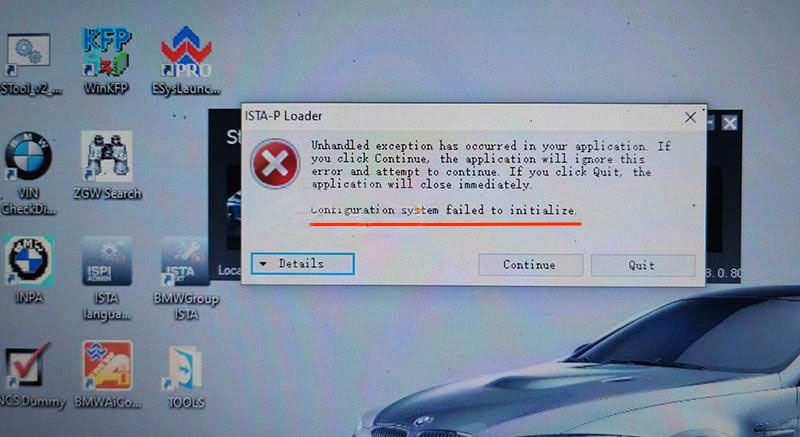
The BMW ICOM Next Professional Diagnostic Tool is the same as BMW ICOM A1/A2/A3 and supports all BMW software and fiber optic programming. This article will show you how to update the BMW ICOM NEXT firmware. Without a firmware update, you may get that the configuration system could not be initialized and the BMW ICOM software is not working.

How-to-Update-BMW-ICOM-NEXT-Firmware-to-V1.44-1
How-to-Update-BMW-ICOM-NEXT-Firmware-to-V1.44-2

How to Update BMW ICOM NEXT Firmware to V1.44?

Step 1. Login in ICOM Manager

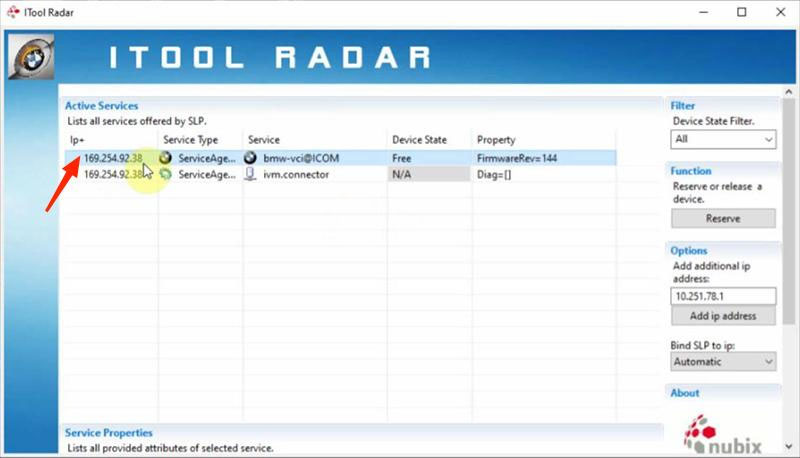
Run “ITool Radar” to get the IP address “169.254.92.38”.
How-to-Update-BMW-ICOM-NEXT-Firmware-to-V1.44-3

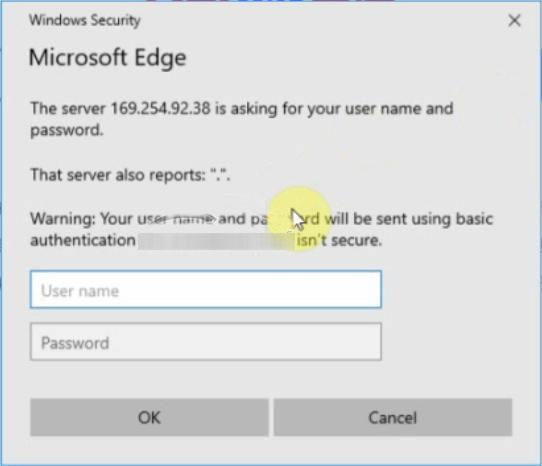
Go to “169.254.92.38:60080/”.

Enter user name and password to login in ICOM Manager.
How-to-Update-BMW-ICOM-NEXT-Firmware-to-V1.44-4

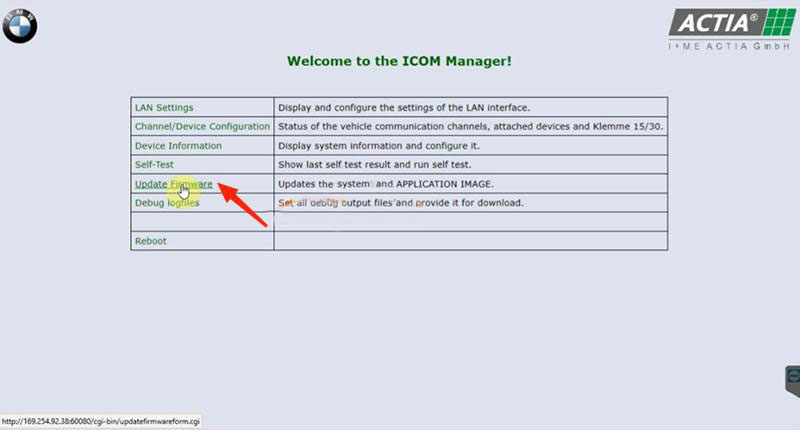
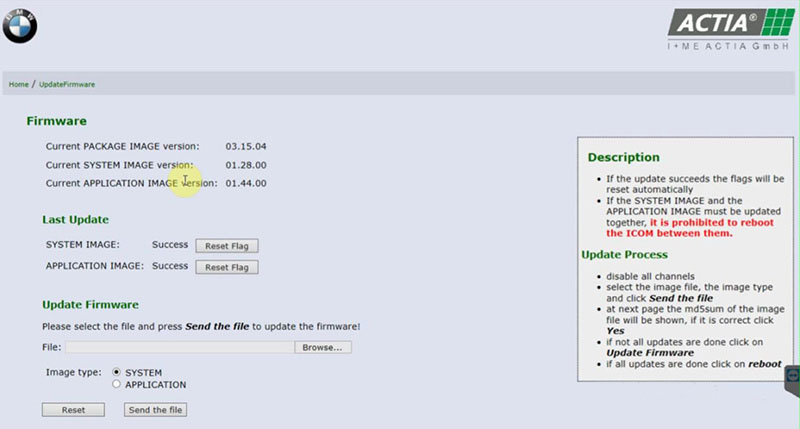
Click “Update Firmware”.
How-to-Update-BMW-ICOM-NEXT-Firmware-to-V1.44-5
How-to-Update-BMW-ICOM-NEXT-Firmware-to-V1.44-6

Step 2. Flash System Image File

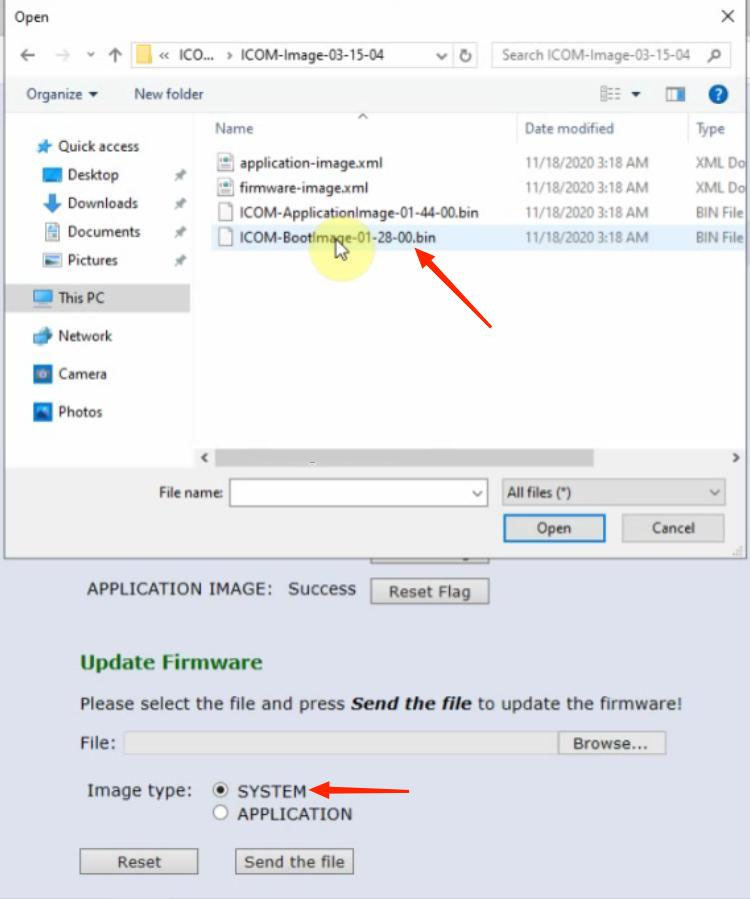
Click “Browse” and load “ICOM-BootImage-01-28-00” bin file.

Select “SYSTEM”on Image type.

Click “Send the file”.

How-to-Update-BMW-ICOM-NEXT-Firmware-to-V1.44-7

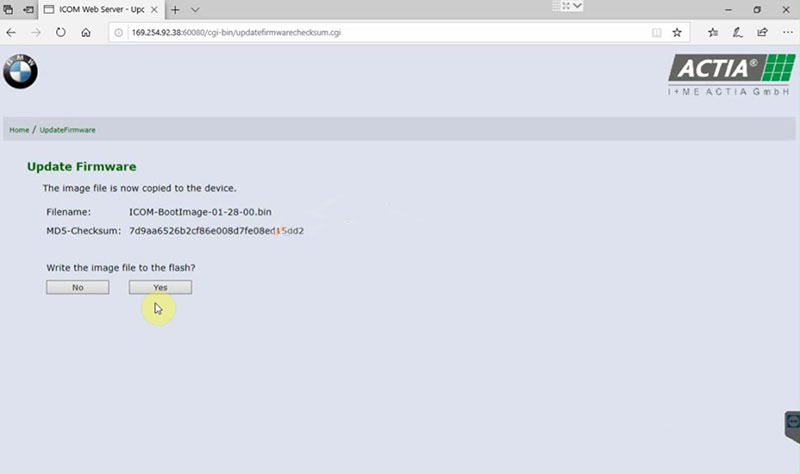
Confirm to write the image file to the flash.

How-to-Update-BMW-ICOM-NEXT-Firmware-to-V1.44-8

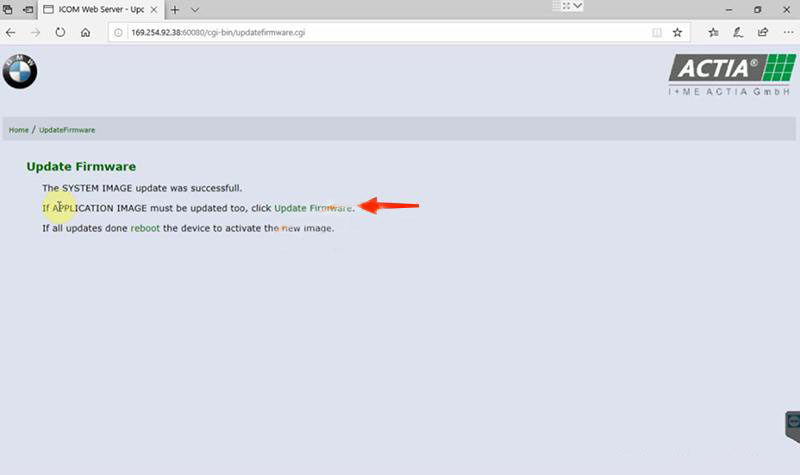
SYSTEM image update successfully.

How-to-Update-BMW-ICOM-NEXT-Firmware-to-V1.44-9

Step 3. Flash Application Image File

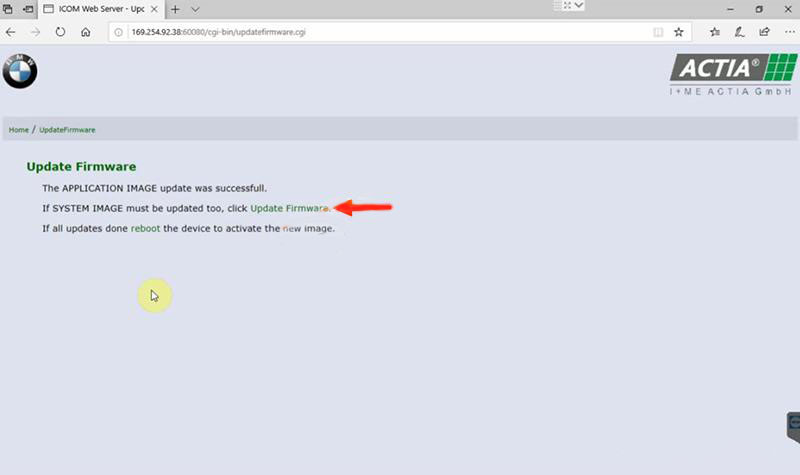
Click “Update Firmware” to go back to firmware update page.

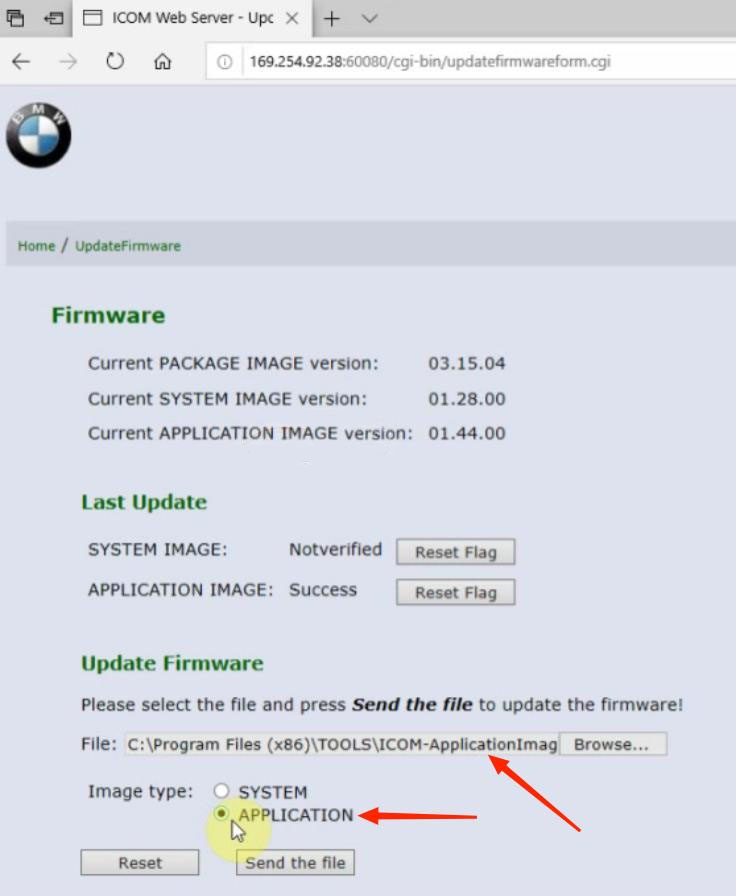
Click “Browse” and load “ICOM-ApplicationImage-01-44-00” bin file.

Select “APPLICATION”on Image type.

Click “Send the file”.

How-to-Update-BMW-ICOM-NEXT-Firmware-to-V1.44-10
Also confirm to write the image file to the flash.

APPLICATION image update successfully.

How-to-Update-BMW-ICOM-NEXT-Firmware-to-V1.44-11

Step 4. Reboot

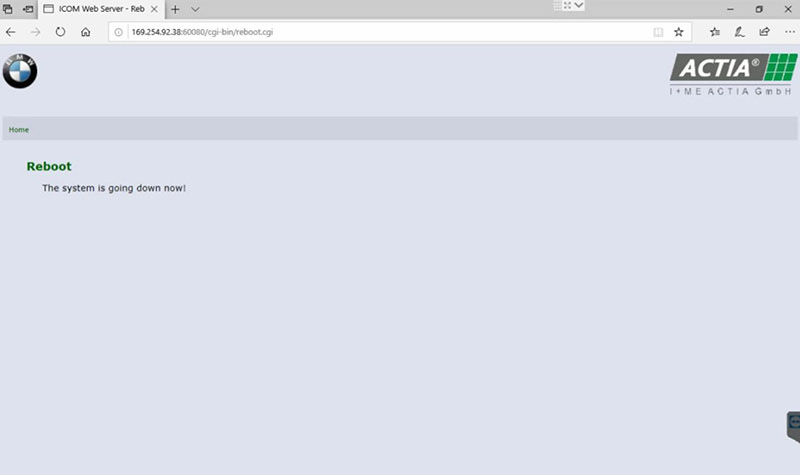
Click “reboot”.

How-to-Update-BMW-ICOM-NEXT-Firmware-to-V1.44-12

Go to “169.254.92.38:60080/” again.

Login in ICOM Manager.

Now the APPLICATION Image version is updated to V1.44.

Notice:
*   The SYSTEM IMAGE and the APPLICATION IMAGE must be updated together, and Do Not reboot the ICOM before updating both of them.
*   Firstly send SYSTEM Image file and select “SYSTEM” to flash.
*   Then send APPLICATION Image file and select “SYSTEM” to flash.

Sunday, February 13, 2022

How to setup ICOM Next A WLAN connection

ICOM Next Wireless diagnostic

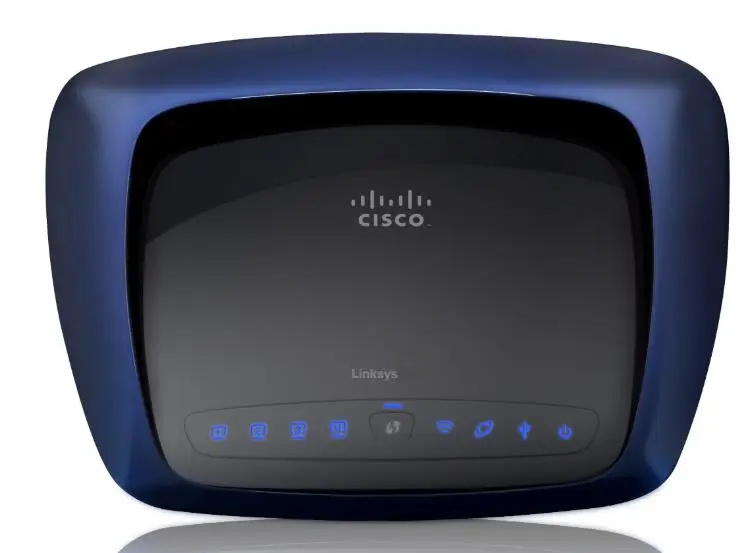
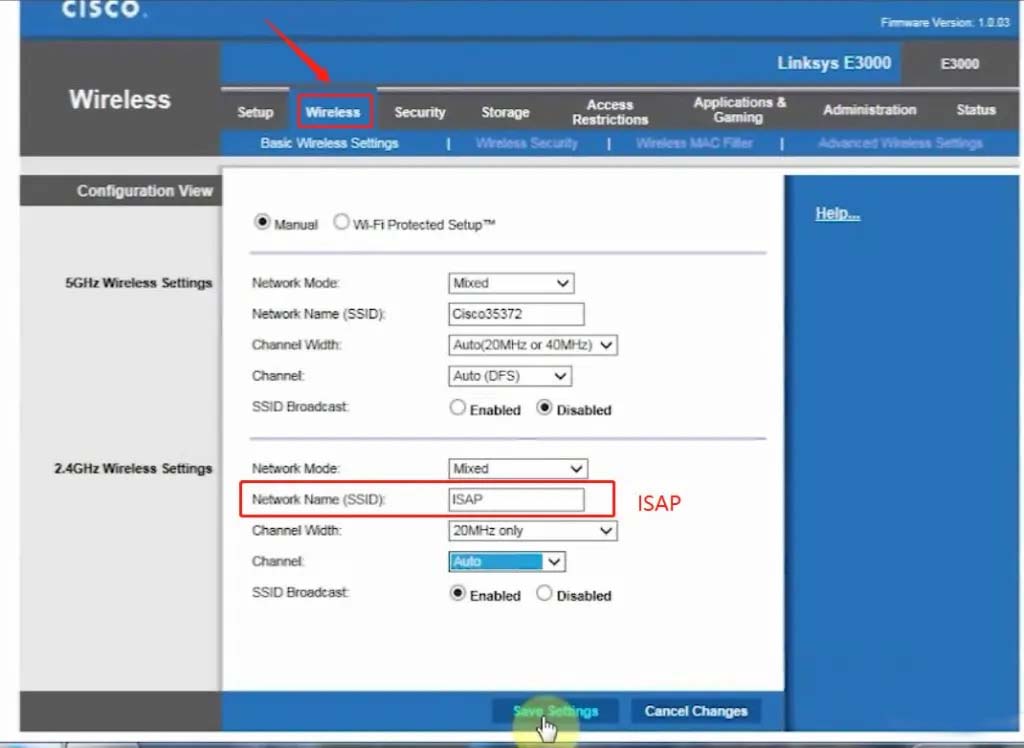
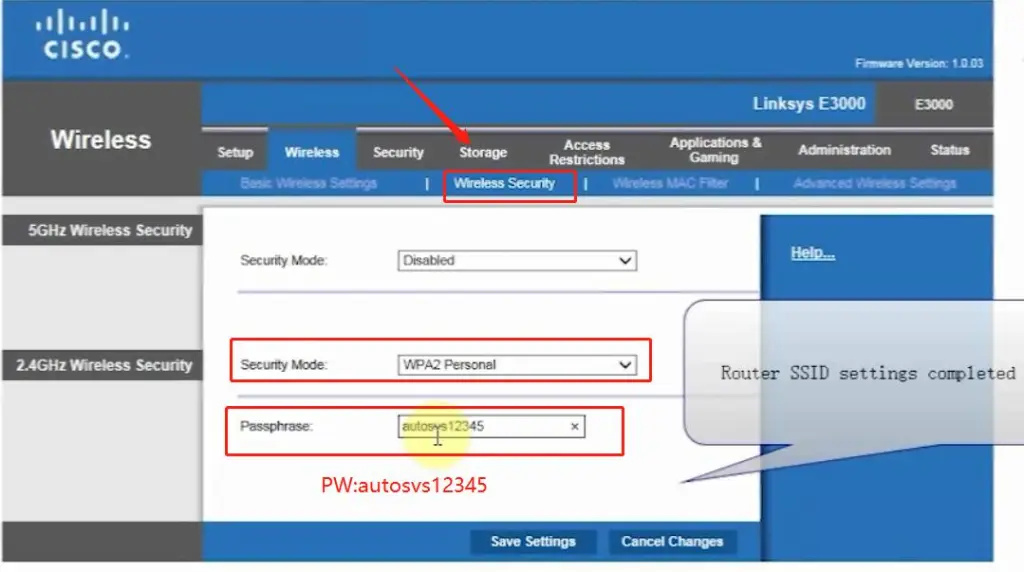
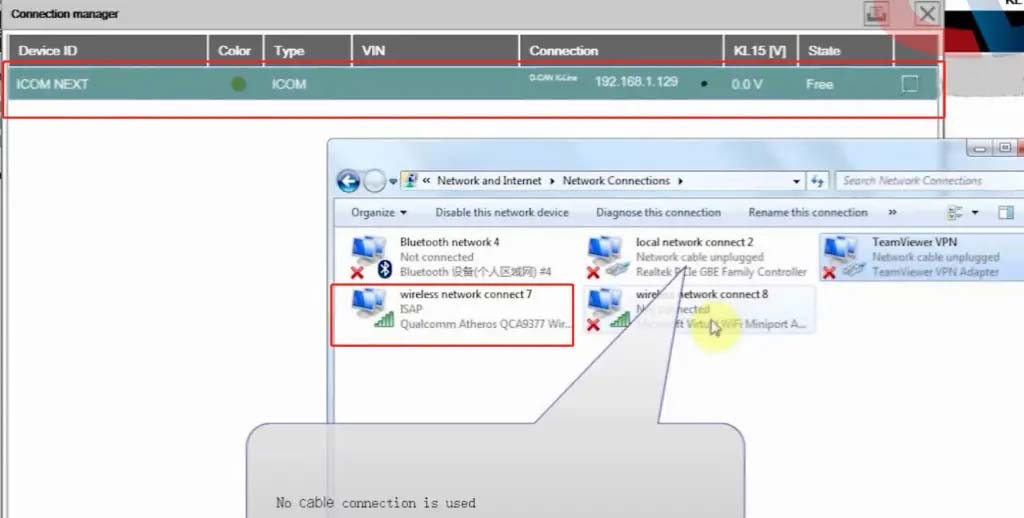
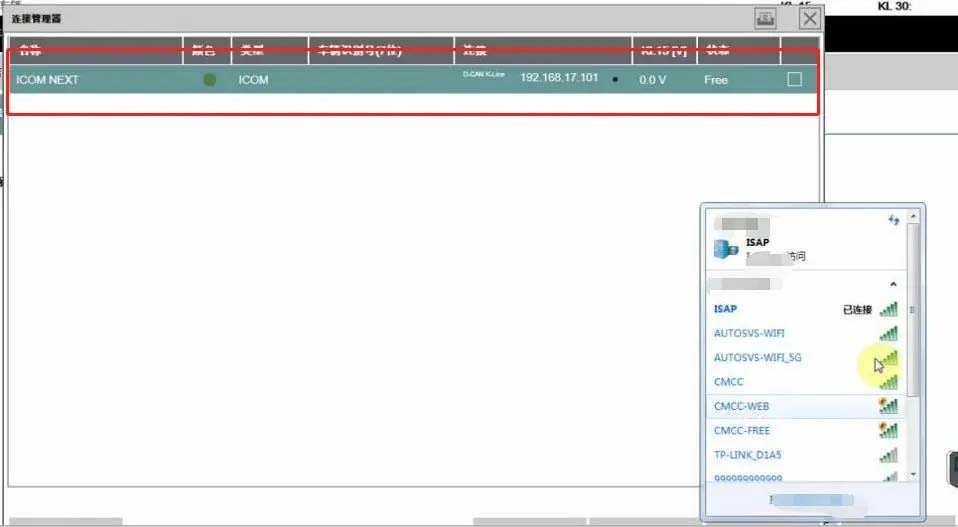
1.Set router wireless, wireless SSID name:ISAP,password:autosvs12345
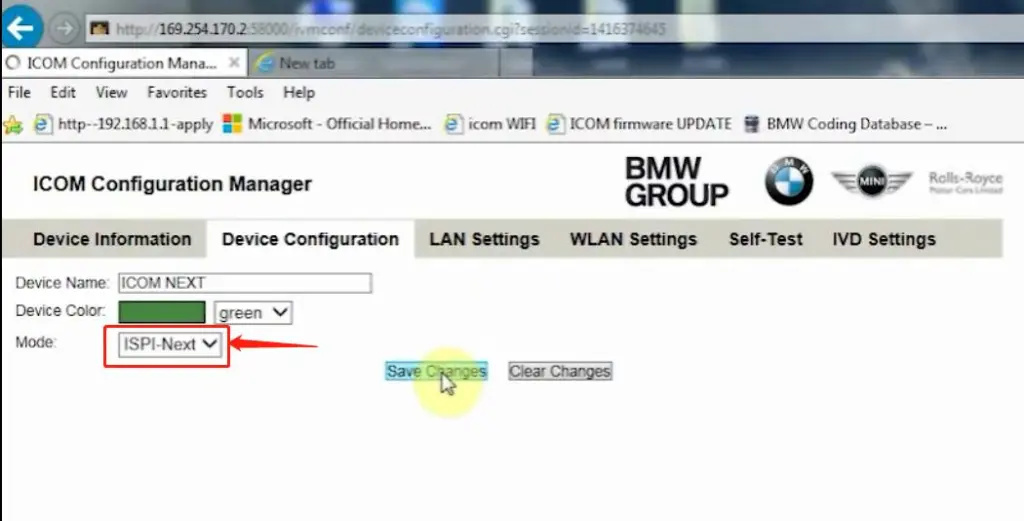
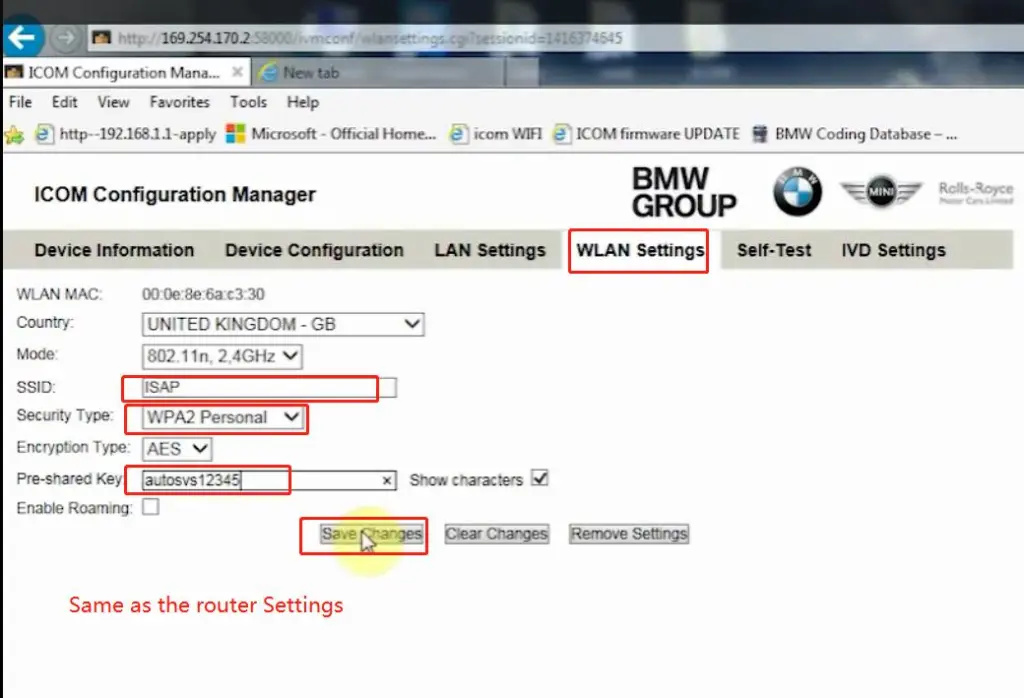
2.Set ICOM NEXT A wireless, connected to the router,
wireless SSID name:ISAP,password:autosvs12345,
(Same as router setting, After setting the ICOM NEXT need to reconnect to vehicle)
3.BMW diagnostic PC connect to wireless router ISAP, you can start wireless diagnosis.

How-to-setup-ICOM-Next-A-WLAN-connection-1

1.Configuration router

How-to-setup-ICOM-Next-A-WLAN-connection-2
How-to-setup-ICOM-Next-A-WLAN-connection-3

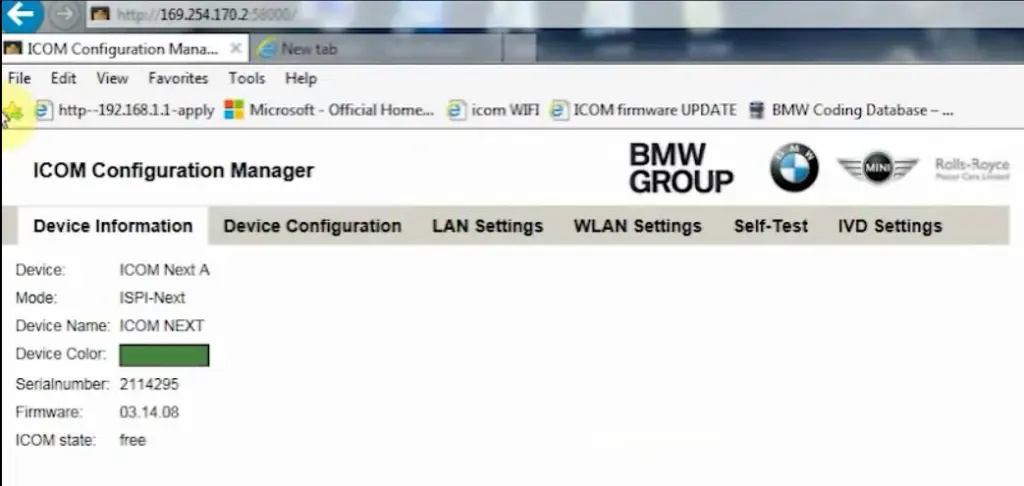
2.Configuration ICOM NEXT A

How-to-setup-ICOM-Next-A-WLAN-connection-4
How-to-setup-ICOM-Next-A-WLAN-connection-5
How-to-setup-ICOM-Next-A-WLAN-connection-6

3.Same as the router configuration;

How-to-setup-ICOM-Next-A-WLAN-connection-7

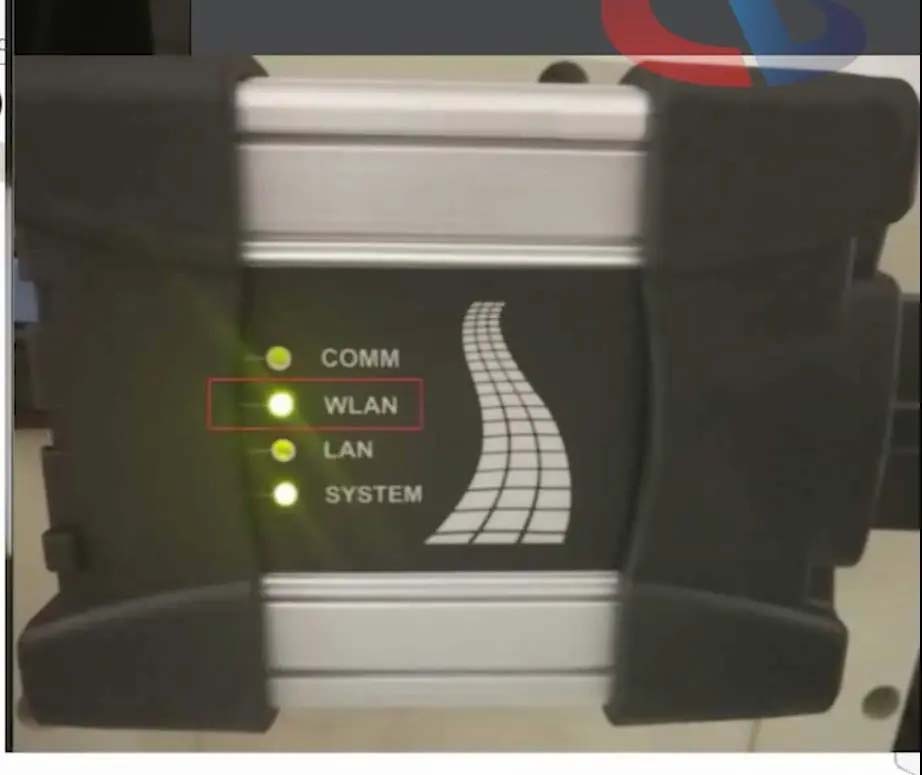
4.After ICOM NEXT configuration is completed, you need to reconnect, ICOM NEXT will automatically open the WLAN connection function;

How-to-setup-ICOM-Next-A-WLAN-connection-8

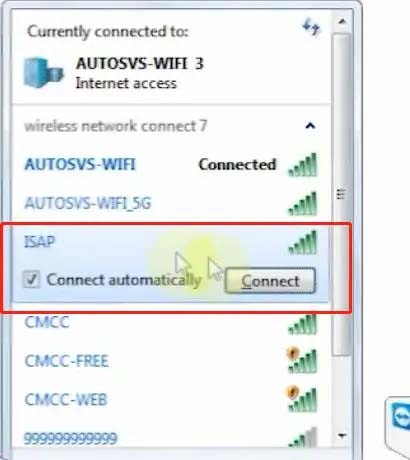
5.Connect ISAP WIFI;

How-to-setup-ICOM-Next-A-WLAN-connection-9

How-to-setup-ICOM-Next-A-WLAN-connection-10

6.After the ISAP WIFI connection is successful, you can use the ISTA diagnostic test

How-to-setup-ICOM-Next-A-WLAN-connection-11


Friday, February 11, 2022

How to Use BMW ICOM Next ISTA Software Diagnose BMW Cars

BMW ICOM NEXT Latest Generation Diagnostic Head For BMW, MINI, Rolls-Royce BMW-Model. Can Replace BMW ICOM A2, including all function of ICOM A2. BMW ICOM NEXT not support WIFI. ICOM NEXT can works together with ICOM Software we provided.

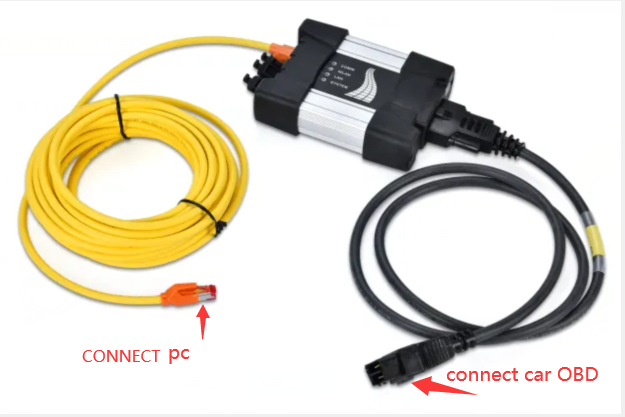
1.BMW ISTA software requires BMW ISTA ICOM NEXT or ENET cable to connect to BMW cars

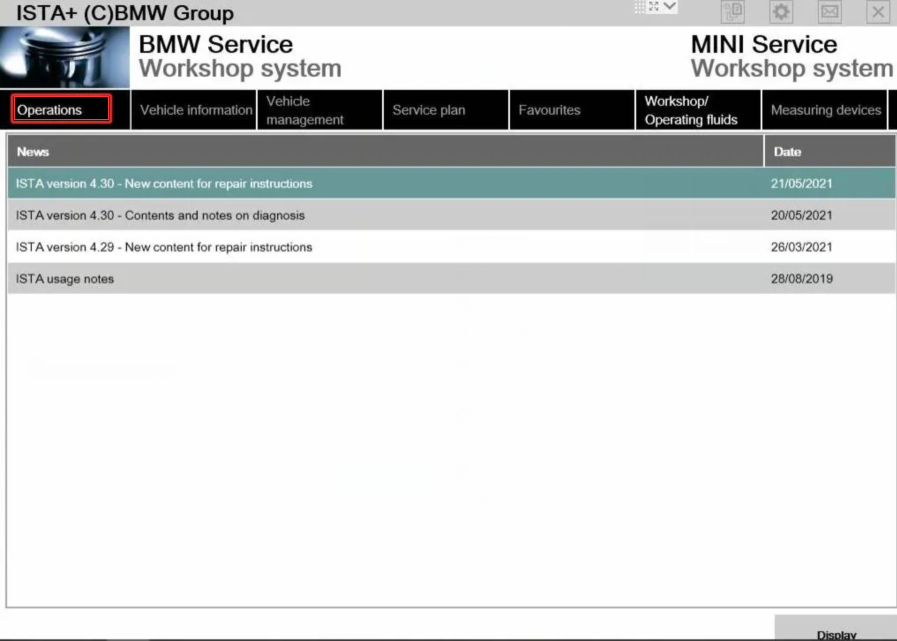
How-to-Use-BMW-ICOM-Next-ISTA-Software-Diagnose-BMW-Cars-1
How-to-Use-BMW-ICOM-Next-ISTA-Software-Diagnose-BMW-Cars-2

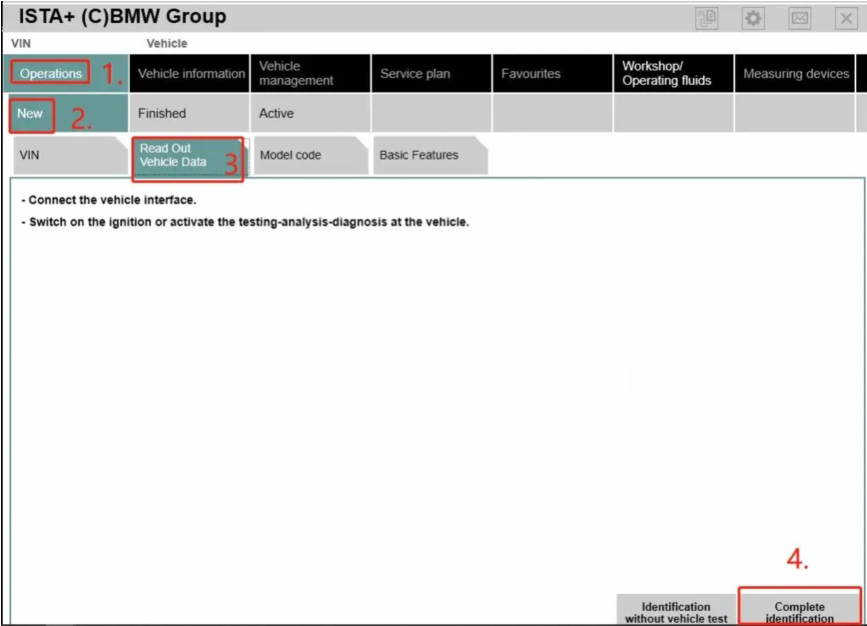
2. Operations-New-Read out vehicle data-complete identification

How-to-Use-BMW-ICOM-Next-ISTA-Software-Diagnose-BMW-Cars-3
How-to-Use-BMW-ICOM-Next-ISTA-Software-Diagnose-BMW-Cars-4

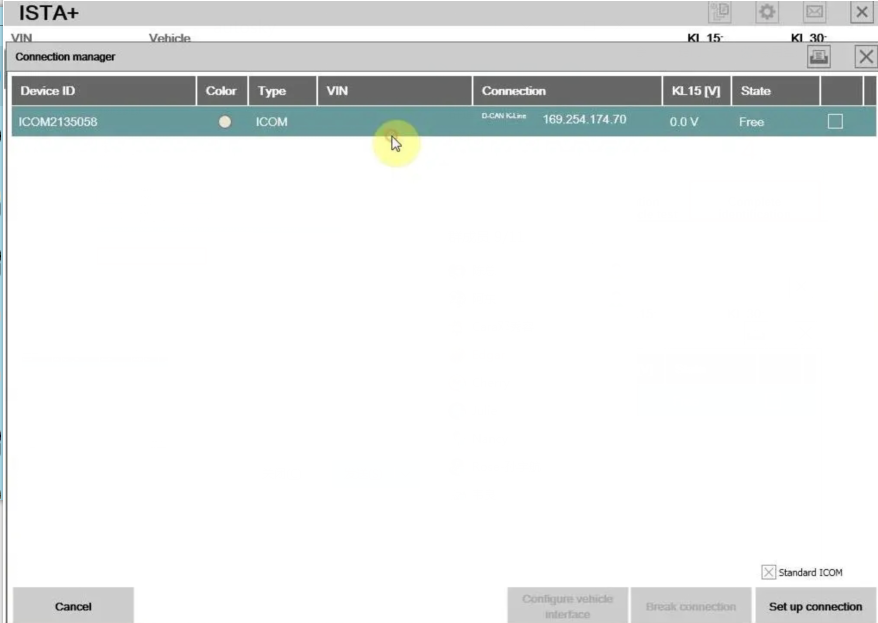
3.Connect

How-to-Use-BMW-ICOM-Next-ISTA-Software-Diagnose-BMW-Cars-5

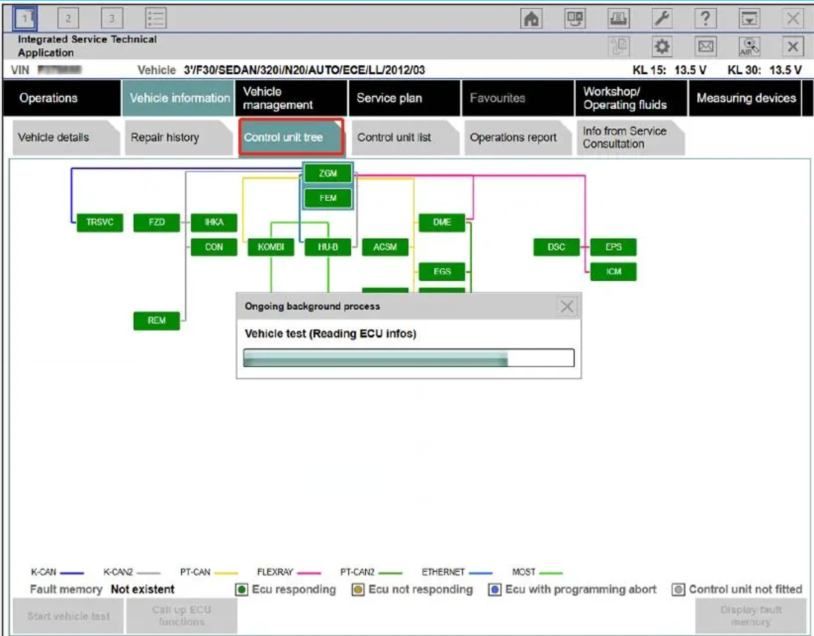
4. Read control unit tree(Read ecu)

How-to-Use-BMW-ICOM-Next-ISTA-Software-Diagnose-BMW-Cars-6

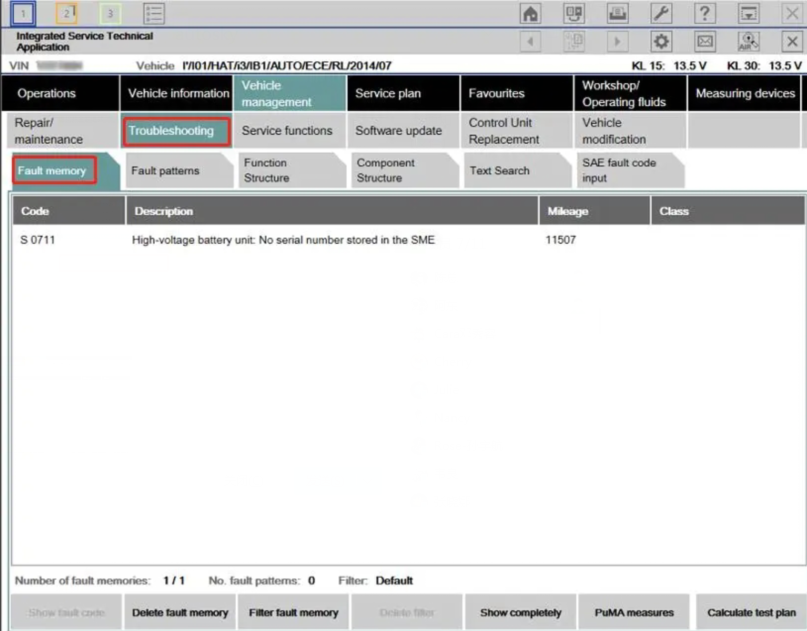
5.Read Fault memory

How-to-Use-BMW-ICOM-Next-ISTA-Software-Diagnose-BMW-Cars-7

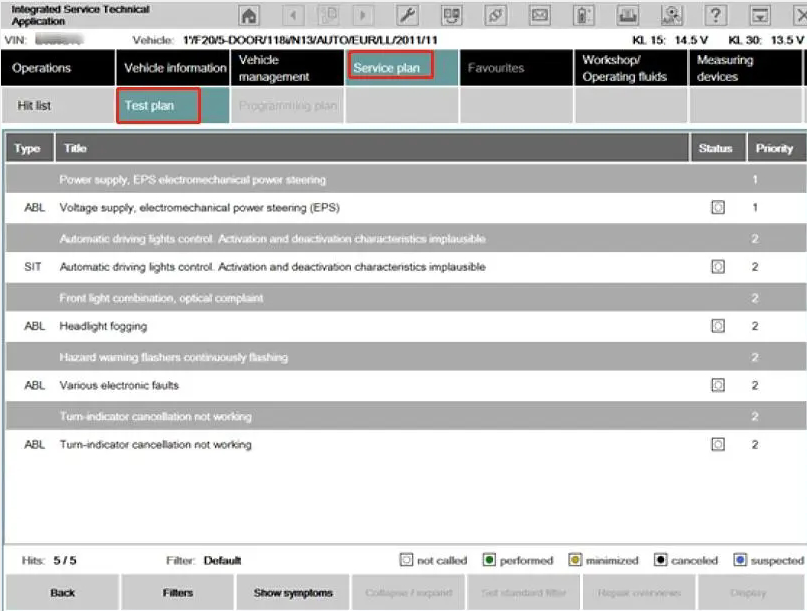
6.Test plan

How-to-Use-BMW-ICOM-Next-ISTA-Software-Diagnose-BMW-Cars-8

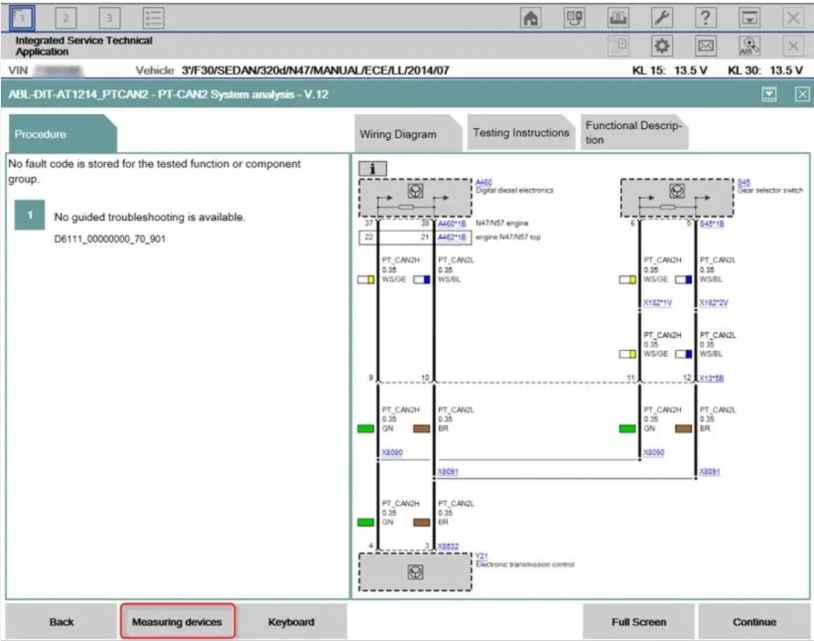
7.Wiring Diagram

How-to-Use-BMW-ICOM-Next-ISTA-Software-Diagnose-BMW-Cars-9

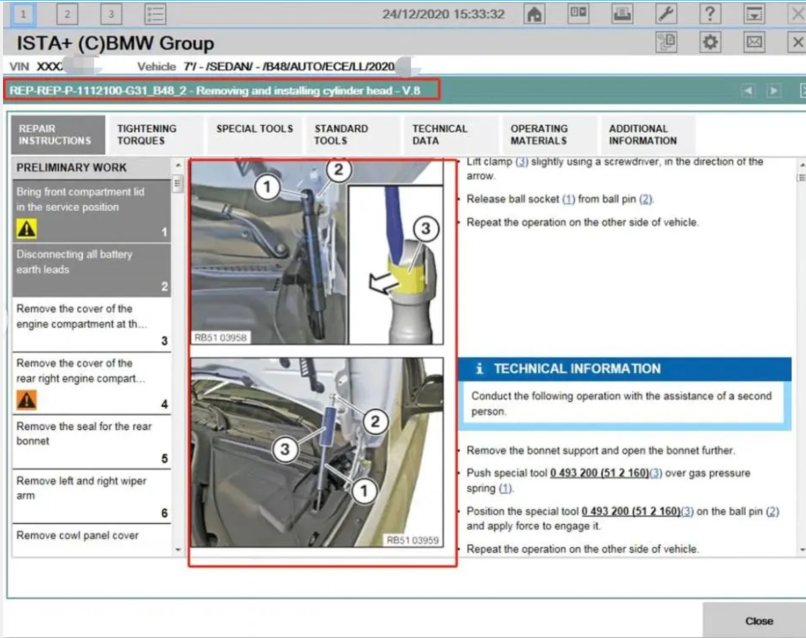
8.Demonstration of car disassembly and installation

How-to-Use-BMW-ICOM-Next-ISTA-Software-Diagnose-BMW-Cars-10

More interesting for BMW ICOM diagnostic tools , welcome to check our website www.obd2tool.com

Wednesday, November 10, 2021

How to Fix BMW ICOM NEXT not work

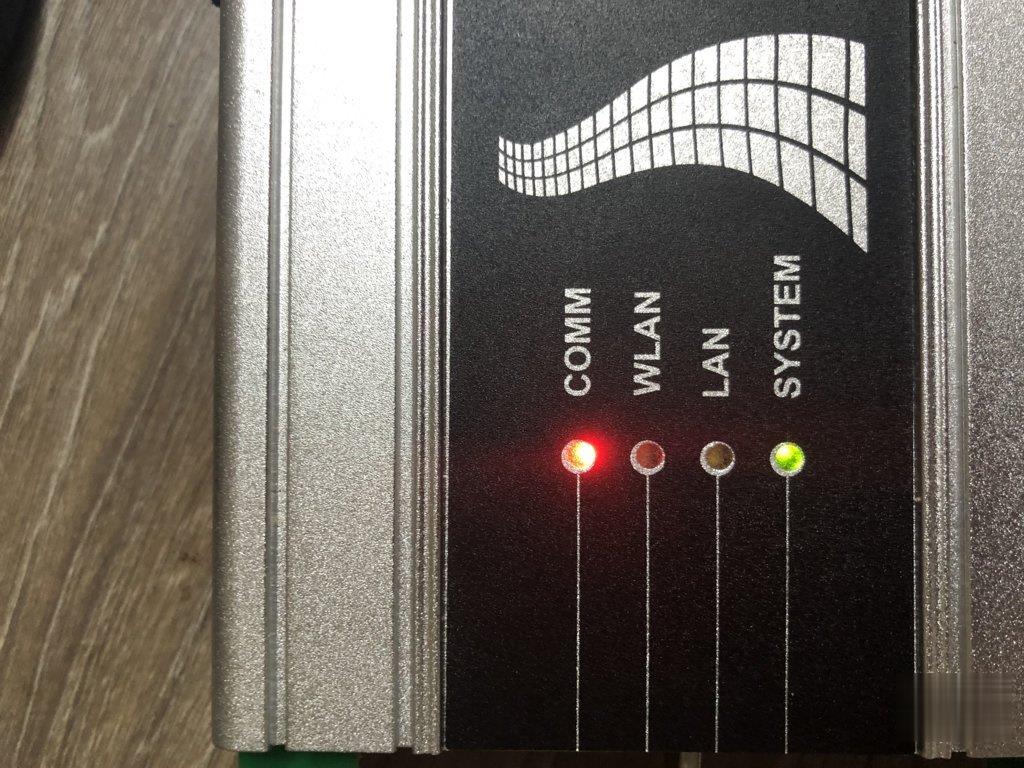
Do update Emergency Firmware on BMW ICOM Next for fix troubles when it not find IP address or all LEDs show Red Color
ICOM NEXT Error:

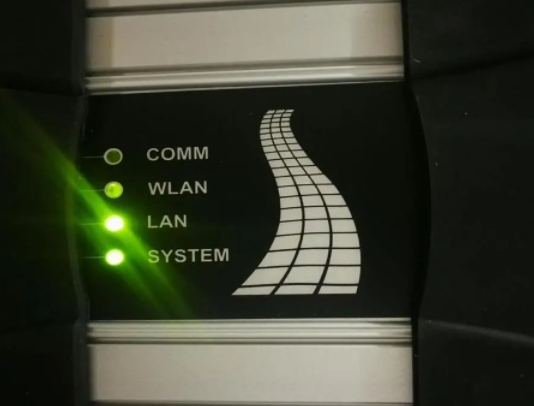
I have one BMW ICOM Next bought from China have been use 2 years great ,but sundenly it stop work .It will not connection any Vehicles and Programmer says Etherenet can’t find IP address . the ICOM NEXT mux all LEDS going Red and the System LED blinking Red-Yellow .
BMW ICOM NEXT not work Soultion :

1.Go to check BMW ICOM programmer Directory :C\ProgramData\BMW\ISP\data\TRIC\ICOMNEXT\ICOM-Image-XX-YY-ZZ( Show hidden files if you not find it ),if there have more than one ICOM-Image-XX-YY-ZZ file ,then choose the most recent one for last updates .

2.Copy the file ICOM_Next_app_yyyyyy.tar.gz and ICOM_Next_rootfs_xxxxxx.tar.gz to Your USB Disk ROOT Directory(Important) .

3.Disconnect ICOM NEXT Mux from Power adapter or Vehicle,And pull the USB Disk to ICOM’S USB port

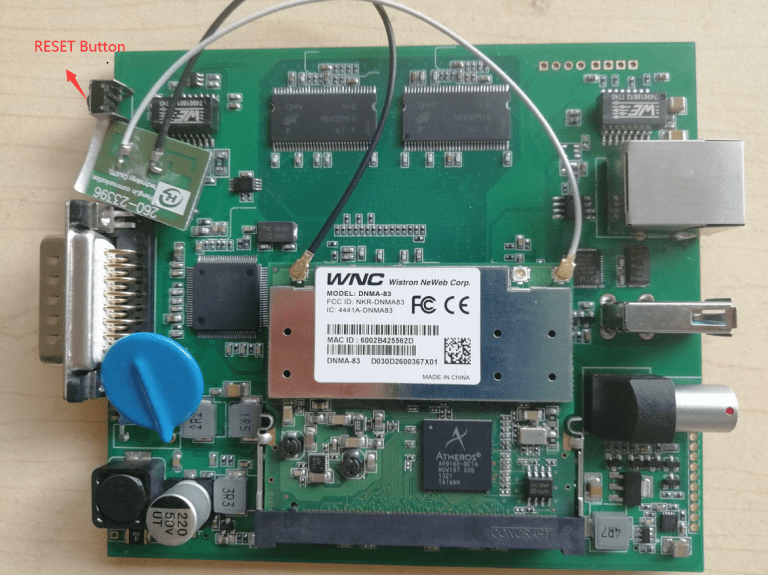
4.Press the Reset Button and keep Hold,another Hand held the OBDII Cable with vehicles diagnotic socket(Start Engineer for supply power ),the whole LEDS will glow red.

How-to-Fix-BMW-ICOM-NEXT-not-work

5.Now release the reset button ,Press again 3 times within 4 seconds. After there will be going do firmware update

6.Wait several minutes until all LEDS stop glowing(Do not disconnect ICOM mux as long as any LED glows red)

7.The emergency firmware update is finised !now you can pull out USB Disk and try Connect LAN Cable to vehicle for Test .all setting will need be reconfigured since it have been lost .

If you want to know more about bmw diagnositc tools, please click bmw trouble repair.

Sunday, November 7, 2021

How to Get BMW ICOM Next Activation Key

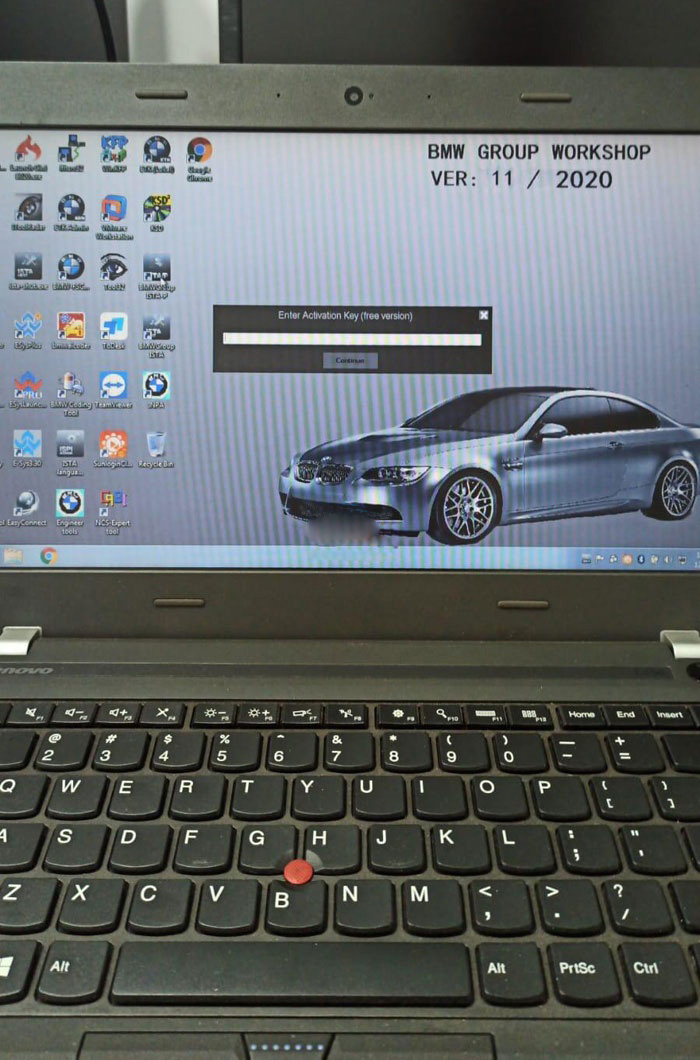
I recently bought a BMW ICOM Next emulator with latest HDD.  It asks me to enter activation key when run ISTA-P 3.67.1. Where can i get this activation key?

How-to-Get-BMW-ICOM-Next-Activation-Key-1

Obd2tool.com solution:

How-to-Get-BMW-ICOM-Next-Activation-Key-2

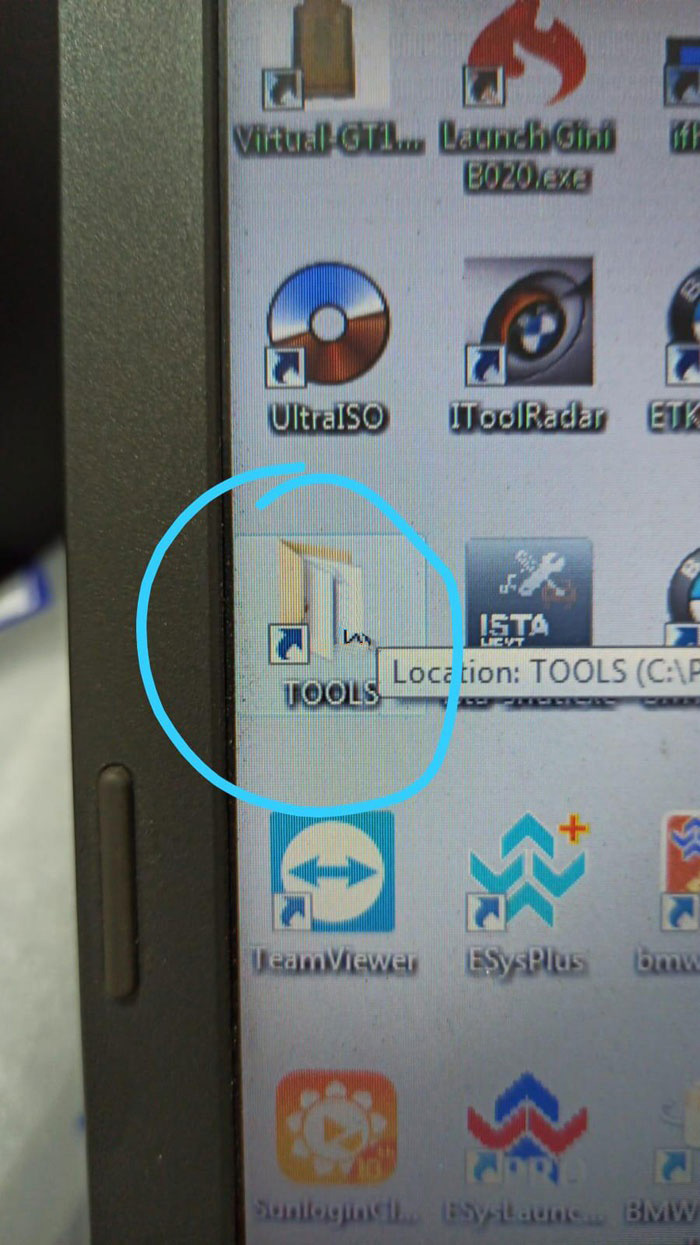
Open TOOLS folder on desktop

How-to-Get-BMW-ICOM-Next-Activation-Key-3

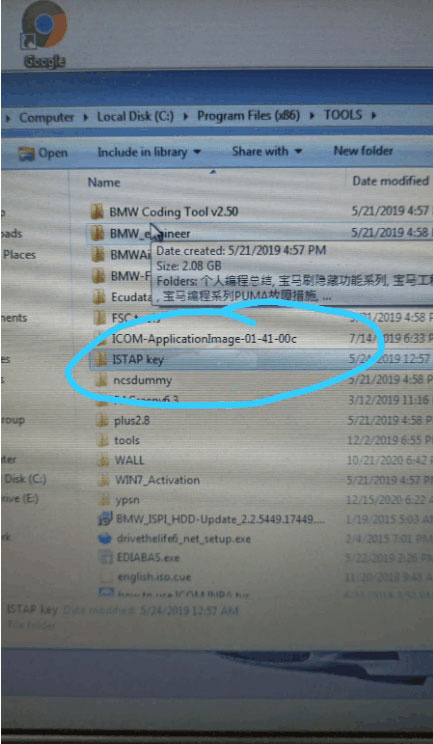
Open ISTAP key folder

How-to-Get-BMW-ICOM-Next-Activation-Key-4

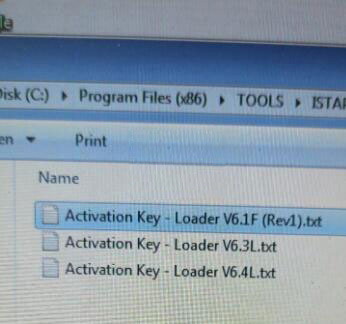
Open Activation Key- Loader V6.4L text file

Copy and paste activate key to corresponding area

How-to-Get-BMW-ICOM-Next-Activation-Key-5

ISTA-P is activated successfully.

If you want to know more about bmw diagnositc tools, please click bmw trouble repair.

Monday, September 20, 2021

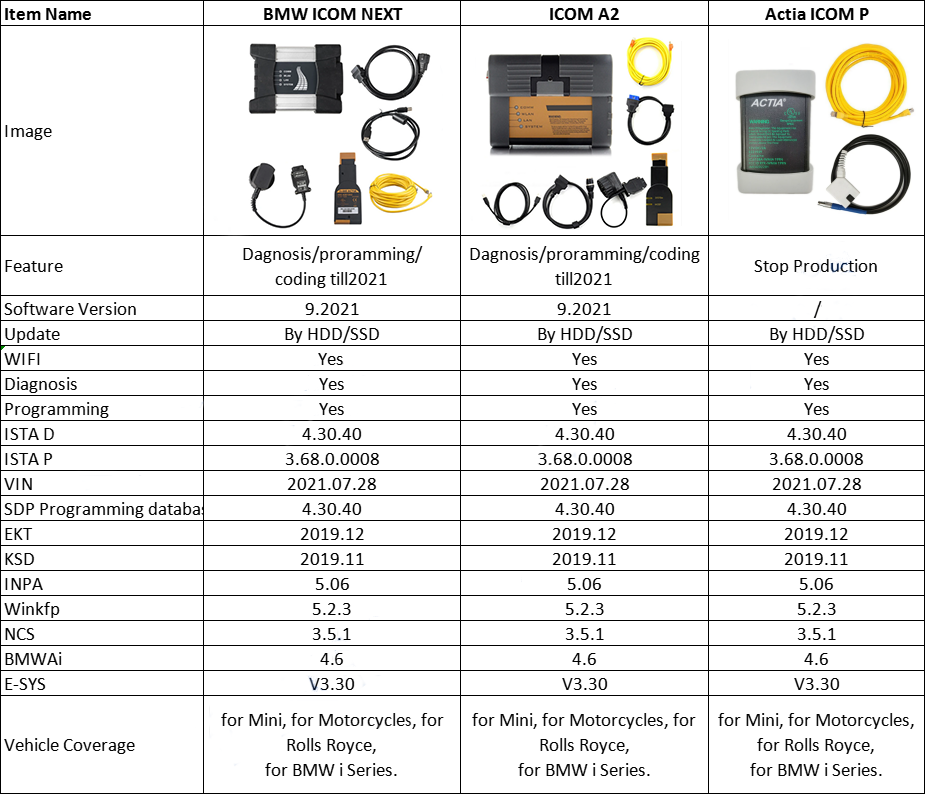
BMW ICOM Diagnostic Tool Comparison


BMW ICOM diagnostic tool is used to diagnosis , programming and coding for BMW series vehicles. Since there are many tools at the market, how to choose the right one you need? Main benefits of an ICOM tool should be: Wireless diagnosis connection, Ease of use in a shop with multiple active connections, Self-hosted DHCP server for ethernet programming. Here provde some tips to choose bmw icom tool clone.

BMW ICOM Tools Comparison

BMW-ICOM-Tools-Comparison-1

Positive Reviews For BMW ICOM NEXT

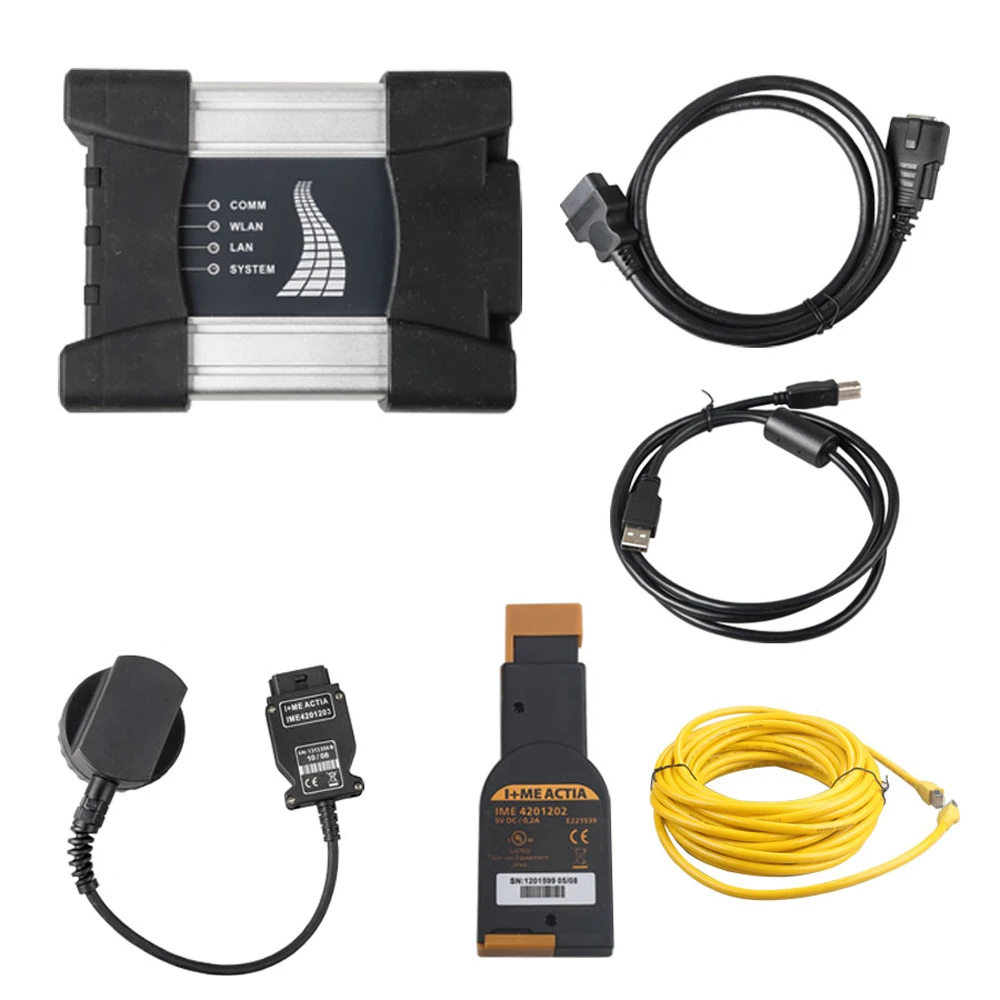
BMW ICOM NEXT

BME-ICOM-NEXT

1. ICOM Next is faster than the old bmw icom. It is also better built IMHO.
And Next is WIFI available also.
It handles multiprogramming and coding quite nicely.
Gets the job done much faster if flashing the complete vehicle.
Another benefit to Next will be compatibility for future cars.

2. I have icom next clone it works perfectly didn’t faced any issues.

3. My Chinese NEXT is working for more than year and everything is OK so far. I paid much more for it , but ye you get what you paid for.

4. It’s very good, the only thing you have to know it is the caps for usb enet etc, they won’t be really helpful bc they open all the time, However the quality is very good, enet cable is very long, OBD cable is very durable. Like it so much.

5. My old icom A2 burned with long hours connectied by accident.But this ICOM Next seems to work well with a Heat dissipation

6. Wifi connection is strong and stable, also the lan cable is work fine, 10 meters long enough. It is easy to make programming transmission control module EGS of BMW.

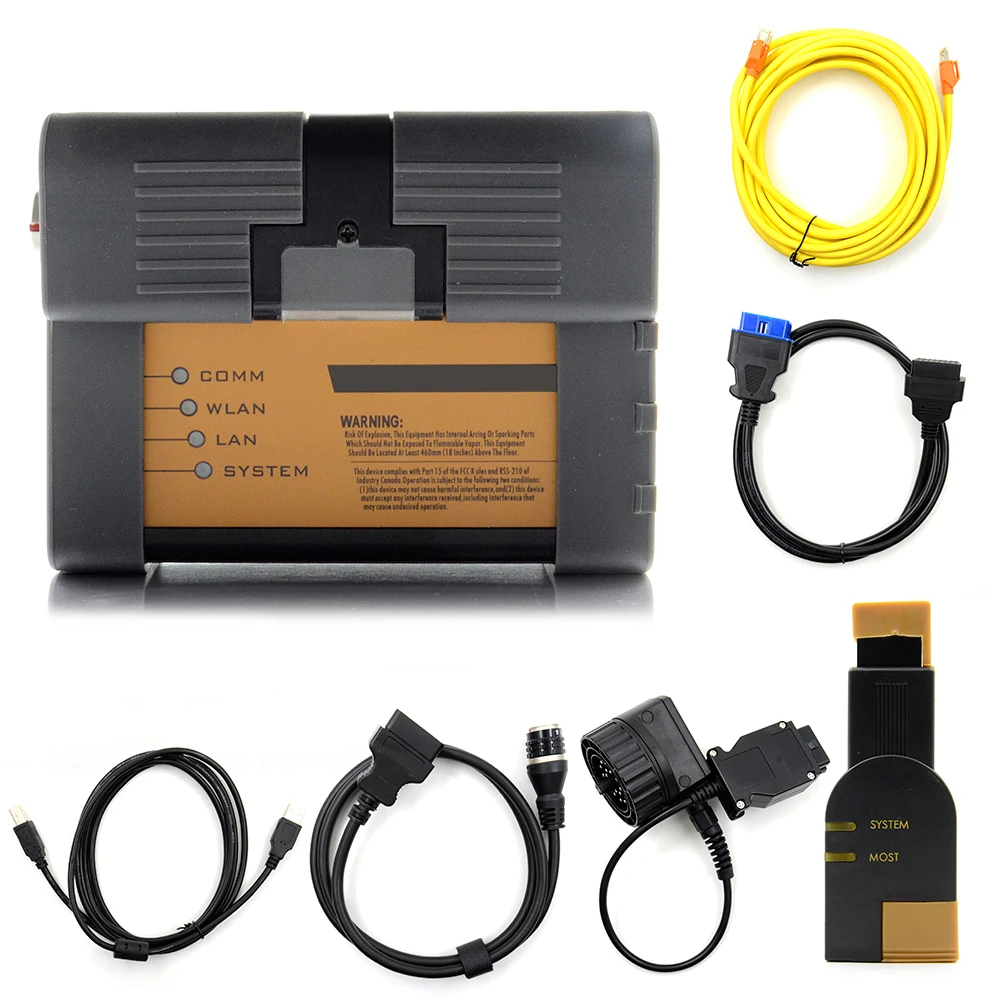
BMW ICOM A2 Reviews

BMW-ICOM-A2

“ICOM A2 for bmw vehicles with OBD access receives a more significantly powerful processor and more storage capacity.

Robust case will help to avoid damage when using in harsh environments.

And to protect the MOST connector, the ICOM B for vehicles with optical MOST access will be equipped with a soft cover made of rubber instead of the former plastic cap.

The ICOM C for old series with a diagnostic socket will be additionally equipped with an approx. 20 cm long cable, which facilitates the connection of the ICOM A2 and makes storage in the engine compartment easier.”

ICOM NEXT vs. ICOM A2 Which One Is Better?

Both ICOM NEXT and ICOM A2 can work with the same software, same function, and supports same vehicles but they are kind of different from some aspects, especially firmware adaption

1.  ICOM NEXT is faster and handles multiprogramming and coding quite nicely. Gets the job done much faster if you are flashing the complete vehicle.
2.  Also it will be able to handle future vehicles better.
3.  In two or three years there will be a new ICOM released, that will be probably better etc. Thats how things work.
4.  It is also better built IMHO. The benefit to Next will be compatibility for future cars.

The ICOM A2 modified for vehicles with OBD access receives a significantly more powerful processor and more storage capacity. And the sturdy aluminum housing will help prevent damage when using in harsh environments. It performs better in cooling, runs faster and runs more stable, not more easily broken than ICOM A.

Enjoy!

Wednesday, September 8, 2021

How to Solve ICOM Next cannot be found by Itool Radar Software


Problem: I have a BMW ICOM Next. I upgraded firmware for it. Now it cannot be find by itool radar software. I tried restore using USB flash method. However when I reset Icom by press and hold the pin hole near USB port, but does not happen on my Icom Next.

How-to-Solve-ICOM-Next-cannot-be-found-by-Itool-Radar-Software-1 (2)
How-to-Solve-ICOM-Next-cannot-be-found-by-Itool-Radar-Software-2 (2)
How-to-Solve-ICOM-Next-cannot-be-found-by-Itool-Radar-Software-3 (2)

How to restore this Icom Next?

SOLVED by re-injecting via USB key files : “USER.settings” and “user.settings.log”  (can find in “Restore ICOM.7z” in ISTA installation package)
ICOM IP address was lost and now all OK !!!!

Thursday, September 2, 2021

How to Sovle BMW ICOM NEXT not connecting to ISTA


Got BMW ICOM NEXT not connecting to ISTA because it need firmware update I try to login with internet explorer but I didn’t get the setup page. I don’t know if it’s IP problem or what.

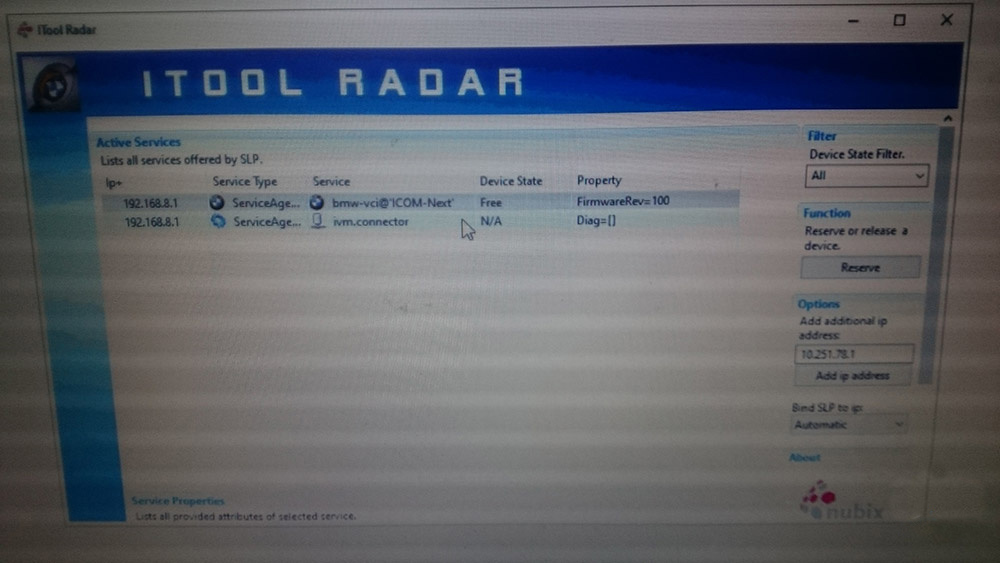
How-to-Sovle-BMW-ICOM-NEXT-not-connecting-to-ISTA-1 Here is the itool radar shot:

Advice:

Try that: 192.168.8.1:60080
LOG IN with following:
Username: root
Password: NZY11502  or NZY1150263
How-to-Sovle-BMW-ICOM-NEXT-not-connecting-to-ISTA-2

Download iTool Radar, connect the ICOM directly to your computer, and it should read the ip address from the ICOM.  Once you have the IP address, then you can proceed to log onto it using chrome or microsoft explorer browser with the provided credentials above.

If you did exactly as above, but with no luck. Then make an restore usb and reflash with this!

Download from this mega: BMW_ISPI_ICOM_NEXT_FW_3.15.03_files.txt

https://mega.nz/#!UJRllQRK!UIBddM2M8dXo2D5yf8Seluz-TuHiU4yCdnjvLiZOP8A

Then create a restore USB by following the following instructions:

A portable USB mass storage device (USB stick) that is at least compliant with USB 2.0 and is formatted with the FAT32 file system is required as additional hardware.

1. Create a text file user.settings with the following content: ConnectionMode=xxxxxx * 1 (default *2 : DHCP) Ip=xxx.xxx.xxx.xxx (default: 0.0.0.0)
Netmask= xxx.xxx.xxx.xxx (default: 0.0.0.0)
Gateway=xxx.xxx.xxx.xxx (default: 0.0.0.0)

Pay attention to the upper and lower case letters!

* 1 Possible parameters for ConnectionMode: STATIC_IP, DHCP, APIPA * 2 default = factory settings

2. Copy the file user.settings onto the USB stick.
3. If the ICOM NEXT A is ready for operation (SYSTEM LED permanently lights up green), the USB stick is to be connected to the unit (a connected MOST diagnosis adapter is to be unplugged). The red light chain starts after approx. 10 seconds (see 4.2.7.).

The saved settings are persistently overwritten. The green light chain starts once all the data has been updated. In this state, the unit can be addressed at the new IP (even without a restart). If the red light chain does not start, the user.settings file on the USB stick could not be read. If the green light stays off, an error has occurred while the LAN configuration was being written. For analysis purposes, the ICOM NEXT A saves the file user.settings.log with the error description to the USB stick.

or possibly as follows after that you copy the necessary files:

1.3. Connect the USB stick to the ICOM Next.

1.4. Press and hold the button located on the right-hand side of the ICOM Next, next to the OBD II cable connection socket.

1.5. Continue to hold the button, connect the device to the vehicle’s OBD II jack and keep the button pressed until the LEDs on the ICOM Next glow red.

1.6. Release the button and within five seconds, push the button three times. This starts the firmware update.

Note: The update may take several minutes. Do not disconnect the ICOM Next as long as any LED glows red.

1.7. When all LEDs on the ICOM Next have stopped glowing, the Emergency Firmware Update is complete. You can now disconnect the USB flash drive.

1.8. IMPORTANT: When the Emergency Firmware Update is finished, the ICOM Next must be connected to your network with a LAN cable in order to be reconfigured since all previous settings have been lost. If there is a “user.settings” file on the USB flash drive, it will be installed after the firmware update.

Final update:

This login is for original next or clone/orig A1, A2 for sure.

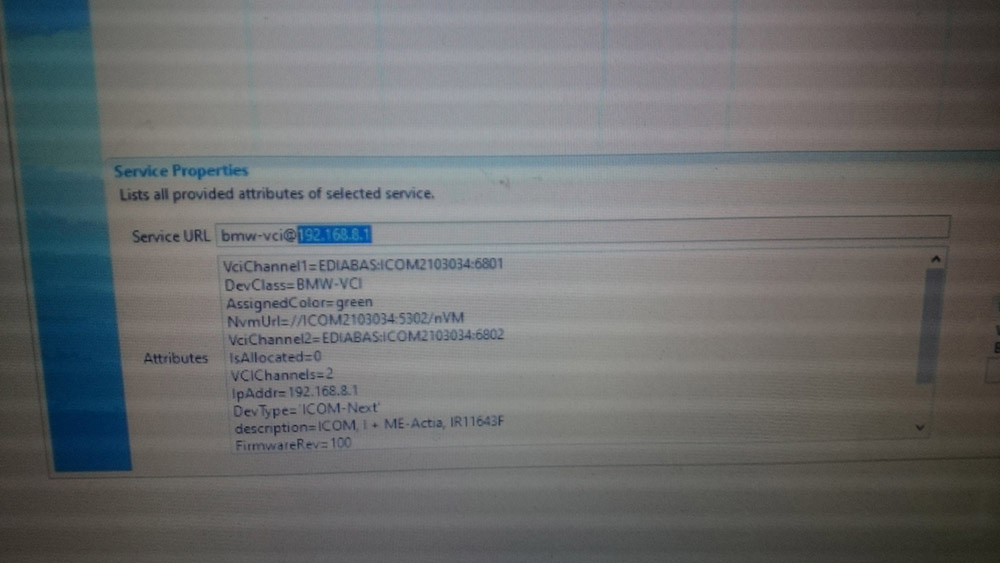
I try to login to ip: 192.168.8.1

LOG IN with following:

Username: root

Password: NZY1150263

Hope it helps!

Best source of BMW ICOM Next:
Monday, August 16, 2021

How to Diagnose and Program your BMW with ISTA/D


The BMW ISTA/D is a current dealer-level diagnostic software commonly used for all E Series and F Series BMW vehicles. It replaces the older version DIS diagnostic software. The ISTA/D software can be used in diagnosing all BMW models but it can only program BMW F-/I-/G-/Mini/RR series cars and beyond. It does not support programming for E Series models.

How to use the ISTA/D diagnostic software on your BMW vehicle.

How-to-Diagnose-and-Program-your-BMW-with-ISTA-D-1 How-to-Diagnose-and-Program-your-BMW-with-ISTA-D-2How-to-Diagnose-and-Program-your-BMW-with-ISTA-D-3
How-to-Diagnose-and-Program-your-BMW-with-ISTA-D-4
How-to-Diagnose-and-Program-your-BMW-with-ISTA-D-5
How-to-Diagnose-and-Program-your-BMW-with-ISTA-D-6

ISTA D, ISTA+, and Rheingold are the same and often used interchangeably. ISTA, which stands for Integrated Service Technical Application, developed from a folder file named Rheingold that contains BMW’s main application and data. Rheingold became ISTA/D later on – which D stands for Diagnostics. On the other hand, the P for ISTA/P stands for Programming.

Just like ISTA/P, ISTA/D requires the ICOM interface for the following purpose:
ICOM A: used for the main interface
ICOM B: serves as an adapter for programming multimedia in E series models
ICOM C: serves as adapter for old BMW models that uses the round 20 pin diagnostic plug
ICOM D: serves as an adapter for BMW motorcycles

BMW had categorized the application of ISTA/D into two parts – Programming and Diagnostics. Here’s how it is applied:

For Diagnostics:

Repair of software
Troubleshooting
Information guide for repair and maintenance
Vehicle identification and management.

For Programming:

Update of Software
Conversions and Retrofits
Replacement of Control Unit