Showing posts with label New BMW ICOM BMW ICOM Next. Show all posts

Sunday, March 20, 2022

How to Update BMW ICOM NEXT Firmware to V1.44

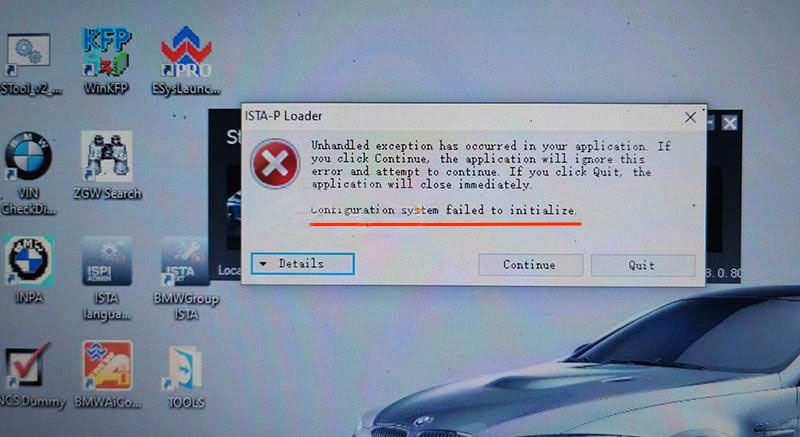
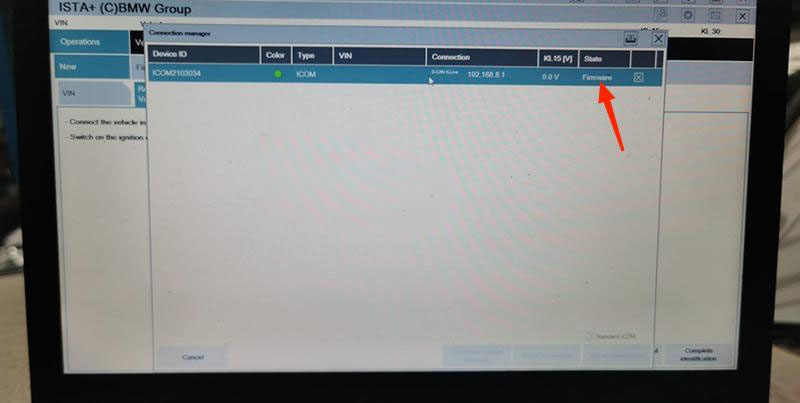
The BMW ICOM Next Professional Diagnostic Tool is the same as BMW ICOM A1/A2/A3 and supports all BMW software and fiber optic programming. This article will show you how to update the BMW ICOM NEXT firmware. Without a firmware update, you may get that the configuration system could not be initialized and the BMW ICOM software is not working.

How-to-Update-BMW-ICOM-NEXT-Firmware-to-V1.44-1
How-to-Update-BMW-ICOM-NEXT-Firmware-to-V1.44-2

How to Update BMW ICOM NEXT Firmware to V1.44?

Step 1. Login in ICOM Manager

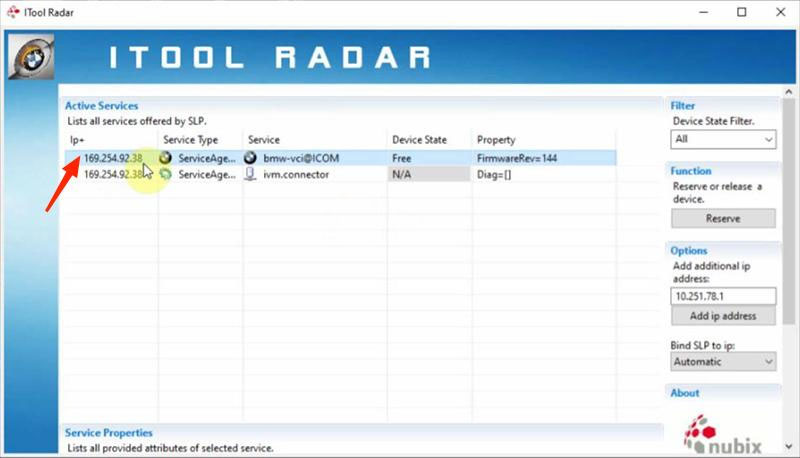
Run “ITool Radar” to get the IP address “169.254.92.38”.
How-to-Update-BMW-ICOM-NEXT-Firmware-to-V1.44-3

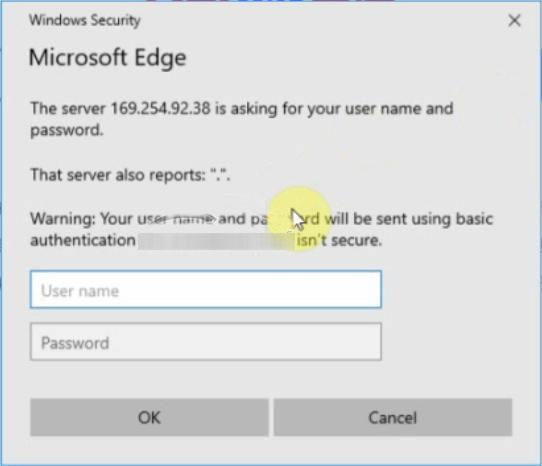
Go to “169.254.92.38:60080/”.

Enter user name and password to login in ICOM Manager.
How-to-Update-BMW-ICOM-NEXT-Firmware-to-V1.44-4

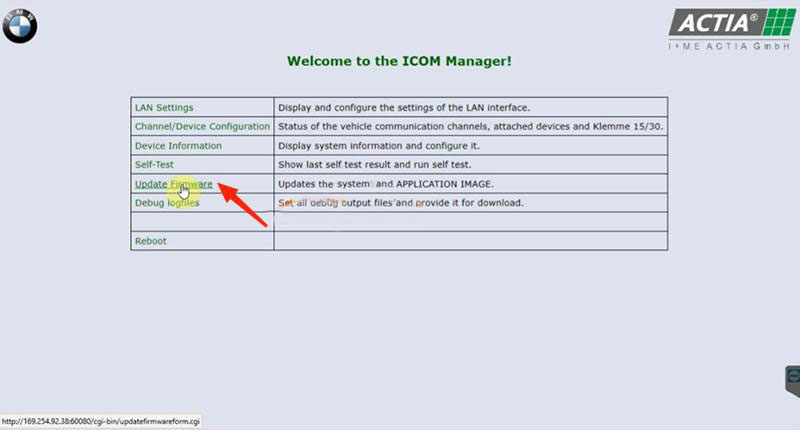
Click “Update Firmware”.
How-to-Update-BMW-ICOM-NEXT-Firmware-to-V1.44-5
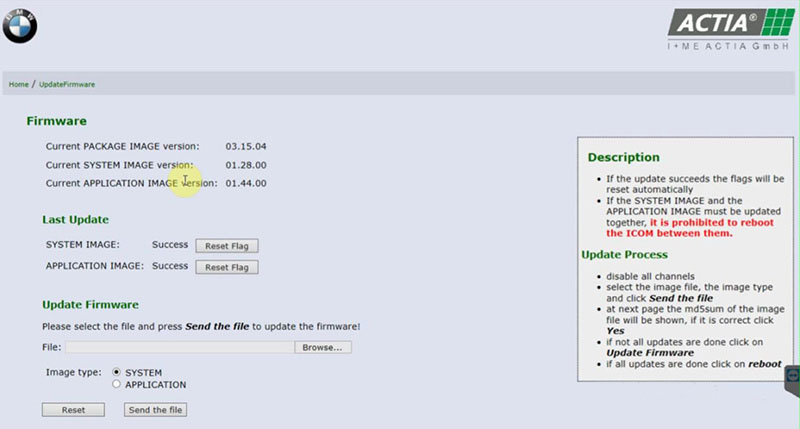
How-to-Update-BMW-ICOM-NEXT-Firmware-to-V1.44-6

Step 2. Flash System Image File

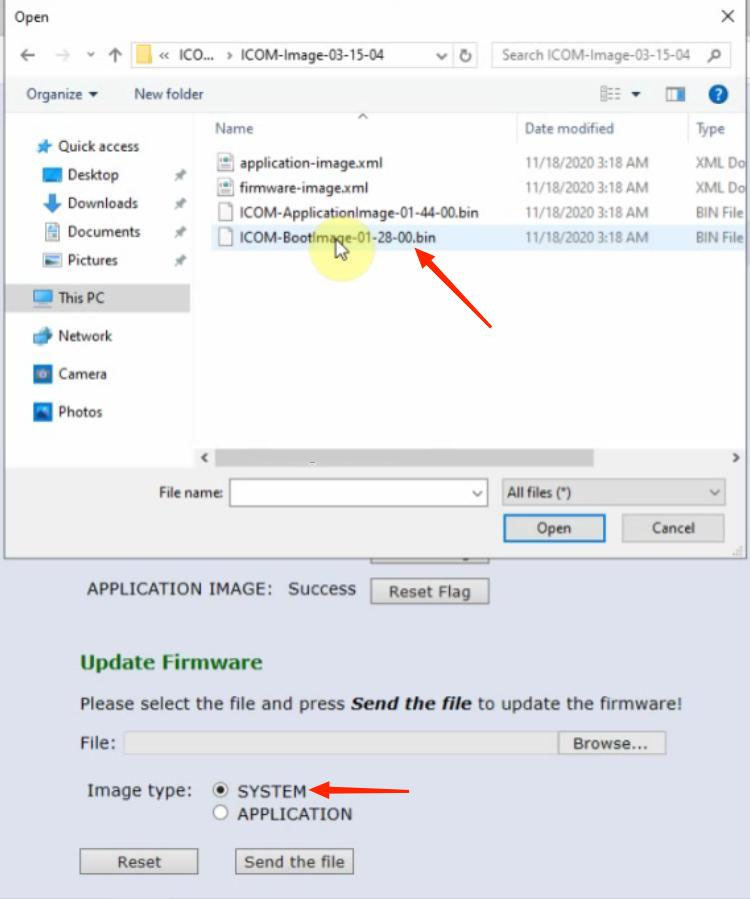
Click “Browse” and load “ICOM-BootImage-01-28-00” bin file.

Select “SYSTEM”on Image type.

Click “Send the file”.

How-to-Update-BMW-ICOM-NEXT-Firmware-to-V1.44-7

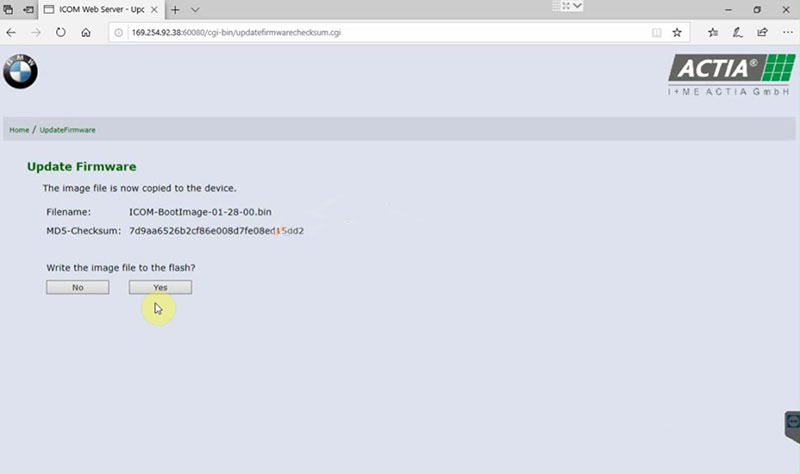
Confirm to write the image file to the flash.

How-to-Update-BMW-ICOM-NEXT-Firmware-to-V1.44-8

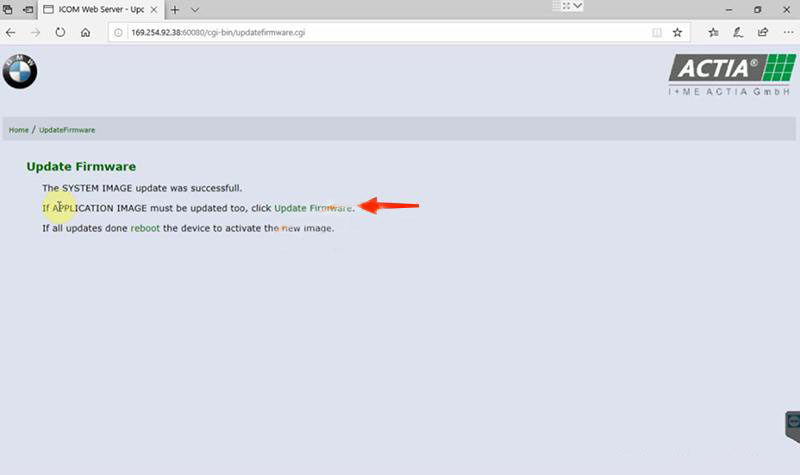
SYSTEM image update successfully.

How-to-Update-BMW-ICOM-NEXT-Firmware-to-V1.44-9

Step 3. Flash Application Image File

Click “Update Firmware” to go back to firmware update page.

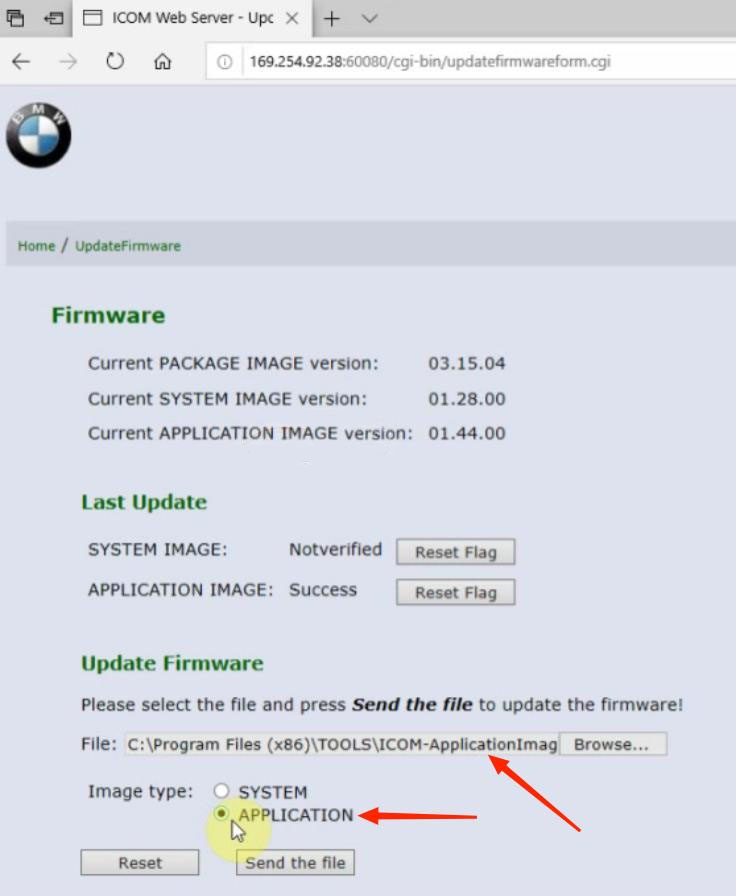
Click “Browse” and load “ICOM-ApplicationImage-01-44-00” bin file.

Select “APPLICATION”on Image type.

Click “Send the file”.

How-to-Update-BMW-ICOM-NEXT-Firmware-to-V1.44-10
Also confirm to write the image file to the flash.

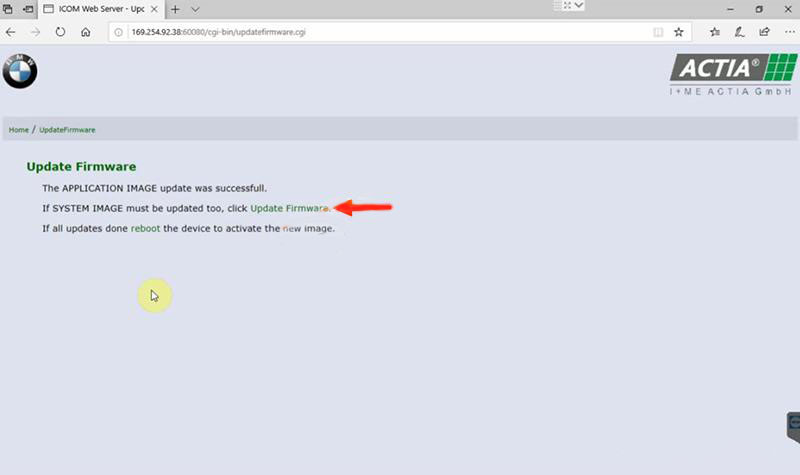
APPLICATION image update successfully.

How-to-Update-BMW-ICOM-NEXT-Firmware-to-V1.44-11

Step 4. Reboot

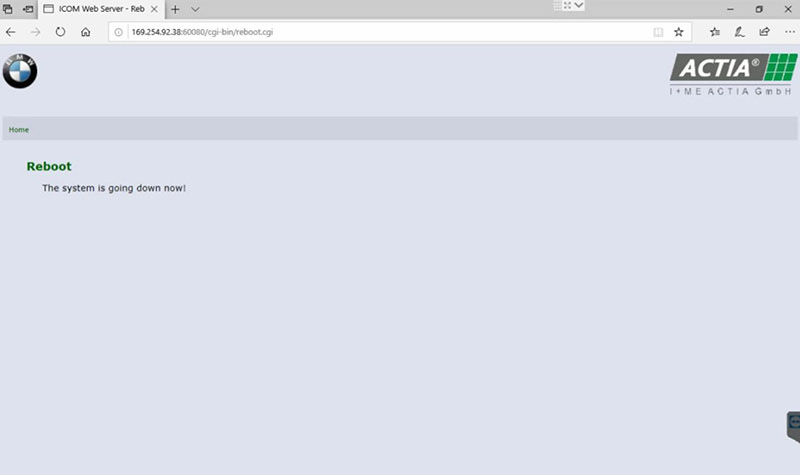
Click “reboot”.

How-to-Update-BMW-ICOM-NEXT-Firmware-to-V1.44-12

Go to “169.254.92.38:60080/” again.

Login in ICOM Manager.

Now the APPLICATION Image version is updated to V1.44.

Notice:
*   The SYSTEM IMAGE and the APPLICATION IMAGE must be updated together, and Do Not reboot the ICOM before updating both of them.
*   Firstly send SYSTEM Image file and select “SYSTEM” to flash.
*   Then send APPLICATION Image file and select “SYSTEM” to flash.

Sunday, February 13, 2022

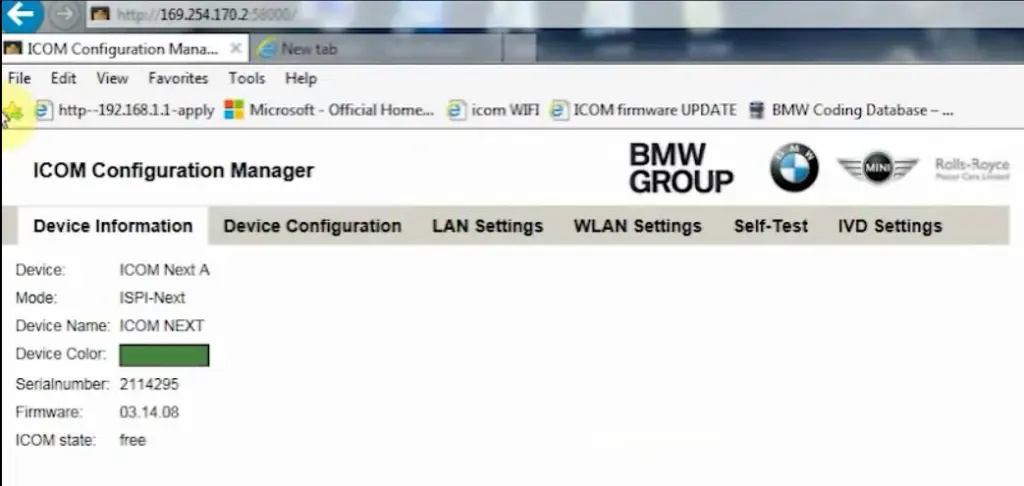
How to setup ICOM Next A WLAN connection

ICOM Next Wireless diagnostic

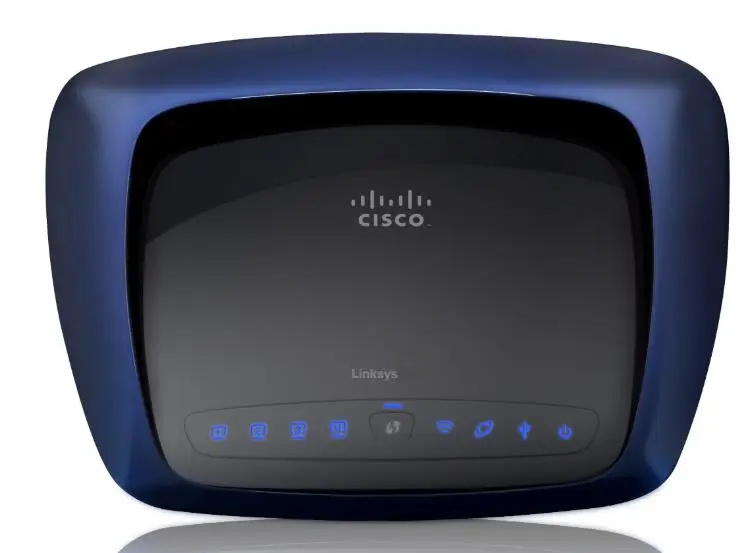
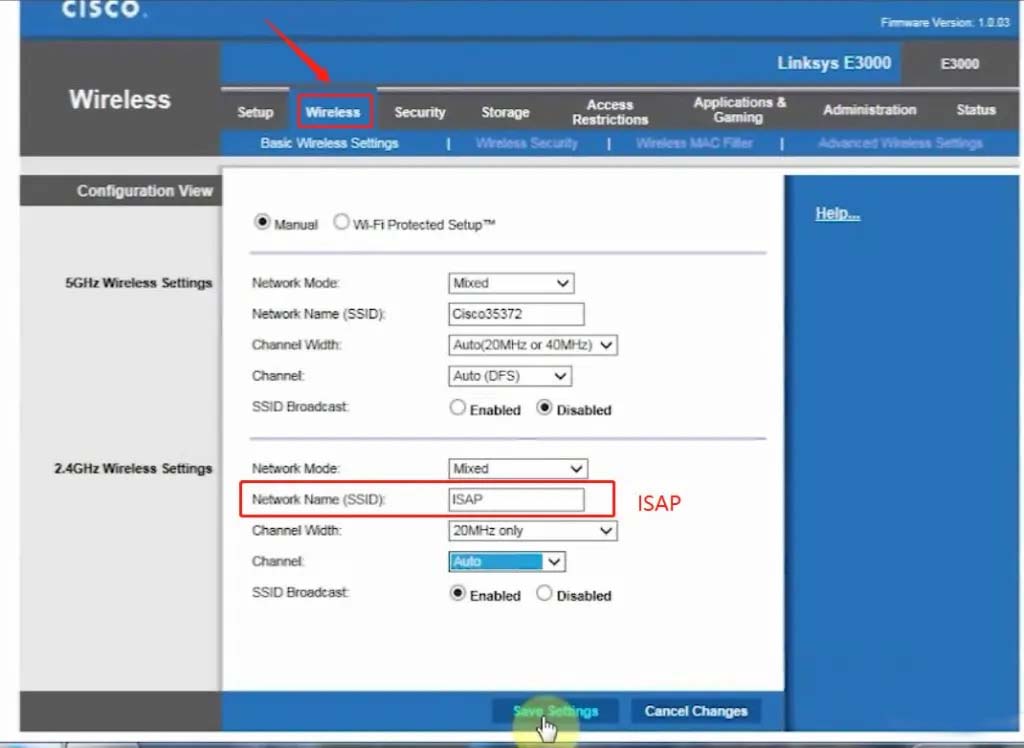
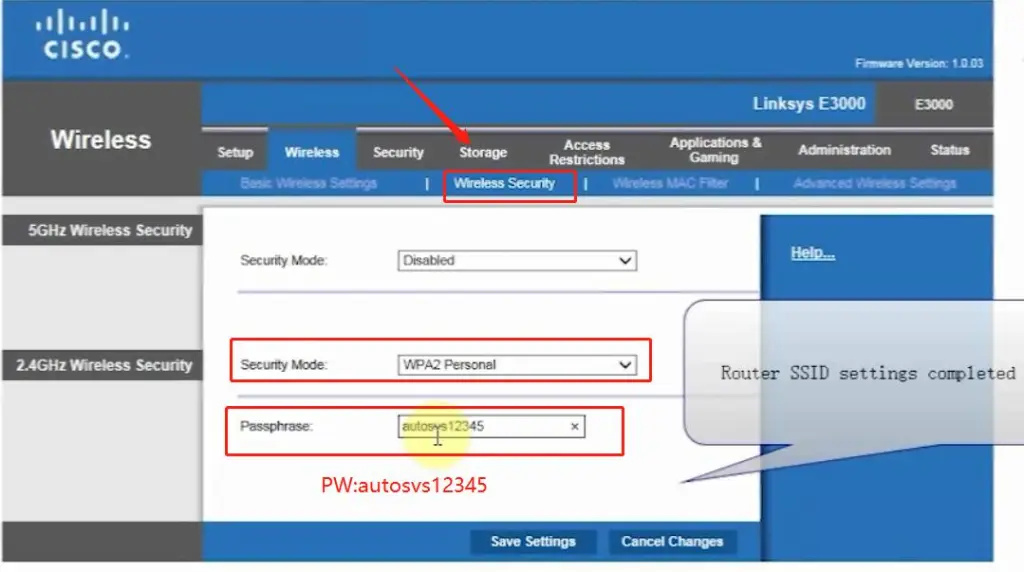
1.Set router wireless, wireless SSID name:ISAP,password:autosvs12345
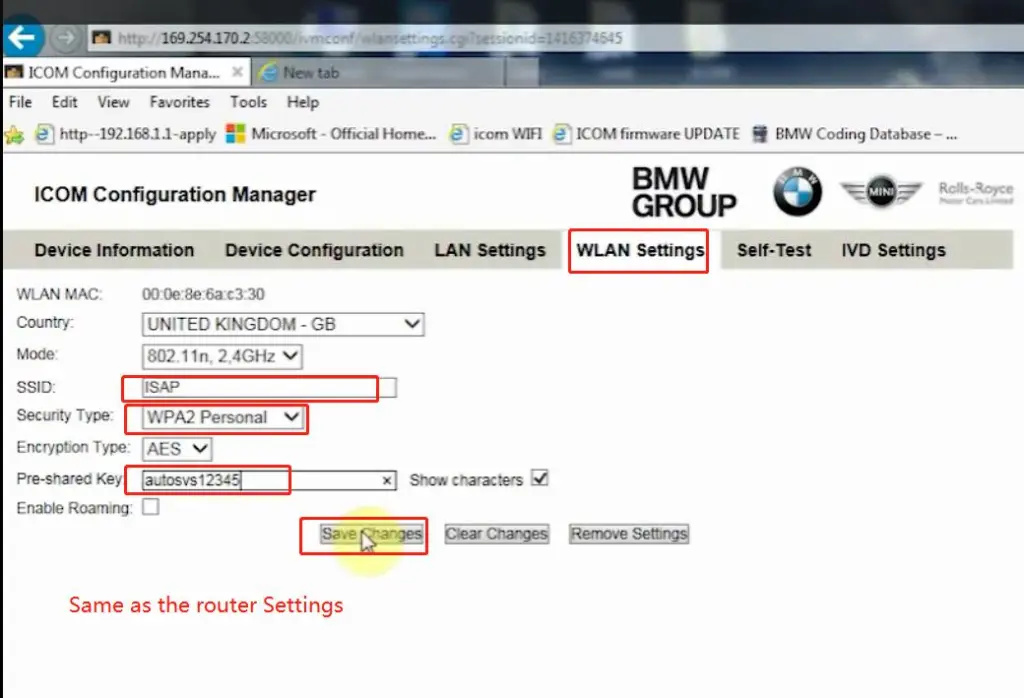
2.Set ICOM NEXT A wireless, connected to the router,
wireless SSID name:ISAP,password:autosvs12345,
(Same as router setting, After setting the ICOM NEXT need to reconnect to vehicle)
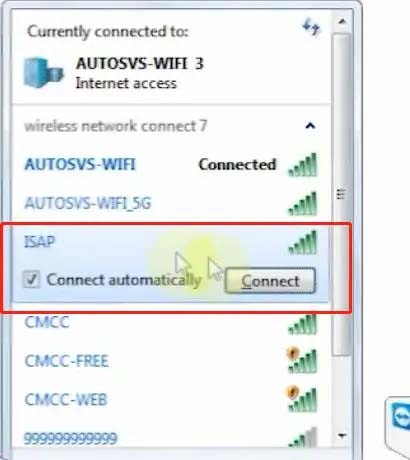
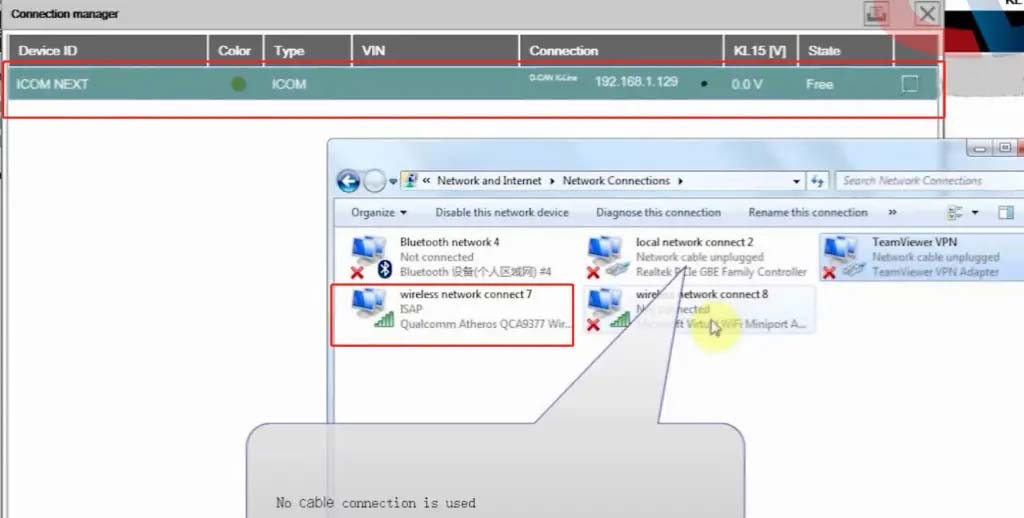
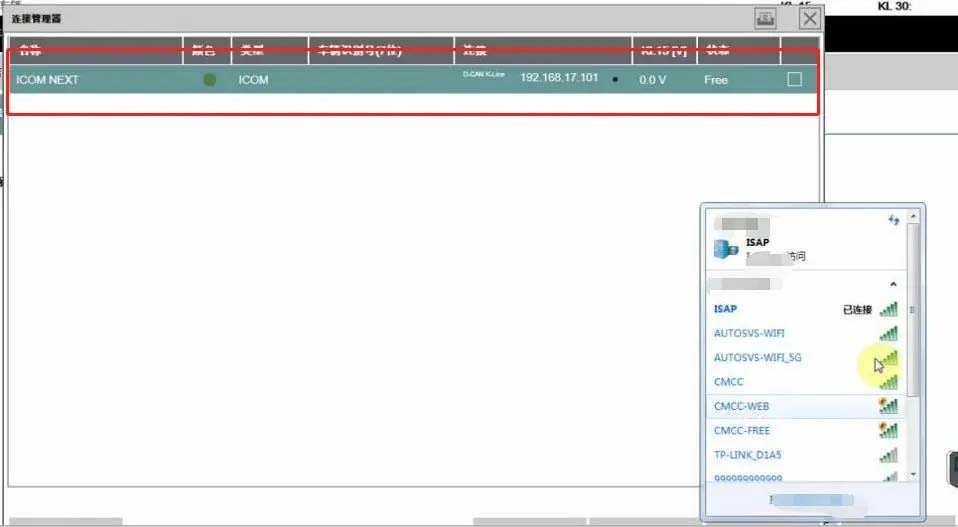
3.BMW diagnostic PC connect to wireless router ISAP, you can start wireless diagnosis.

How-to-setup-ICOM-Next-A-WLAN-connection-1

1.Configuration router

How-to-setup-ICOM-Next-A-WLAN-connection-2
How-to-setup-ICOM-Next-A-WLAN-connection-3

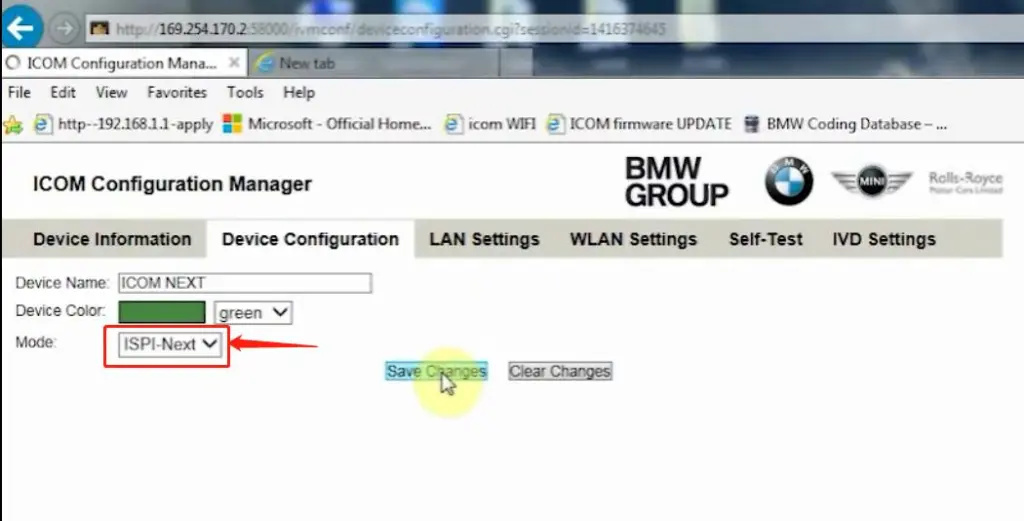
2.Configuration ICOM NEXT A

How-to-setup-ICOM-Next-A-WLAN-connection-4
How-to-setup-ICOM-Next-A-WLAN-connection-5
How-to-setup-ICOM-Next-A-WLAN-connection-6

3.Same as the router configuration;

How-to-setup-ICOM-Next-A-WLAN-connection-7

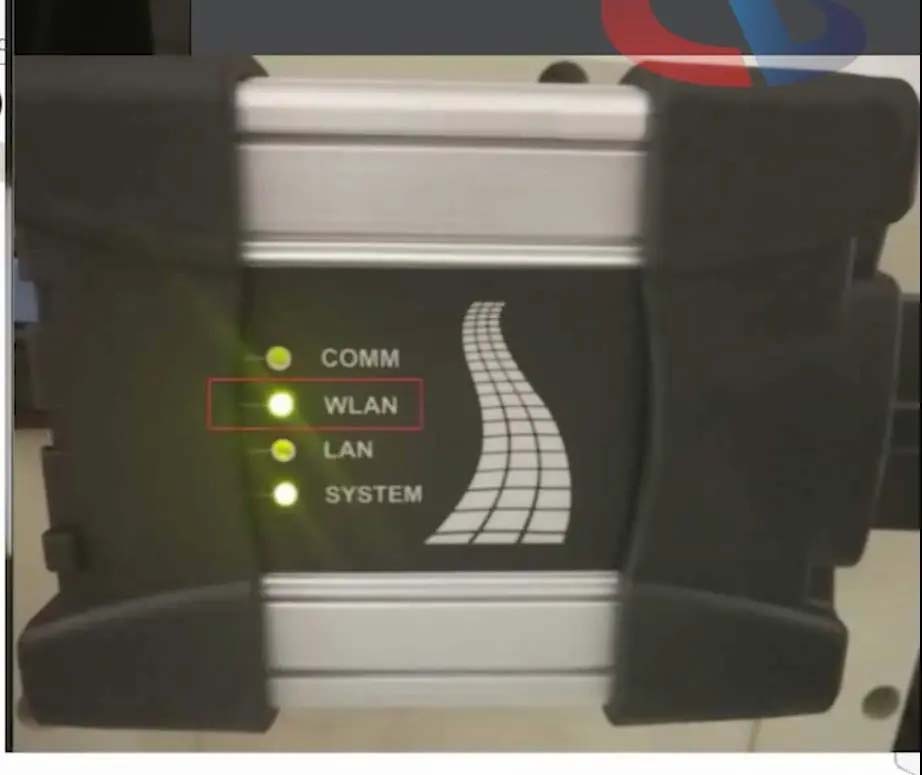
4.After ICOM NEXT configuration is completed, you need to reconnect, ICOM NEXT will automatically open the WLAN connection function;

How-to-setup-ICOM-Next-A-WLAN-connection-8

5.Connect ISAP WIFI;

How-to-setup-ICOM-Next-A-WLAN-connection-9

How-to-setup-ICOM-Next-A-WLAN-connection-10
6.After the ISAP WIFI connection is successful, you can use the ISTA diagnostic test

How-to-setup-ICOM-Next-A-WLAN-connection-11


Friday, February 11, 2022

How to Use BMW ICOM Next ISTA Software Diagnose BMW Cars

BMW ICOM NEXT Latest Generation Diagnostic Head For BMW, MINI, Rolls-Royce BMW-Model. Can Replace BMW ICOM A2, including all function of ICOM A2. BMW ICOM NEXT not support WIFI. ICOM NEXT can works together with ICOM Software we provided.

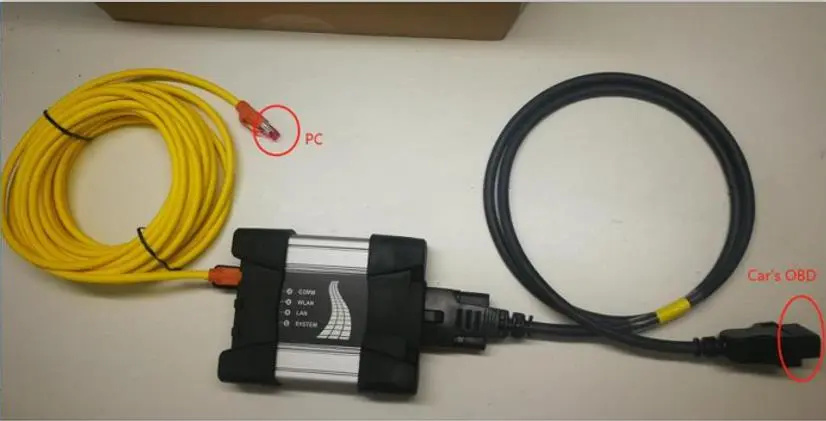
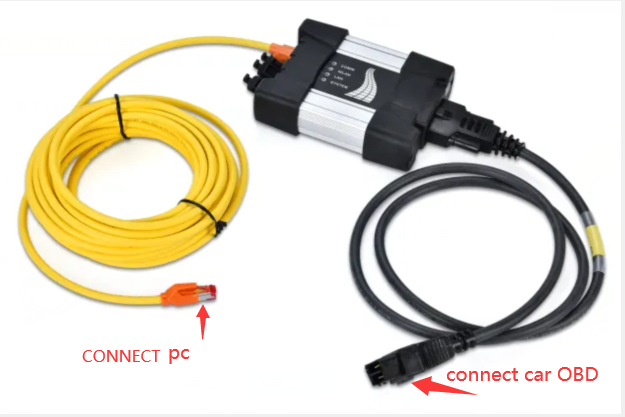
1.BMW ISTA software requires BMW ISTA ICOM NEXT or ENET cable to connect to BMW cars

How-to-Use-BMW-ICOM-Next-ISTA-Software-Diagnose-BMW-Cars-1
How-to-Use-BMW-ICOM-Next-ISTA-Software-Diagnose-BMW-Cars-2

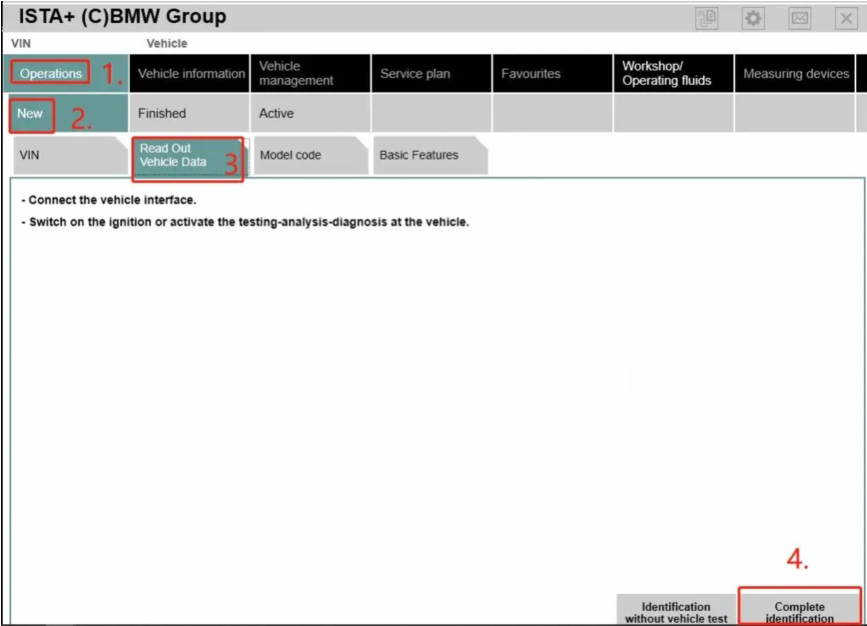
2. Operations-New-Read out vehicle data-complete identification

How-to-Use-BMW-ICOM-Next-ISTA-Software-Diagnose-BMW-Cars-3
How-to-Use-BMW-ICOM-Next-ISTA-Software-Diagnose-BMW-Cars-4

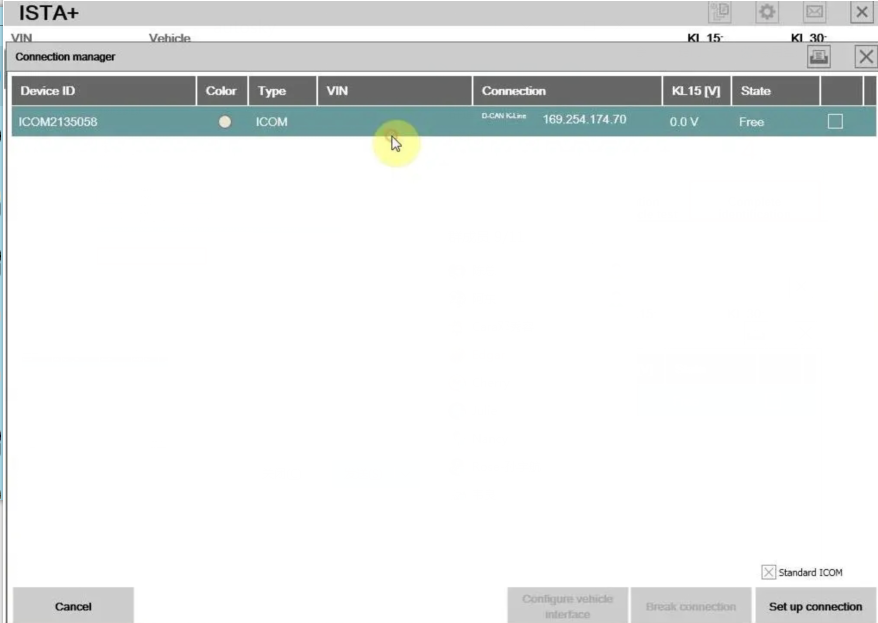
3.Connect

How-to-Use-BMW-ICOM-Next-ISTA-Software-Diagnose-BMW-Cars-5

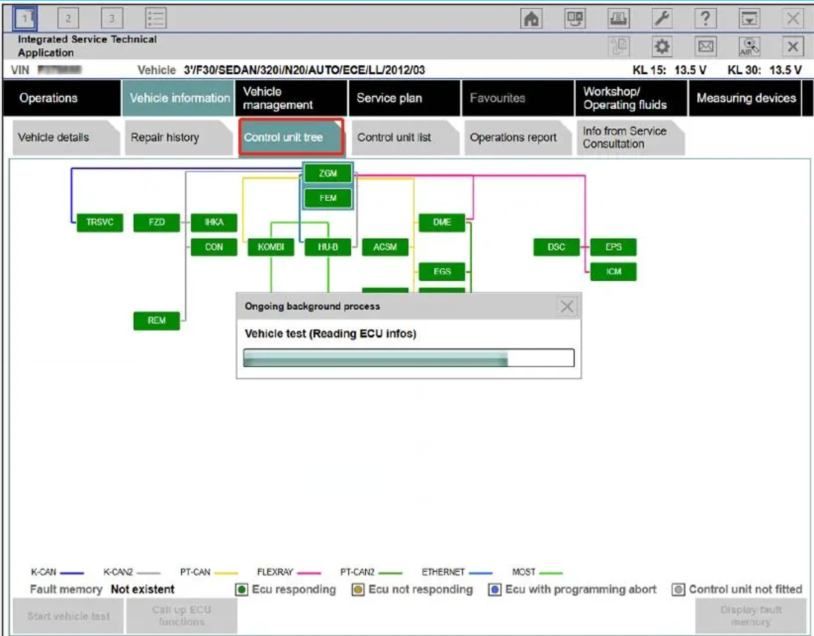
4. Read control unit tree(Read ecu)

How-to-Use-BMW-ICOM-Next-ISTA-Software-Diagnose-BMW-Cars-6

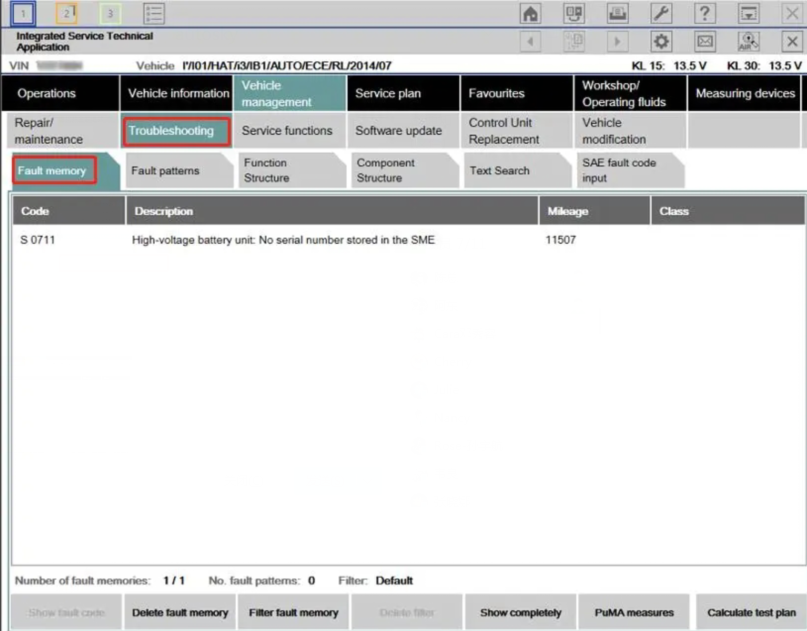
5.Read Fault memory

How-to-Use-BMW-ICOM-Next-ISTA-Software-Diagnose-BMW-Cars-7

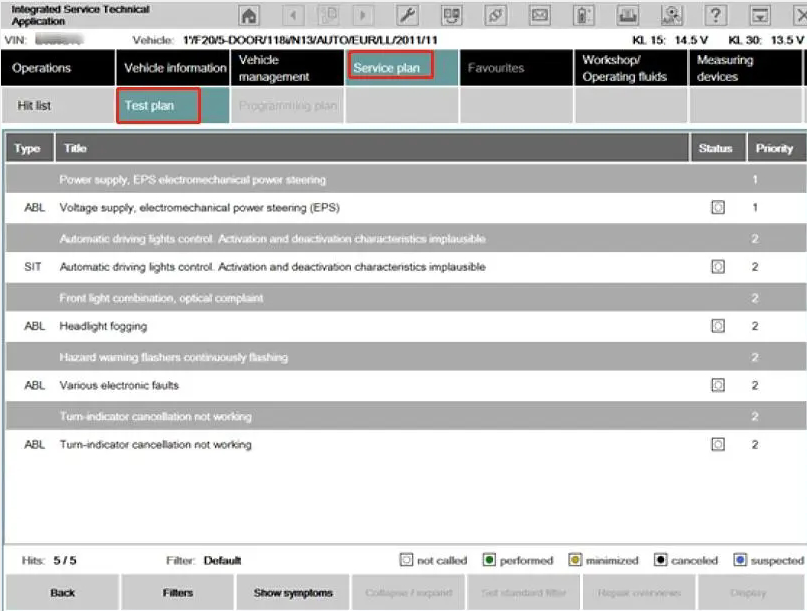
6.Test plan

How-to-Use-BMW-ICOM-Next-ISTA-Software-Diagnose-BMW-Cars-8

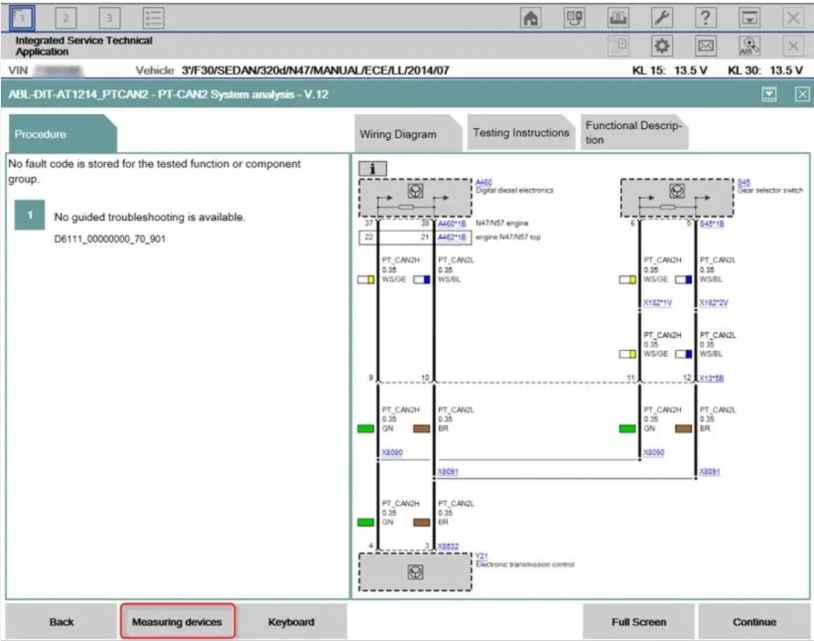
7.Wiring Diagram

How-to-Use-BMW-ICOM-Next-ISTA-Software-Diagnose-BMW-Cars-9

8.Demonstration of car disassembly and installation

How-to-Use-BMW-ICOM-Next-ISTA-Software-Diagnose-BMW-Cars-10

More interesting for BMW ICOM diagnostic tools , welcome to check our website www.obd2tool.com

Sunday, November 7, 2021

How to Get BMW ICOM Next Activation Key

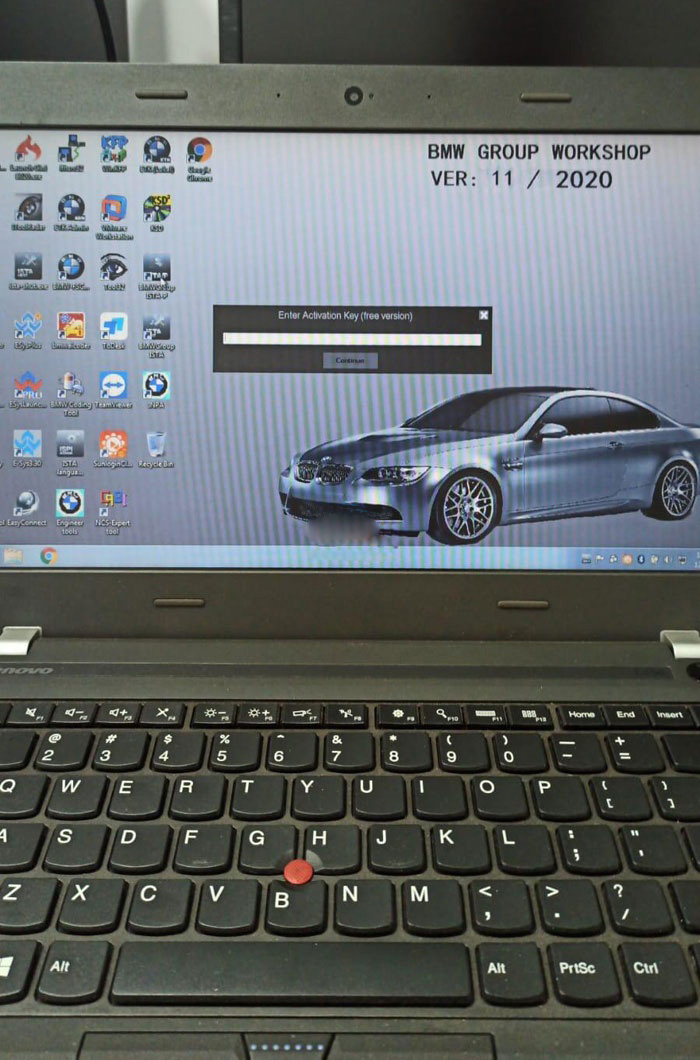
I recently bought a BMW ICOM Next emulator with latest HDD.  It asks me to enter activation key when run ISTA-P 3.67.1. Where can i get this activation key?

How-to-Get-BMW-ICOM-Next-Activation-Key-1

Obd2tool.com solution:

How-to-Get-BMW-ICOM-Next-Activation-Key-2

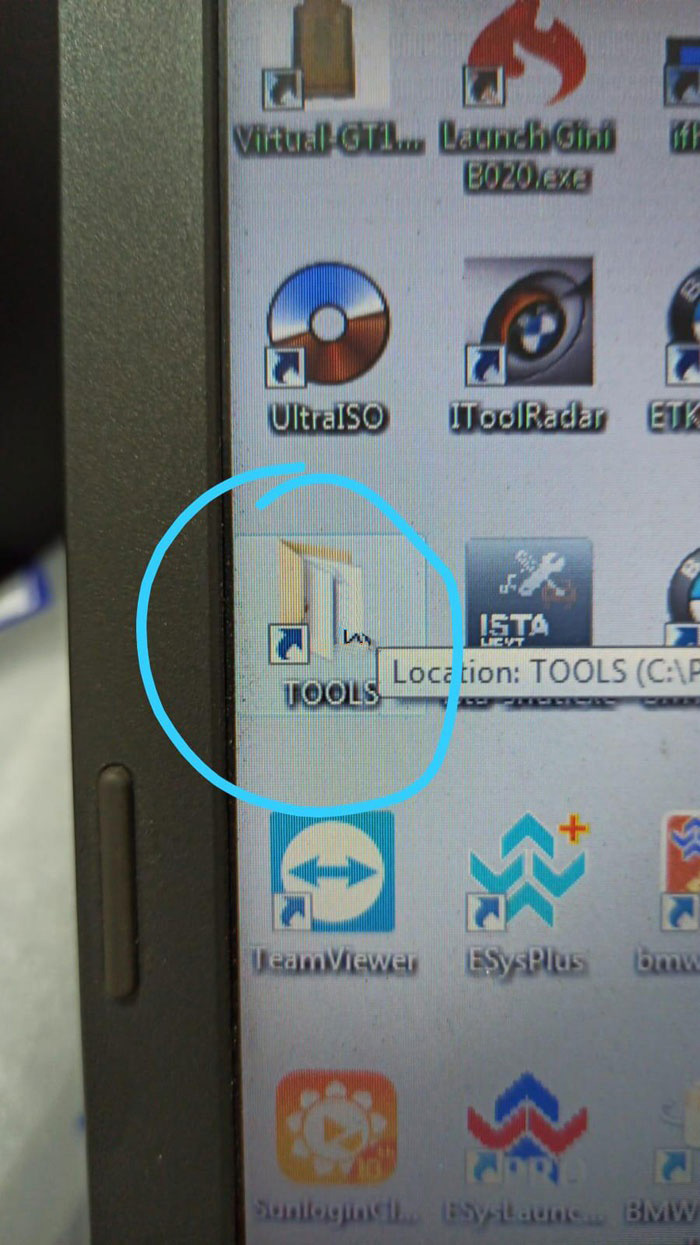
Open TOOLS folder on desktop

How-to-Get-BMW-ICOM-Next-Activation-Key-3

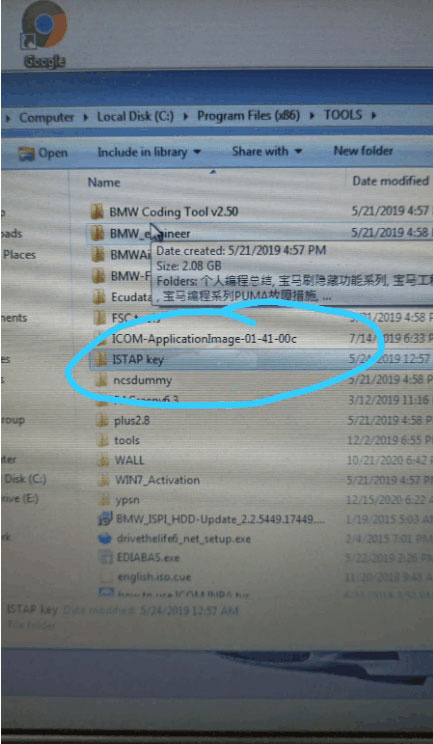
Open ISTAP key folder

How-to-Get-BMW-ICOM-Next-Activation-Key-4

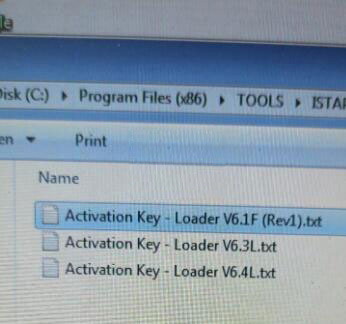
Open Activation Key- Loader V6.4L text file

Copy and paste activate key to corresponding area

How-to-Get-BMW-ICOM-Next-Activation-Key-5

ISTA-P is activated successfully.

If you want to know more about bmw diagnositc tools, please click bmw trouble repair.

Wednesday, September 8, 2021

How to Solve ICOM Next cannot be found by Itool Radar Software


Problem: I have a BMW ICOM Next. I upgraded firmware for it. Now it cannot be find by itool radar software. I tried restore using USB flash method. However when I reset Icom by press and hold the pin hole near USB port, but does not happen on my Icom Next.

How-to-Solve-ICOM-Next-cannot-be-found-by-Itool-Radar-Software-1 (2)
How-to-Solve-ICOM-Next-cannot-be-found-by-Itool-Radar-Software-2 (2)
How-to-Solve-ICOM-Next-cannot-be-found-by-Itool-Radar-Software-3 (2)

How to restore this Icom Next?

SOLVED by re-injecting via USB key files : “USER.settings” and “user.settings.log”  (can find in “Restore ICOM.7z” in ISTA installation package)
ICOM IP address was lost and now all OK !!!!

Thursday, September 2, 2021

How to Sovle BMW ICOM NEXT not connecting to ISTA


Got BMW ICOM NEXT not connecting to ISTA because it need firmware update I try to login with internet explorer but I didn’t get the setup page. I don’t know if it’s IP problem or what.

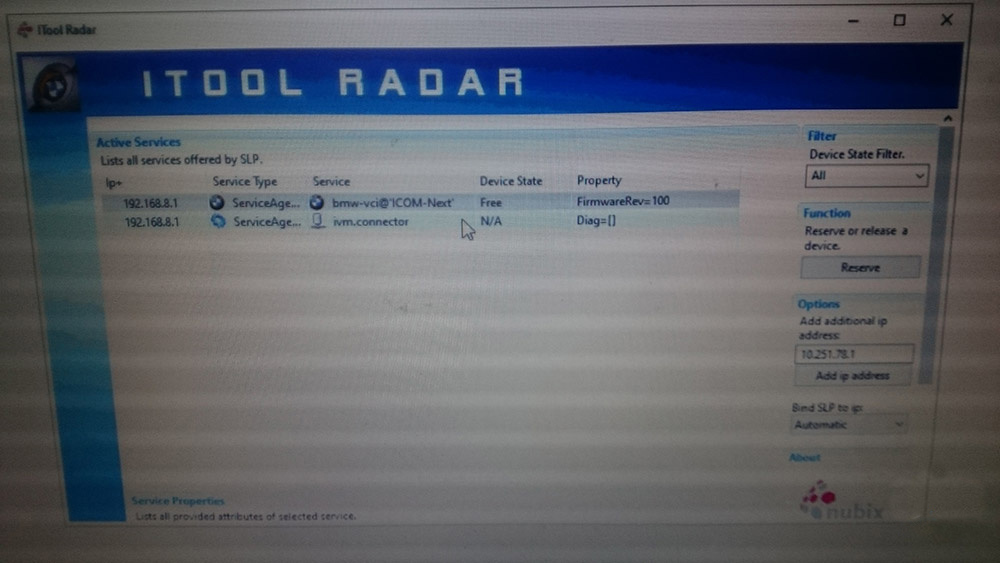
How-to-Sovle-BMW-ICOM-NEXT-not-connecting-to-ISTA-1 Here is the itool radar shot:

Advice:

Try that: 192.168.8.1:60080
LOG IN with following:
Username: root
Password: NZY11502  or NZY1150263
How-to-Sovle-BMW-ICOM-NEXT-not-connecting-to-ISTA-2

Download iTool Radar, connect the ICOM directly to your computer, and it should read the ip address from the ICOM.  Once you have the IP address, then you can proceed to log onto it using chrome or microsoft explorer browser with the provided credentials above.

If you did exactly as above, but with no luck. Then make an restore usb and reflash with this!

Download from this mega: BMW_ISPI_ICOM_NEXT_FW_3.15.03_files.txt

https://mega.nz/#!UJRllQRK!UIBddM2M8dXo2D5yf8Seluz-TuHiU4yCdnjvLiZOP8A

Then create a restore USB by following the following instructions:

A portable USB mass storage device (USB stick) that is at least compliant with USB 2.0 and is formatted with the FAT32 file system is required as additional hardware.

1. Create a text file user.settings with the following content: ConnectionMode=xxxxxx * 1 (default *2 : DHCP) Ip=xxx.xxx.xxx.xxx (default: 0.0.0.0)
Netmask= xxx.xxx.xxx.xxx (default: 0.0.0.0)
Gateway=xxx.xxx.xxx.xxx (default: 0.0.0.0)

Pay attention to the upper and lower case letters!

* 1 Possible parameters for ConnectionMode: STATIC_IP, DHCP, APIPA * 2 default = factory settings

2. Copy the file user.settings onto the USB stick.
3. If the ICOM NEXT A is ready for operation (SYSTEM LED permanently lights up green), the USB stick is to be connected to the unit (a connected MOST diagnosis adapter is to be unplugged). The red light chain starts after approx. 10 seconds (see 4.2.7.).

The saved settings are persistently overwritten. The green light chain starts once all the data has been updated. In this state, the unit can be addressed at the new IP (even without a restart). If the red light chain does not start, the user.settings file on the USB stick could not be read. If the green light stays off, an error has occurred while the LAN configuration was being written. For analysis purposes, the ICOM NEXT A saves the file user.settings.log with the error description to the USB stick.

or possibly as follows after that you copy the necessary files:

1.3. Connect the USB stick to the ICOM Next.

1.4. Press and hold the button located on the right-hand side of the ICOM Next, next to the OBD II cable connection socket.

1.5. Continue to hold the button, connect the device to the vehicle’s OBD II jack and keep the button pressed until the LEDs on the ICOM Next glow red.

1.6. Release the button and within five seconds, push the button three times. This starts the firmware update.

Note: The update may take several minutes. Do not disconnect the ICOM Next as long as any LED glows red.

1.7. When all LEDs on the ICOM Next have stopped glowing, the Emergency Firmware Update is complete. You can now disconnect the USB flash drive.

1.8. IMPORTANT: When the Emergency Firmware Update is finished, the ICOM Next must be connected to your network with a LAN cable in order to be reconfigured since all previous settings have been lost. If there is a “user.settings” file on the USB flash drive, it will be installed after the firmware update.

Final update:

This login is for original next or clone/orig A1, A2 for sure.

I try to login to ip: 192.168.8.1

LOG IN with following:

Username: root

Password: NZY1150263

Hope it helps!

Best source of BMW ICOM Next:

Monday, August 16, 2021

How to Diagnose and Program your BMW with ISTA/D


The BMW ISTA/D is a current dealer-level diagnostic software commonly used for all E Series and F Series BMW vehicles. It replaces the older version DIS diagnostic software. The ISTA/D software can be used in diagnosing all BMW models but it can only program BMW F-/I-/G-/Mini/RR series cars and beyond. It does not support programming for E Series models.

How to use the ISTA/D diagnostic software on your BMW vehicle.

How-to-Diagnose-and-Program-your-BMW-with-ISTA-D-1 How-to-Diagnose-and-Program-your-BMW-with-ISTA-D-2How-to-Diagnose-and-Program-your-BMW-with-ISTA-D-3
How-to-Diagnose-and-Program-your-BMW-with-ISTA-D-4
How-to-Diagnose-and-Program-your-BMW-with-ISTA-D-5
How-to-Diagnose-and-Program-your-BMW-with-ISTA-D-6

ISTA D, ISTA+, and Rheingold are the same and often used interchangeably. ISTA, which stands for Integrated Service Technical Application, developed from a folder file named Rheingold that contains BMW’s main application and data. Rheingold became ISTA/D later on – which D stands for Diagnostics. On the other hand, the P for ISTA/P stands for Programming.

Just like ISTA/P, ISTA/D requires the ICOM interface for the following purpose:

ICOM A: used for the main interface
ICOM B: serves as an adapter for programming multimedia in E series models
ICOM C: serves as adapter for old BMW models that uses the round 20 pin diagnostic plug
ICOM D: serves as an adapter for BMW motorcycles

BMW had categorized the application of ISTA/D into two parts – Programming and Diagnostics. Here’s how it is applied:

For Diagnostics:

Repair of software
Troubleshooting
Information guide for repair and maintenance
Vehicle identification and management.

For Programming:

Update of Software
Conversions and Retrofits
Replacement of Control Unit

Saturday, August 14, 2021

BMW Coding & Programming – Do you know the difference


BMW-Coding-&-Programming-Do-you-know-the-difference-1

What is Coding?

It is a process utilized by BMW, which groups system specific operating requirements (Data) together and then assigns a label/code to each of these groups of data. The various groups of data are all pre-loaded into system specific “codable” control modules, along with a basic set of operating instructions (Program).

There are various types of operating requirements such as; O2 sensors, emissions controls, fuel type, Manual or Auto transmission.

The procedure of assigning one specifically labeled group of data to the operating program of a specific control module/component is referred to as “coding”. Coding allows a specific set of data already present in the module to be selected.

A “codable” control module has a basic operating program already installed along with several specific variations of operating data. The coding process allows a specific set of operating data to be assigned to the basic operating program of that module/component, with respect to its specific application.

Coding can be performed for some systems/components via ISTA/P or the older DIS/Plus/GT1/SSS device. By entering a variant code via the device, selecting customer specific operational settings from a list of available features (VKM) or automatically by selecting a specific coding process.

Note: Codable control modules/components are system specific, which means that not all control modules are codable.
What is Programming?

It is a process utilized by BMW to load application/system specific operating instructions. Programming loads control functions instructions into a specific control module.

(Program) into a module/component which already has the systems operating requirements (Data) installed, plus it can be used as a means of updating data and operating instructions previously installed in a control module. Basic programmable control modules have a pre-defined set of operating data already installed which allows the module to be fairly generic until a specific operational program is installed.

The ability to program a module is limited to the number of times it has already been programmed and the hardware version of the control module itself.

What is I-level (or Integration Level)?

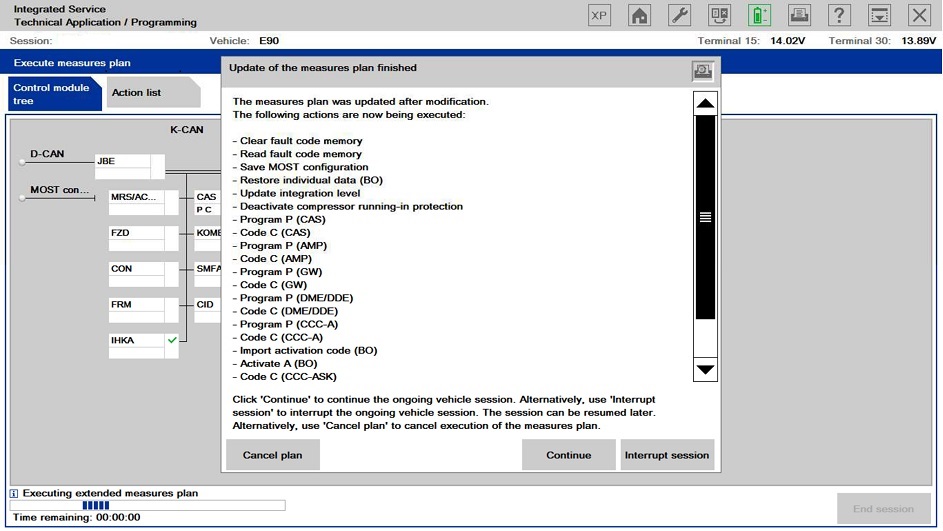
The ECU’s in a BMW are not meant to be updated individually, rather as a collection which BMW tested and knows all work fine together. The collective version number of all programmed ECU’s is called the I-level, or Integration level (German: I-stufe). The term I-level was adopted by BMW around the year 2004 and applies only to lines which were in development/production in 2004 or after (E60, E70, E90, etc.).

The I-level is a set of numbers that looks like E89X-11-09-410. The first part represents the chassis group, which is followed by the year and month of the release and a build number for that release. So, E89X-11-09-410 would mean an E80/E90, 09/2011, version 410.

You will often see a set of two I-levels, something like E89X-05-10-026, E89X-11-09-410. In this case the first set is called the Factory I-level, or the level with which the car left the factory, and the second the Dealer Organization I-level, or the current version programmed by the dealer.
Tagged on: bmw encoding, bmw programming, E36, E39, E46, E60, E61, E63, E64, E65, E66, E67, E70, E71, E72, E81, E82, E84, E87, E88, E89, E90, E91, E92, E93, F01, F10