Sunday, February 27, 2022

How to do ICOM firmware update

ICOM Firmware Update Steps

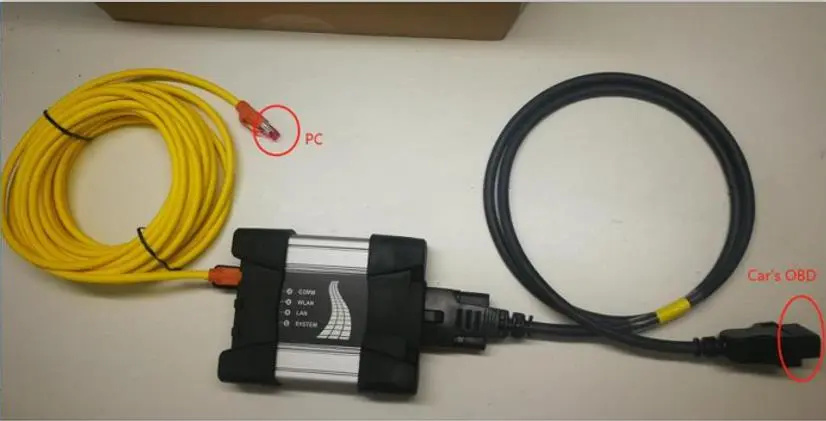
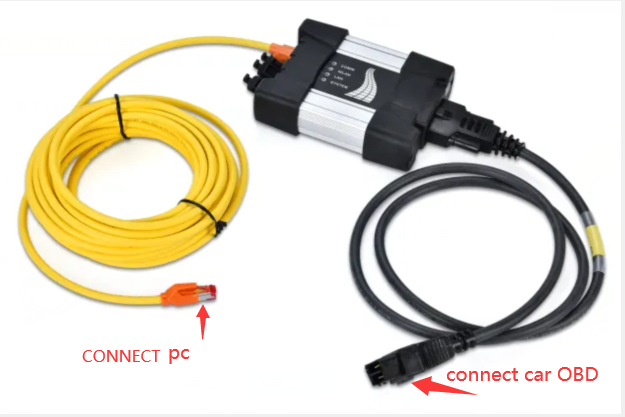
1. Connect the ICOM to computer by the LAN cable, power 12V to ICOM by the power adapter or car.

2. Open http://169.254.92.38:60080/ by IE browser (only after ICOM is connected with laptop and power it can be opened), user name: root password: NZY11502

3. Click “Update Firmware”,you will see the ICOM firmware version information.

4. choose “ICOM-BootImage-01-26-00c.bin”, setting “image type” to “SYSTEM”,and then click “Send the file”. (You can find the update files on the desktop folder name “TOOLs”

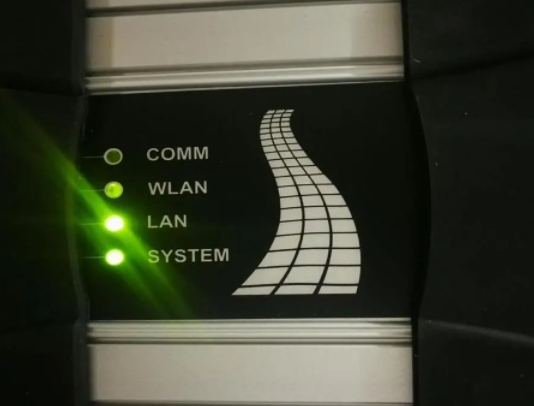
5. When it prompt out “Write the image file to the flash?”,click “Yes”,the ICOM led will be red color.

6. when it prompt out “The SYSTEM IMAGE update was successful”,click “Update Firmware”.

7. choose “ICOM-ApplicationImage-01-41-02c.bin”, setting” image type” to “APPLICATION”,and then click “Send the file”, it will take some minutes. (You can find the update files on the desktop folder name “TOOLs”

8. When it prompt out “Write the image file to the flash?”,click “Yes”,the ICOM led will flash red again.

9. wait for all finish,and then “reboot” it.

10. ICOM firmware updates finish.


Sunday, February 20, 2022

How to program with BMW Esys

How to program BMW E-sys
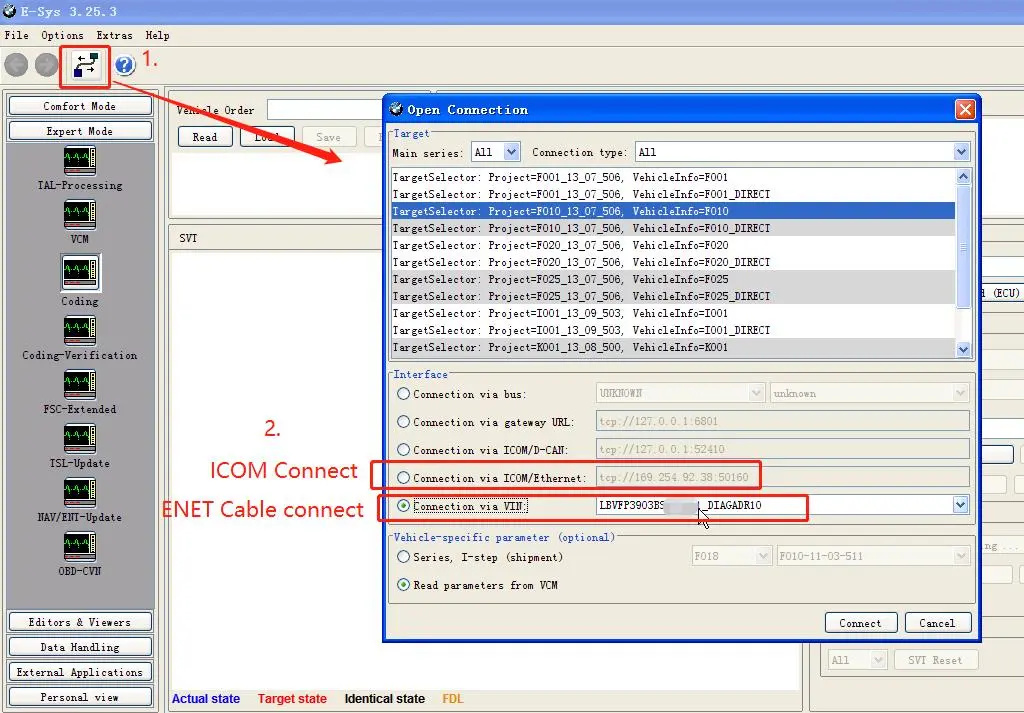
1.Connect to BMW car;

How-to-program-with-BMW-Esys-1

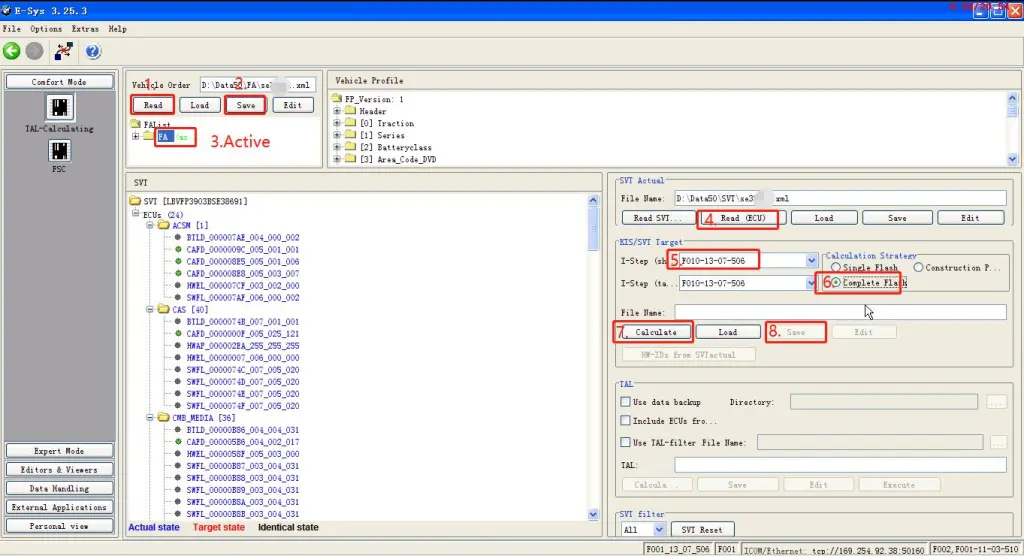
2.Read FA,read ecu and Calculate ecu version.(Calculate will take 10 minutes)

How-to-program-with-BMW-Esys-2

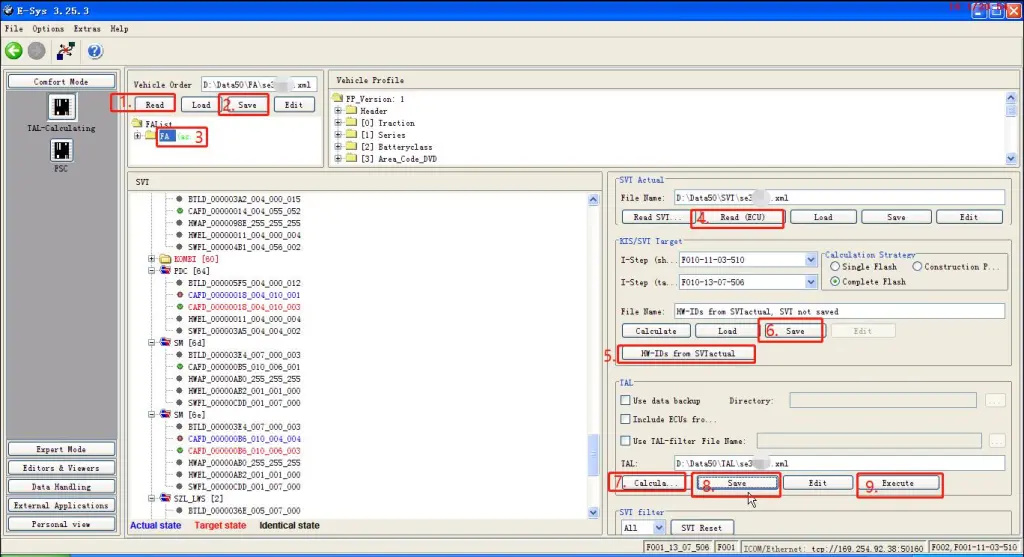
3.Select SVT (calculated)

How-to-program-with-BMW-Esys-3

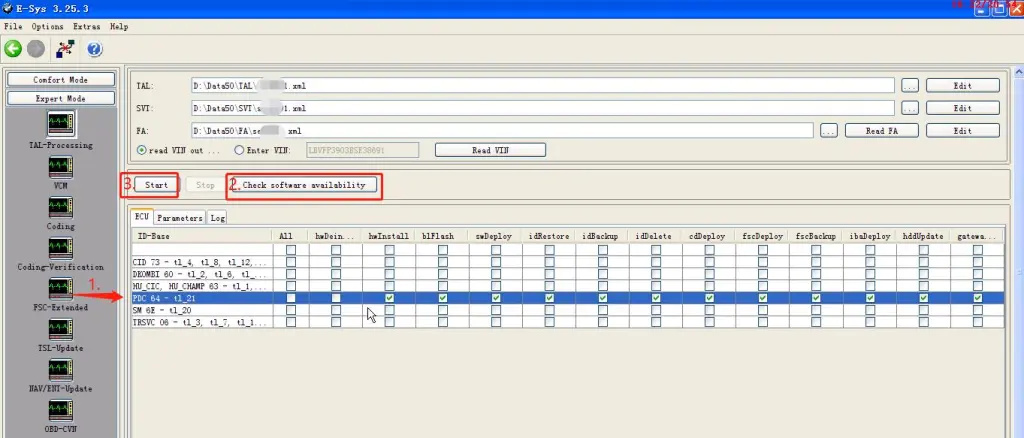
4.Select the ecu to be programmed, check the program file, and click Start to program;(will take 10 minutes or more)

How-to-program-with-BMW-Esys-4

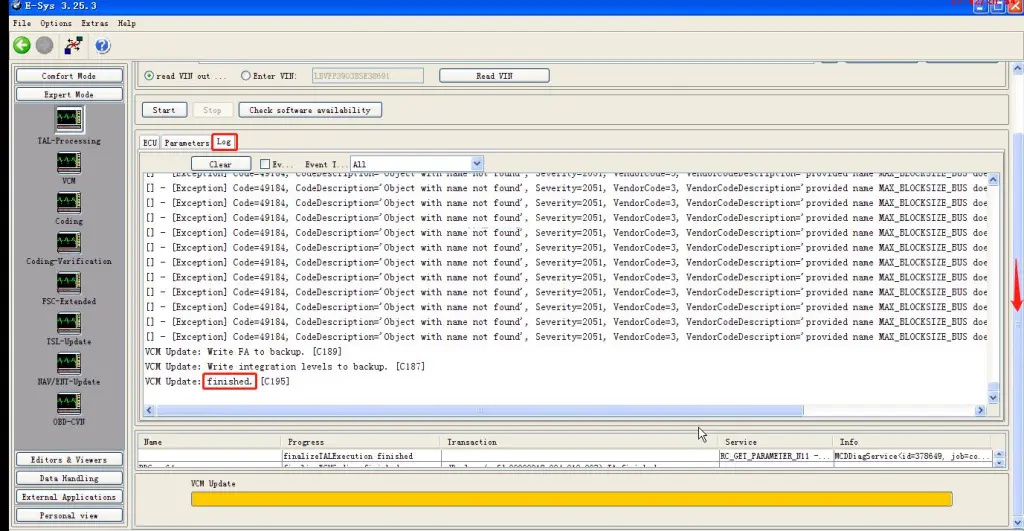
5.Program finished;

How-to-program-with-BMW-Esys-5

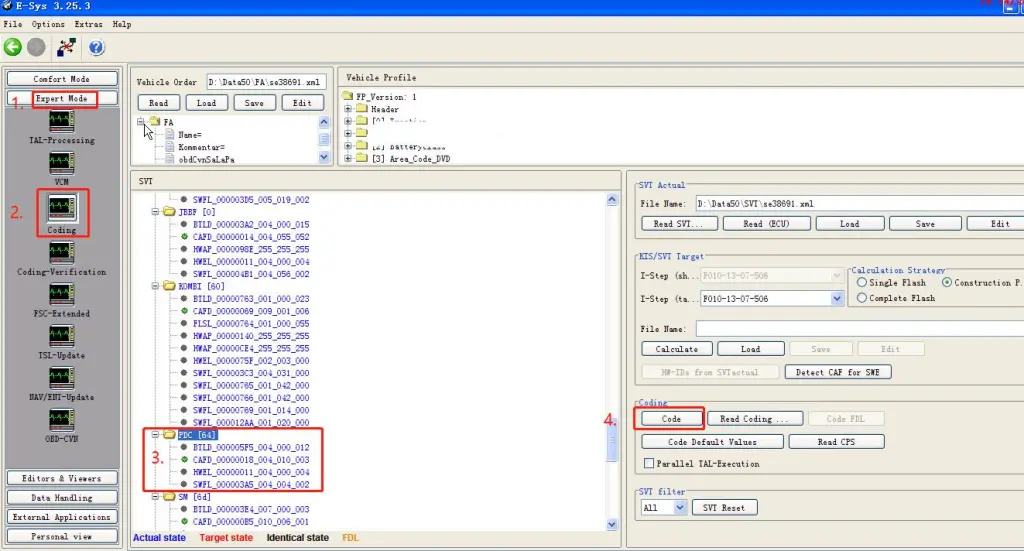
6.After programming ecu, you still need to ecu code;

How-to-program-with-BMW-Esys-6
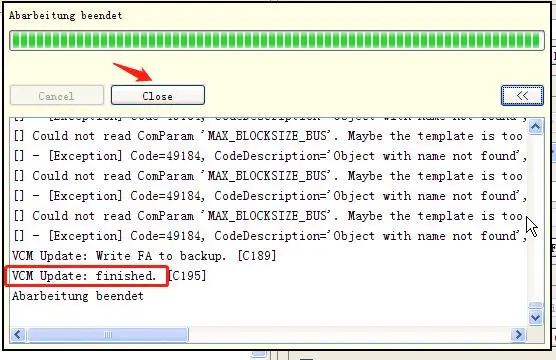
How-to-program-with-BMW-Esys-7

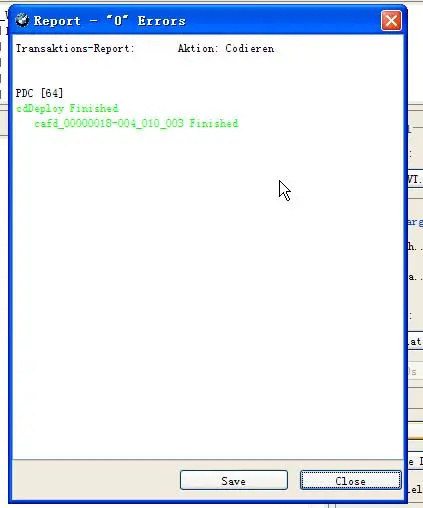
7.Code finished,ecu programming complete.(Tips :If the ecu still does not work, you need to use the BMW ISTA diagnostic software to check the fault and check whether the ecu needs to be matched or learned.)

How-to-program-with-BMW-Esys-8

If you want to know BMW ICOM, please click https://www.obd2tool.com

Sunday, February 13, 2022

How to setup ICOM Next A WLAN connection

ICOM Next Wireless diagnostic

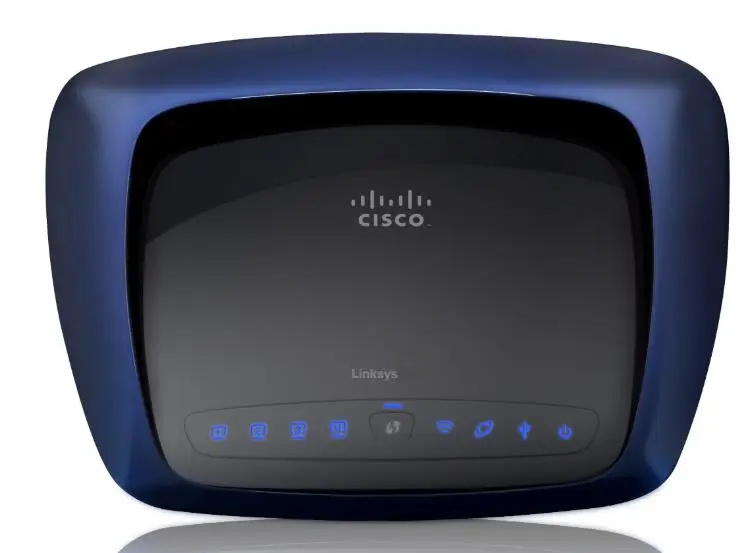
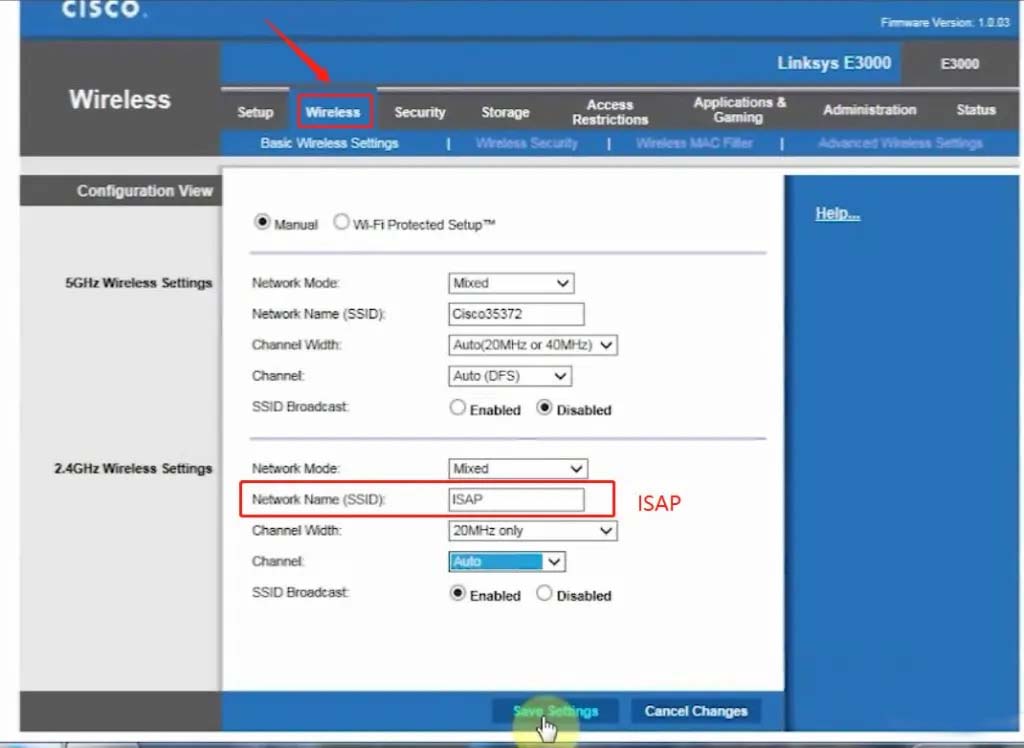
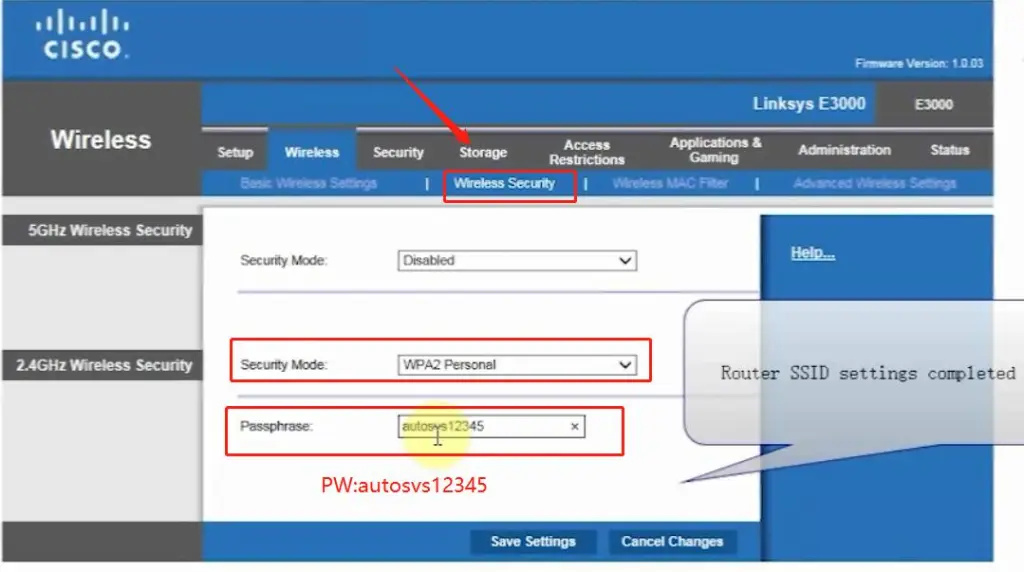
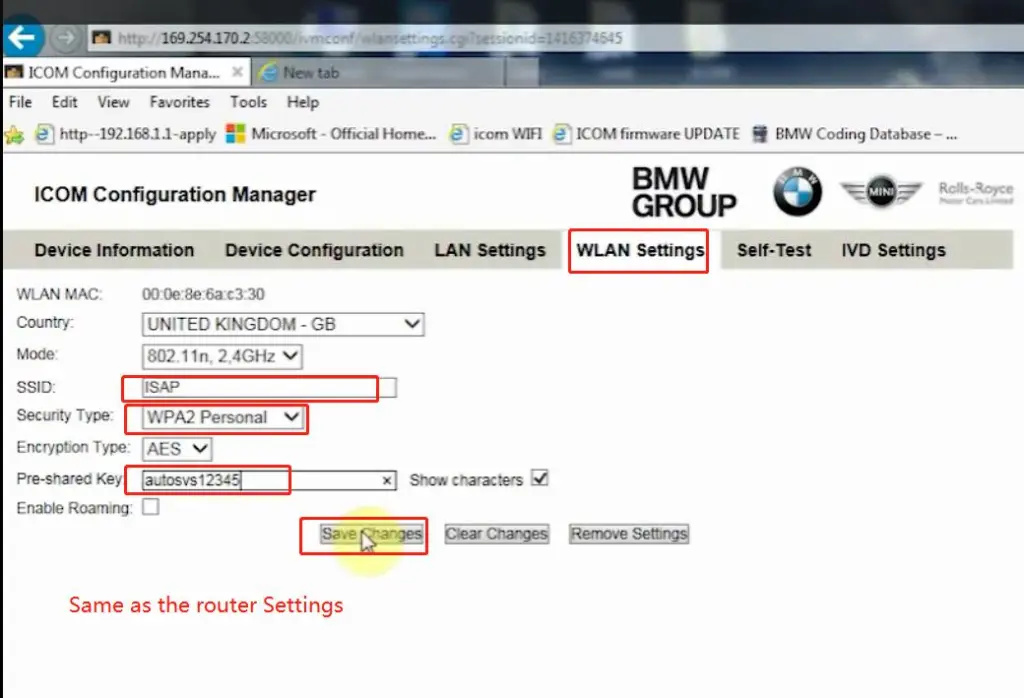
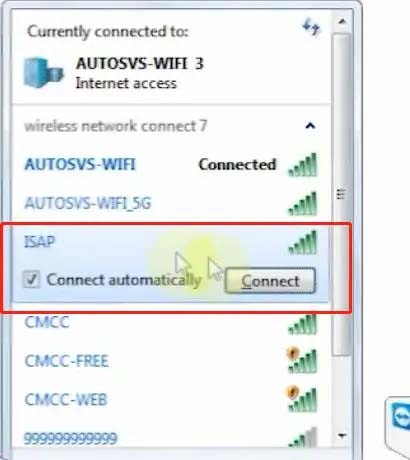
1.Set router wireless, wireless SSID name:ISAP,password:autosvs12345
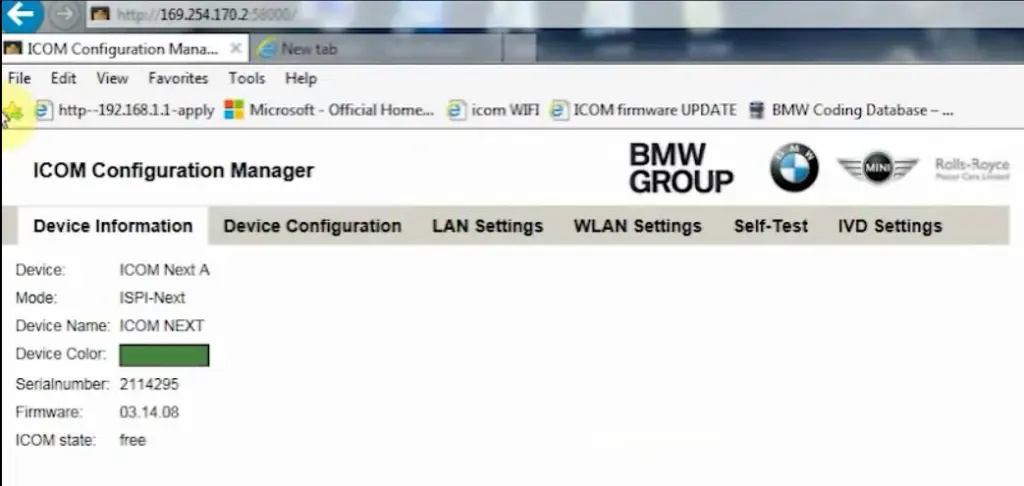
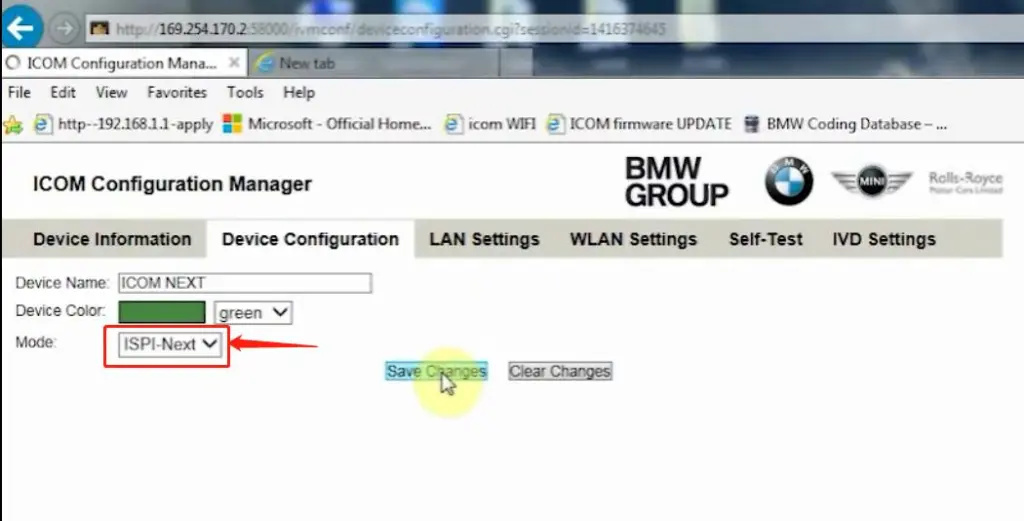
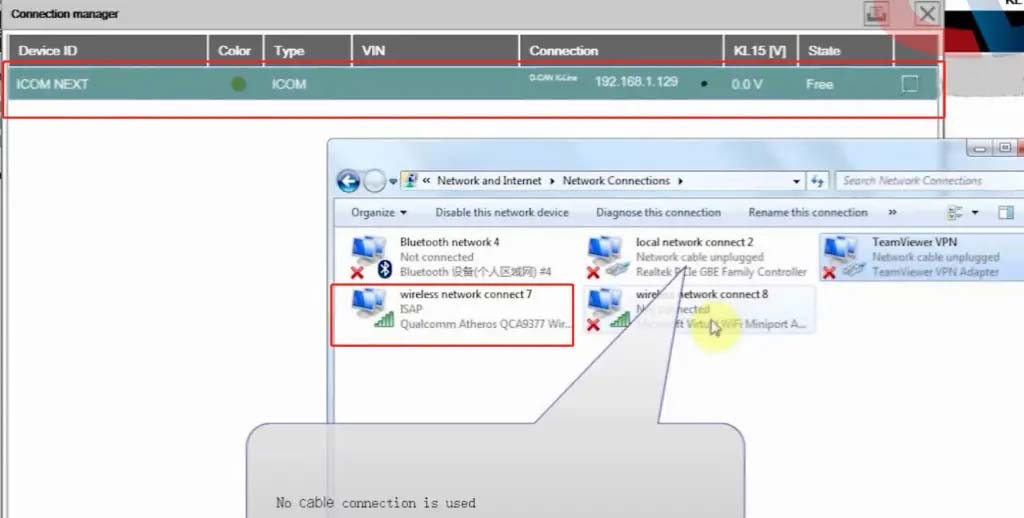
2.Set ICOM NEXT A wireless, connected to the router,
wireless SSID name:ISAP,password:autosvs12345,
(Same as router setting, After setting the ICOM NEXT need to reconnect to vehicle)
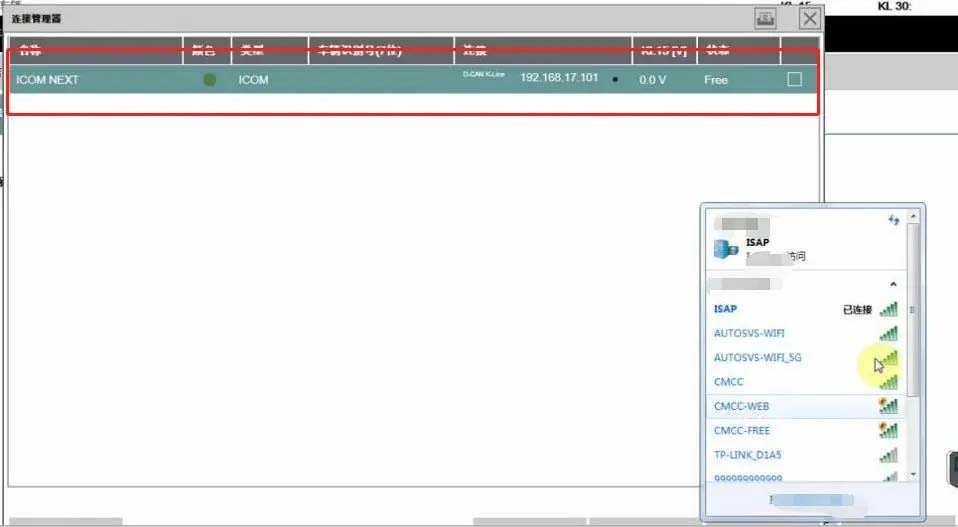
3.BMW diagnostic PC connect to wireless router ISAP, you can start wireless diagnosis.

How-to-setup-ICOM-Next-A-WLAN-connection-1

1.Configuration router

How-to-setup-ICOM-Next-A-WLAN-connection-2
How-to-setup-ICOM-Next-A-WLAN-connection-3

2.Configuration ICOM NEXT A

How-to-setup-ICOM-Next-A-WLAN-connection-4
How-to-setup-ICOM-Next-A-WLAN-connection-5
How-to-setup-ICOM-Next-A-WLAN-connection-6

3.Same as the router configuration;

How-to-setup-ICOM-Next-A-WLAN-connection-7

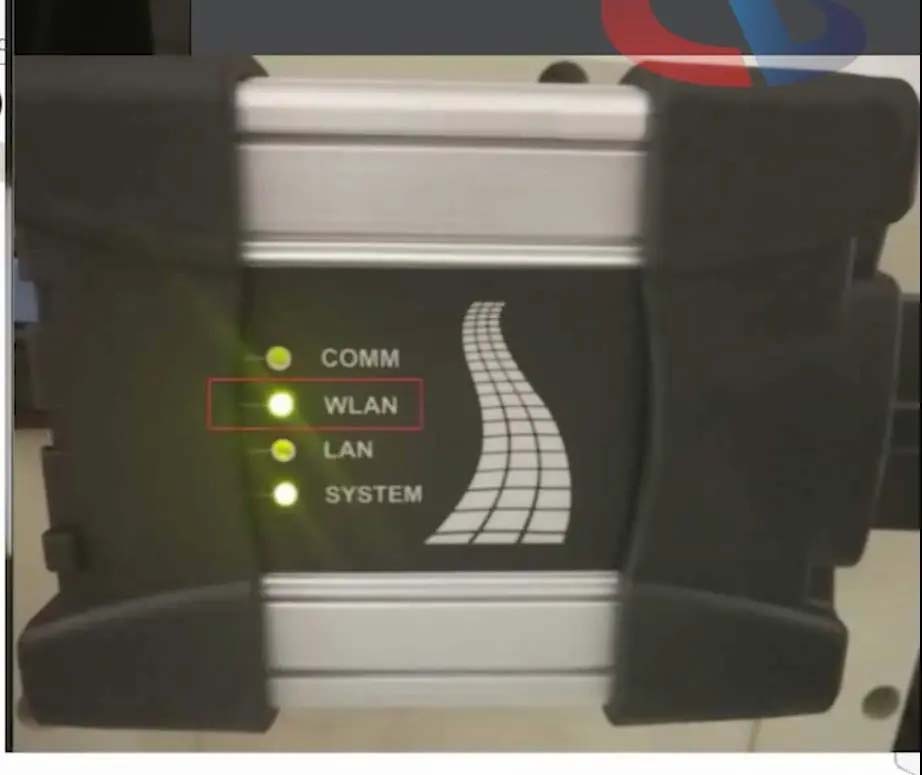
4.After ICOM NEXT configuration is completed, you need to reconnect, ICOM NEXT will automatically open the WLAN connection function;

How-to-setup-ICOM-Next-A-WLAN-connection-8

5.Connect ISAP WIFI;

How-to-setup-ICOM-Next-A-WLAN-connection-9

How-to-setup-ICOM-Next-A-WLAN-connection-10

6.After the ISAP WIFI connection is successful, you can use the ISTA diagnostic test

How-to-setup-ICOM-Next-A-WLAN-connection-11


Friday, February 11, 2022

How to Use BMW ICOM Next ISTA Software Diagnose BMW Cars

BMW ICOM NEXT Latest Generation Diagnostic Head For BMW, MINI, Rolls-Royce BMW-Model. Can Replace BMW ICOM A2, including all function of ICOM A2. BMW ICOM NEXT not support WIFI. ICOM NEXT can works together with ICOM Software we provided.

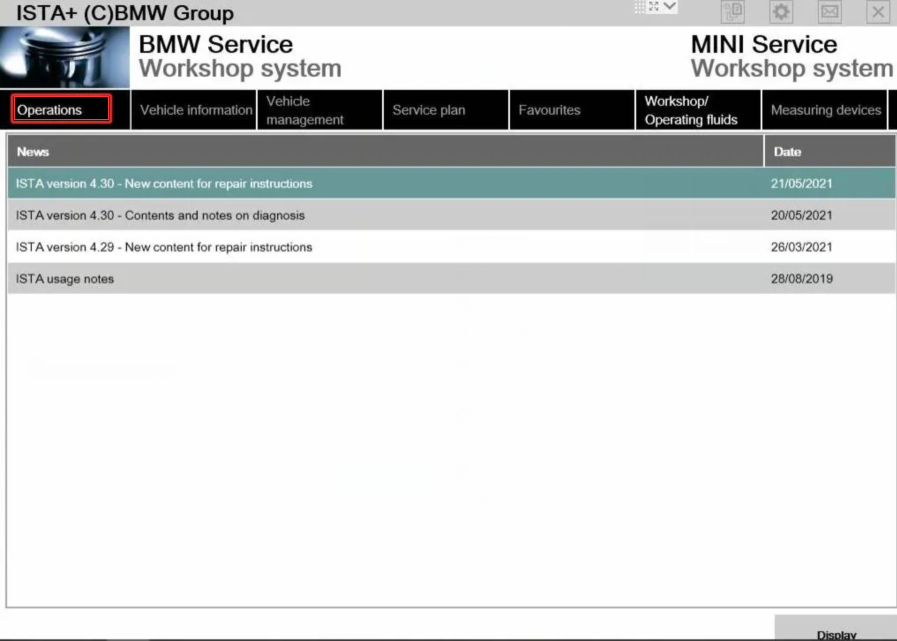
1.BMW ISTA software requires BMW ISTA ICOM NEXT or ENET cable to connect to BMW cars

How-to-Use-BMW-ICOM-Next-ISTA-Software-Diagnose-BMW-Cars-1
How-to-Use-BMW-ICOM-Next-ISTA-Software-Diagnose-BMW-Cars-2

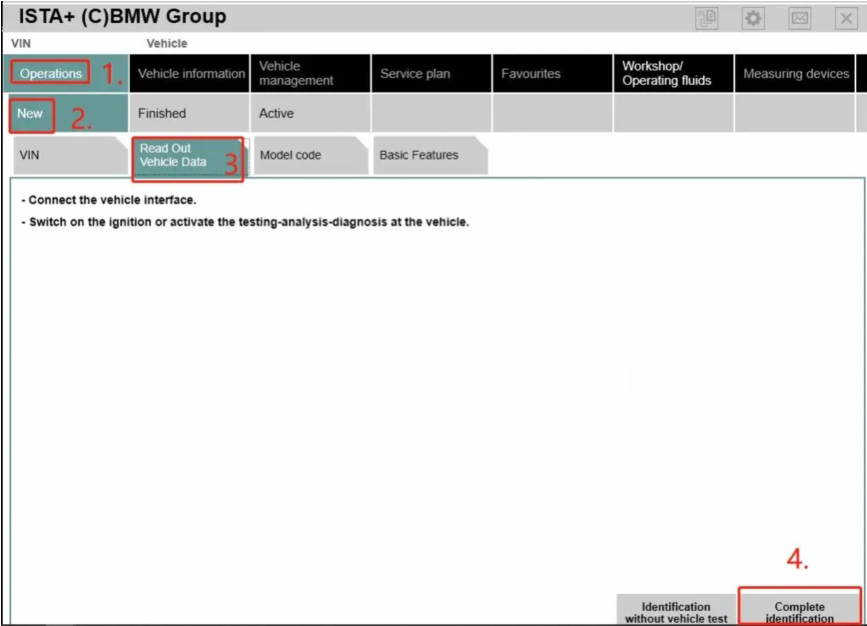
2. Operations-New-Read out vehicle data-complete identification

How-to-Use-BMW-ICOM-Next-ISTA-Software-Diagnose-BMW-Cars-3
How-to-Use-BMW-ICOM-Next-ISTA-Software-Diagnose-BMW-Cars-4

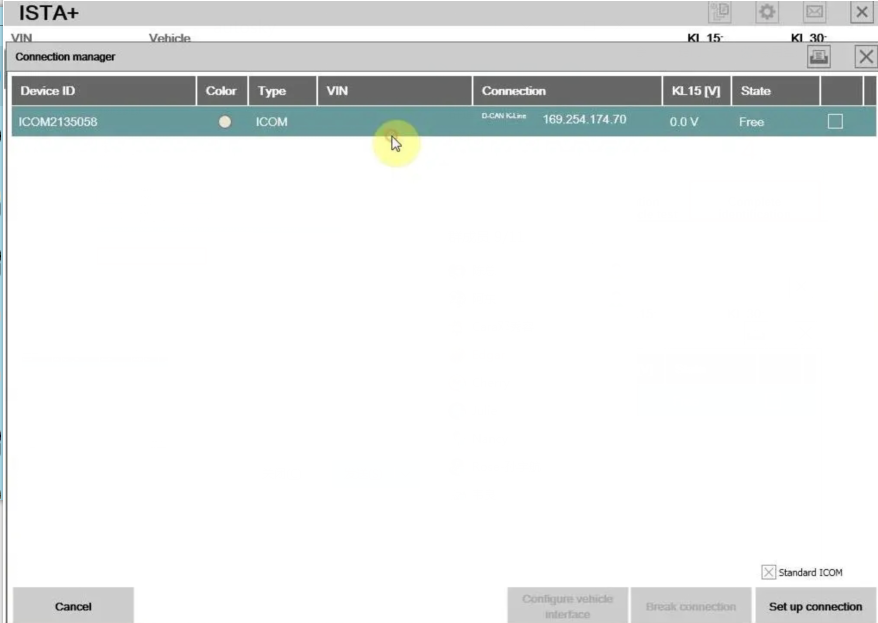
3.Connect

How-to-Use-BMW-ICOM-Next-ISTA-Software-Diagnose-BMW-Cars-5

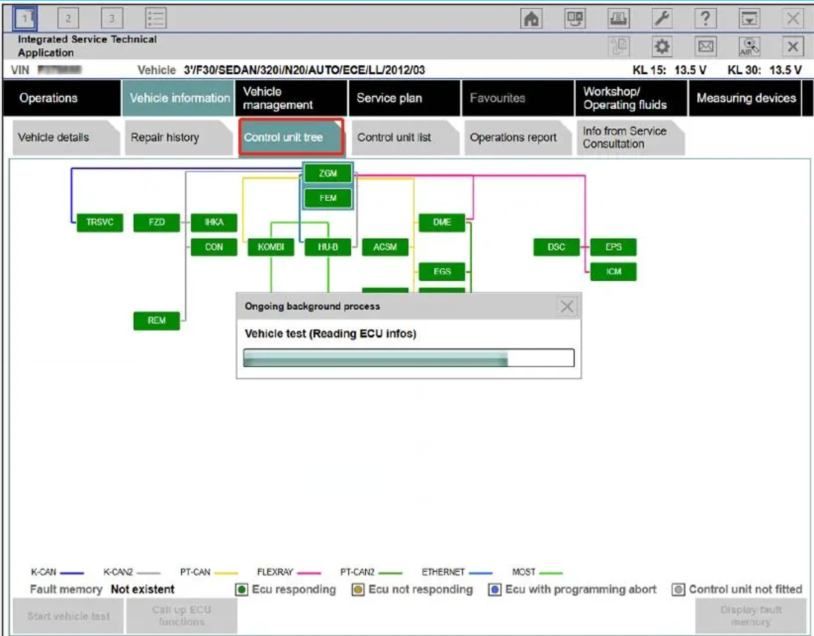
4. Read control unit tree(Read ecu)

How-to-Use-BMW-ICOM-Next-ISTA-Software-Diagnose-BMW-Cars-6

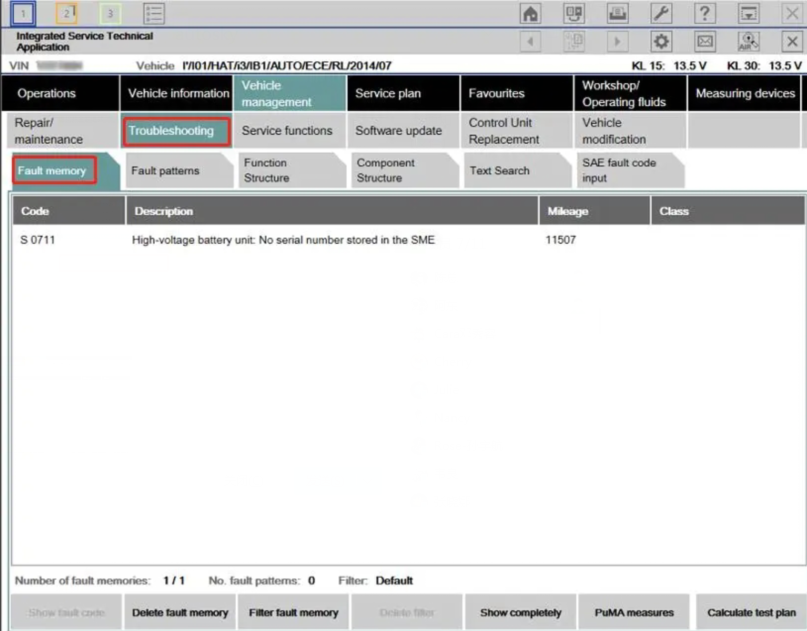
5.Read Fault memory

How-to-Use-BMW-ICOM-Next-ISTA-Software-Diagnose-BMW-Cars-7

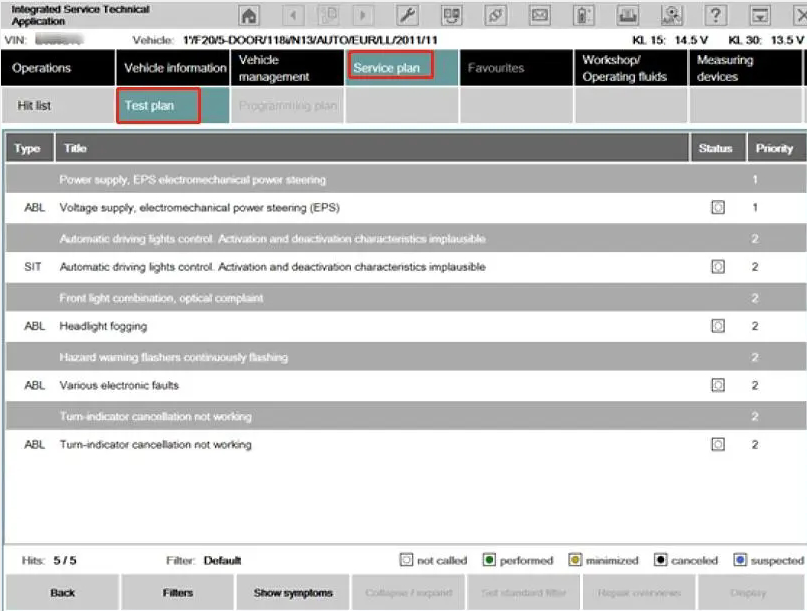
6.Test plan

How-to-Use-BMW-ICOM-Next-ISTA-Software-Diagnose-BMW-Cars-8

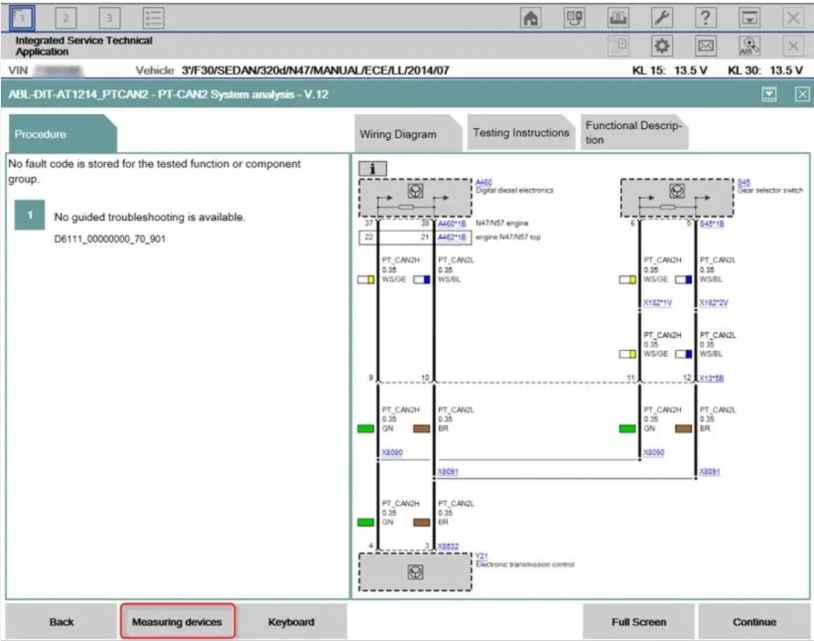
7.Wiring Diagram

How-to-Use-BMW-ICOM-Next-ISTA-Software-Diagnose-BMW-Cars-9

8.Demonstration of car disassembly and installation

How-to-Use-BMW-ICOM-Next-ISTA-Software-Diagnose-BMW-Cars-10

More interesting for BMW ICOM diagnostic tools , welcome to check our website www.obd2tool.com

Thursday, January 20, 2022

BMW Coding Support and Solutions


BMW coding

BMW coding for your BMW 1, 2, 3, 4, 5, 6, 7, X, I, (2004-current E, F, and G, I chassis), and BMW Mini (R5x & F5x) Vehicles using bmw diagnostic tool such as INPA, NCS Expert, and E-Sys. The features below represent a majority of the conveniences that can be disabled/enabled on your BMW (if applicable to your chassis).

Lights
*   Amber/Corner lights delete
*   Angel eyes as DRL
*   Disable bulb out warnings (disables warm and cold testing of bulbs)
*   Double flash hazards (not applicable on F-series chassis)
*   Pathway lighting with the key fob (follow me home lights)
*   Fog and high beams on at the same time
*   LCI taillight retrofit coding
*   Aftermarket HID coding
*   Disable DRL high beams
*   Disable DRL taillights
*   Front turn signals on when welcome lights activated
*   Angel eyes on when welcome lights activated

Cluster
*   M style digital speedometer
*   True car speed on the digital speedometer
*   Lock doors once a certain speed is reached/Unlock doors when the key is ejected
*   Turn off the car and eject the key fob by holding the ignition button in when parked
*   Nighttime illumination in a cluster with Daytime Running Lights
*   Turn signals in HUD
*   Disable Auto Start/Stop by default (F and G series only)
*   Remember the last setting of Auto Start/Stop (F and G series only)
*   Entertainment options in HUD (F series only)
*   Recent call list in HUD (F series only)
*   Assisted Driving View (G series only)

iDrive

*   Traffic options added to CCC/CIC navigation to alert you to any traffic congestion and offer detour options **More info**
*   Aux audio input enable
*   Enable Mp3 playback (Is your BMW compatible?)
*   Bluetooth retrofit coding
*   Satellite Radio input enable (needs hardware module to function)
*   CD changer input enable (needs hardware module to function)
*   Remove Legal disclaimer in Idrive
*   Remove weather band from entertainment source selection
*   Skip AM band on entertainment source selection
*   CIC retrofit coding
*   CIC DVD-in-Motion (For vehicles with CIC units only) *additional fee*
*   Update CCC DVD navigation maps ($15 installation fee). **Do I have CCC or CIC?**
*   Climate shortcut display shows in iDrive when fan button pushed (e9x only)
*   Seat heater “hi-med-low” slider in iDrive (e6x only)
*   Navigation FSC update code for latest Maps *additional fee*
*   Radio/Navigation off when the door opened (F series only)
*   Automatically set time by GPS in iDrive (NBT iDrive only)
*   Enhanced Bluetooth and USB (F series only)
*   Side view cameras on at all speeds (F series only)
*   Top view cameras on at all speeds (F series only)
*   Backup view camera on at all speeds (F series only)
*   Remove PDC + Cam disclaimer (F series only)
*   Tire pressure + Temperature in TPMS (F series only)
*   Phone Ringtone sent to CIC (F series only – not applicable on cars with no navigation)
*   DRL front and rear options (G series only)

Climate

*   AC blower was not turned on automatically when ignition switched on
*   LED fan speed indicator on in the Auto mode
*   Pressing “AUTO” on climate control does not turn on AC

Body

*   Windows up/down sunroof open/close with a key fob button press
*   Mirror fold in with key fob (must-have mirror fold option)
*   Disable seat belt butlers
*   Disable seat belt chime
*   Alarm module retrofit coding
*   Change alarm siren type to Euro (E-series chassis only)
*   Disable auto-dimming mirror (side-views)
*   Disable window safety feature (opening doors will not interrupt roll-up operation – not applicable to E6x)
*   Disable door chime when the door is open and the key is in slot
*   Enable acoustic notification on lock/unlock (must have alarm module)
*   Convertible roof-top open while driving (E-series convertibles)
*   Convertible roof-top open with the key fob (E93, and F-series convertibles)
*   One-touch auto open/close sunroof
*   Easy Entry – seat moves back a little when you open the door (F series only)
*   Enable Blind Spot Detection at lower speeds  (F series only)
*   Reprogram 3rd and 4th buttons on key fob (I3 Only)
*   Trunk close with key fob and interior button (F, X3, X5 series only. Not including 6 series F models)

Engine
Diagnostics and Service

*   Clear engine and transmission adaptations
*   Reset FRM short circuit counters/locks
*   Write VIN# and program used replacement ECUs/modules
*   Disable Neutral Idle Control per bulletin SI B24 03 08
*   New battery registration
*   Read/Clear OBD and BMW specific diagnostic codes
*   BMW Diagnostics and calibration using ISTA/Rheingold/INPA/Tool32
*   Replacement fuel injector parameter coding (N54/N55 engines)
*   Adjust idle RPM’s (not available for R5x BMW Mini models)

I3

*   Allow 2.4 Gallon Tank Capacity (I3 only)
*   Allow REX anytime below 75% “Hold Mode” (I3 only)
*   Eco-Pro or Eco-Pro+ on startup (I3 only)
*   Traffic Jam Assistant (I3 only)

BMW Performance Power Kit PPK (for N54 & N55 engines)

*   For N54 equipped vehicles produced from 03/2008 till 03/2010
*   For N55 equipped vehicles produced up till 02/2012
*   Increased torque of 317 ft-lbs (manual trans) or 332 ft-lbs (auto trans), available from just 1,500 rpm
*   Increased maximum output* of 320 horsepower (see graph image)
*   Faster acceleration from 0 to 75 mph

**Please include the last 7 digits of your VIN# in the quote.
Alpina B3 Transmission Flash (for N54 & N55 engines)

*   For N54/N55 equipped E9x vehicles produced from 03/2007+
*   Smoother shifting
*   Quicker up-shifts in D mode (Better fuel economy)
*   More precise shifting with fantastic rev-matching on downshifts in Sport mode.

**Please include the last 7 digits of your VIN# in the quote.
E90/E92/E93 M3 Euro GTS DCT flash

*   Improves the jerky or clunky downshifting when coming to a stop
*   Quicker and smoother gear shift engagement
*   Reduced clutch slip at higher RPMs
*   No more lag when shifting into reverse
*   Toggling the shifter switches to D2 instead of S3 with S mode memory

**Please include the last 7 digits of your VIN# in the quote.
N52 Three Stage Intake Manifold Flashing (for N52B30 engines)

*   For N52B30 equipped 1, 3, 5, and Z4 series E chassis vehicles
*   Up to 255bhp with 221 lb-ft of torque @ 6600rpm (265bhp for the 130i)
*   BMW 130i, 330i, 530i, Z4si factory software reliability

**HP gains to wheels will be more conservative.

**Please include the last 7 digits of your VIN# in the quote.
E46 M3 w/SMG II

*   CSL rev-matching and motor inertia DME parameters
*   CSL Transmission Software Flash
*   Cold-Start Delete
*   EWS Delete
*   Sport button memory
*   Speed governor removal
*   Enable shift lights with Manual Transmission

**If the vehicle has aftermarket tune or ECU upgrade please inquire if possible.
Tuesday, January 18, 2022

How to change the IP address of ENET WIFI


How to change the IP address of ENET WIFI

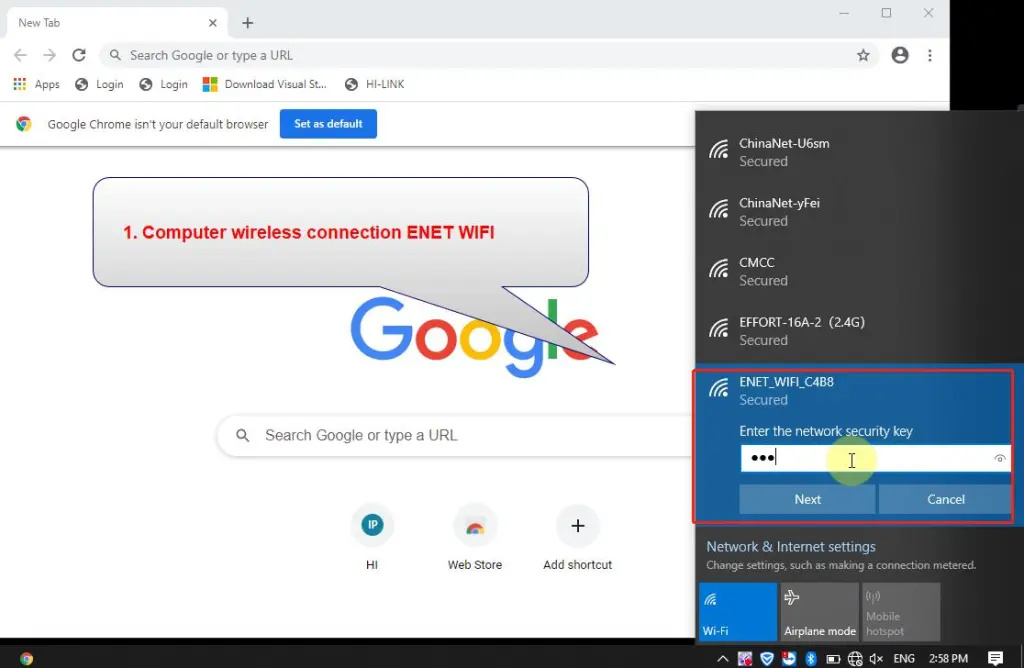
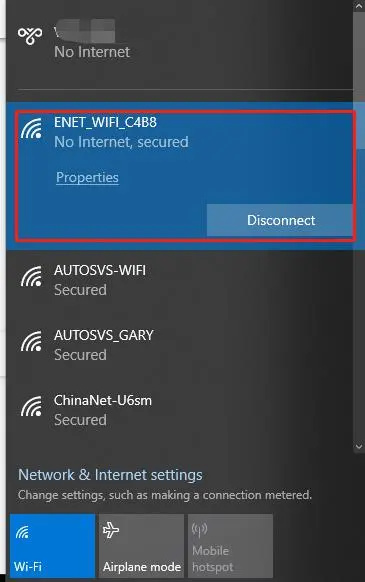
1.PC WIFI connect to ENET WIFI,(BMW ENET WIFI)
WIFI name:ENET_WIFI_XXXX
WIFI Password:12346578

How-to-change-the-IP-address-of-ENET-WIFI-1

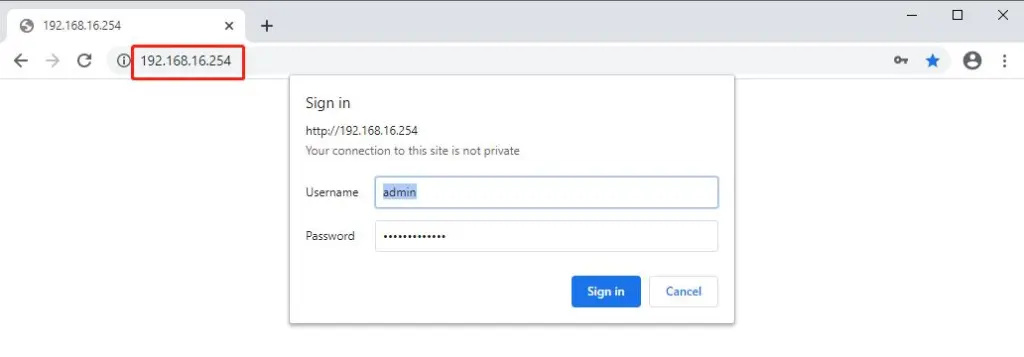
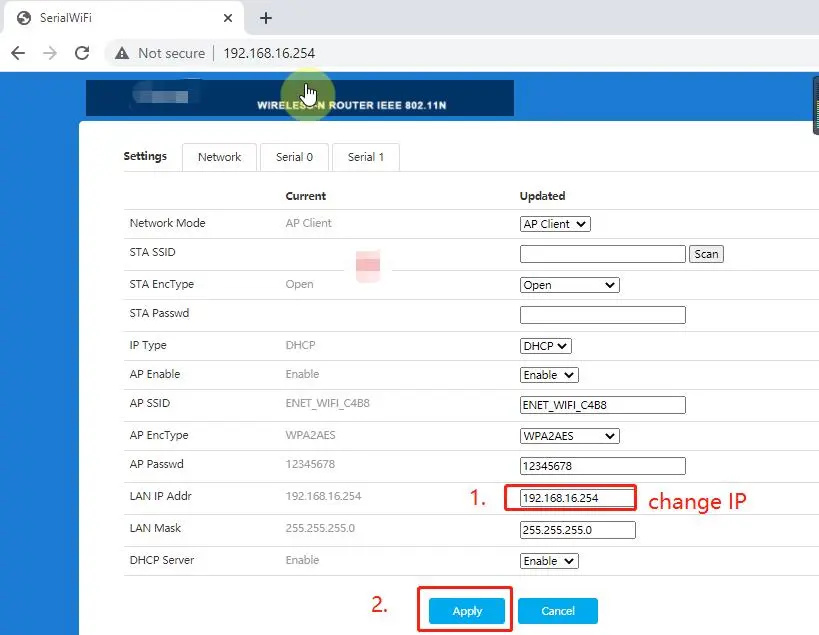
2.Use the IP address of 192.168.16.254 to login to the web page;

How-to-change-the-IP-address-of-ENET-WIFI-2
How-to-change-the-IP-address-of-ENET-WIFI-3

3.Change IP address(For example, you can change the IP address to 169.254.100.100, the next time you log in, you need to use the IP address 169.254.100.100 to login to the ENET WIFI web page)

How-to-change-the-IP-address-of-ENET-WIFI-4

If you want to know more about bmw, please click  bmw trouble repair.

Tuesday, January 11, 2022

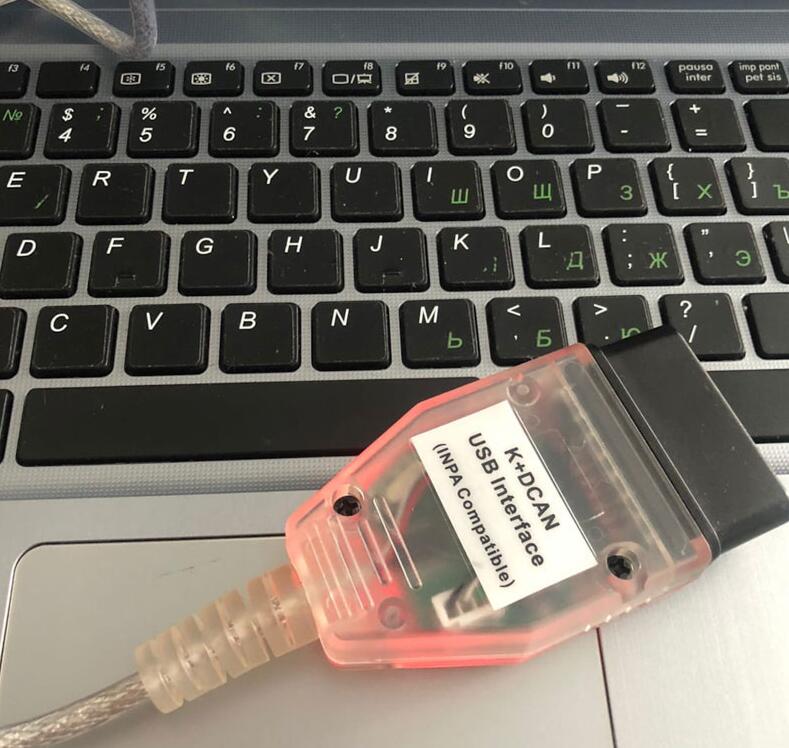
How to install BMW Standard tools for the INPA K+DCAN usb interface


Today we will share a fast and convenient way to install BMW Standard tools for the INPA K+DCAN usb interface.
How-to-install-BMW-Standard-tools-1

Download the software archives:
INPA
Driver for the k+dcan cable itself

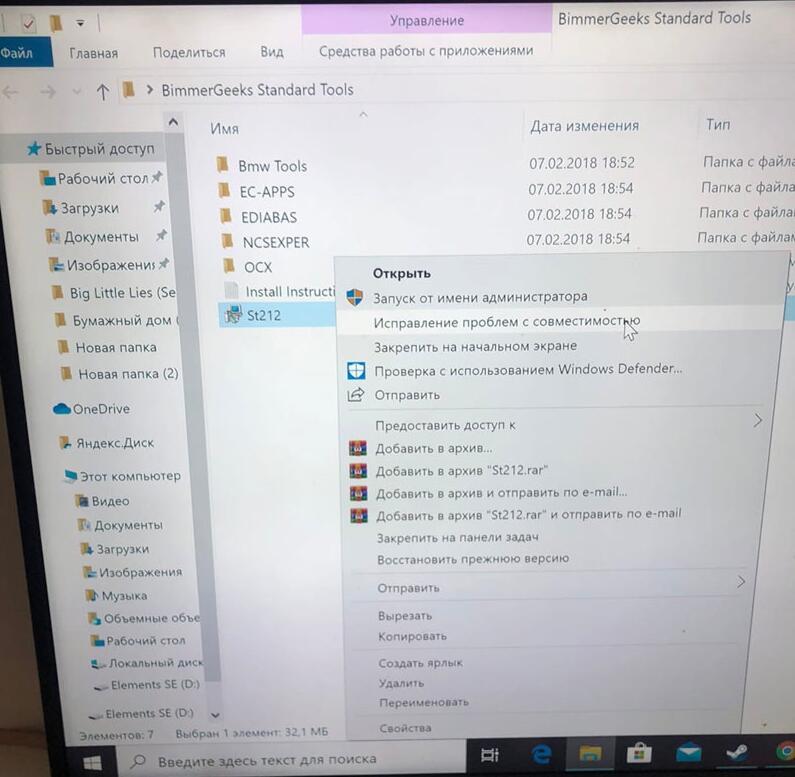
Unzip BimmerGeeks Standard Tools. In the folder we find St212.exe, right click on it and select “fix compatibility issues”
How-to-install-BMW-Standard-tools-2

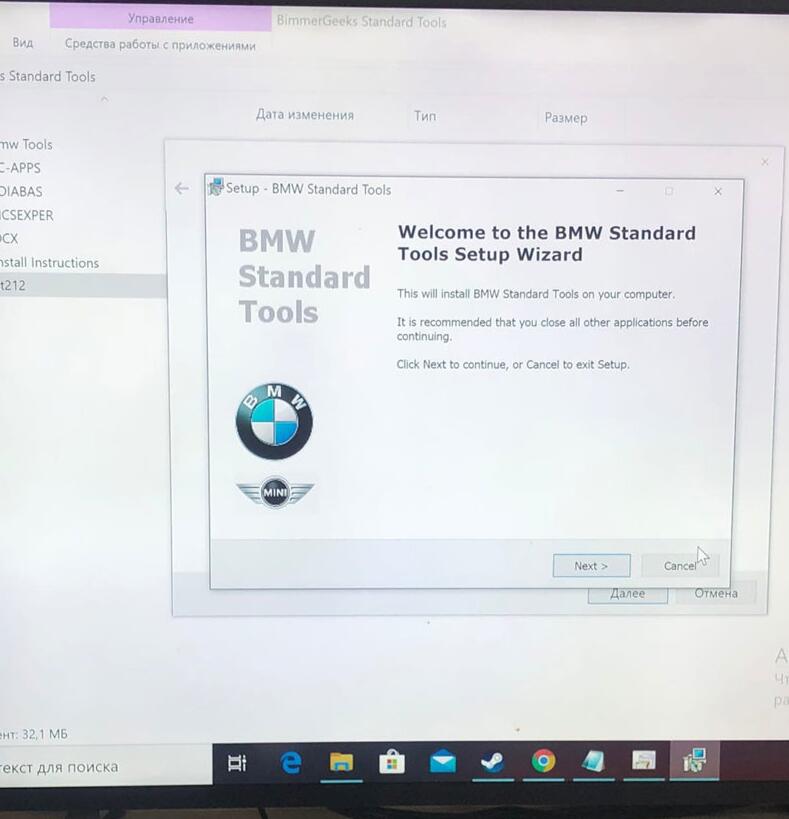
The system may swear, then repeat the action again or click the program check and the installation will proceed. By default, the installation will go to disk c. Leave it like that. Then transfer to wherever you like.

How-to-install-BMW-Standard-tools-3

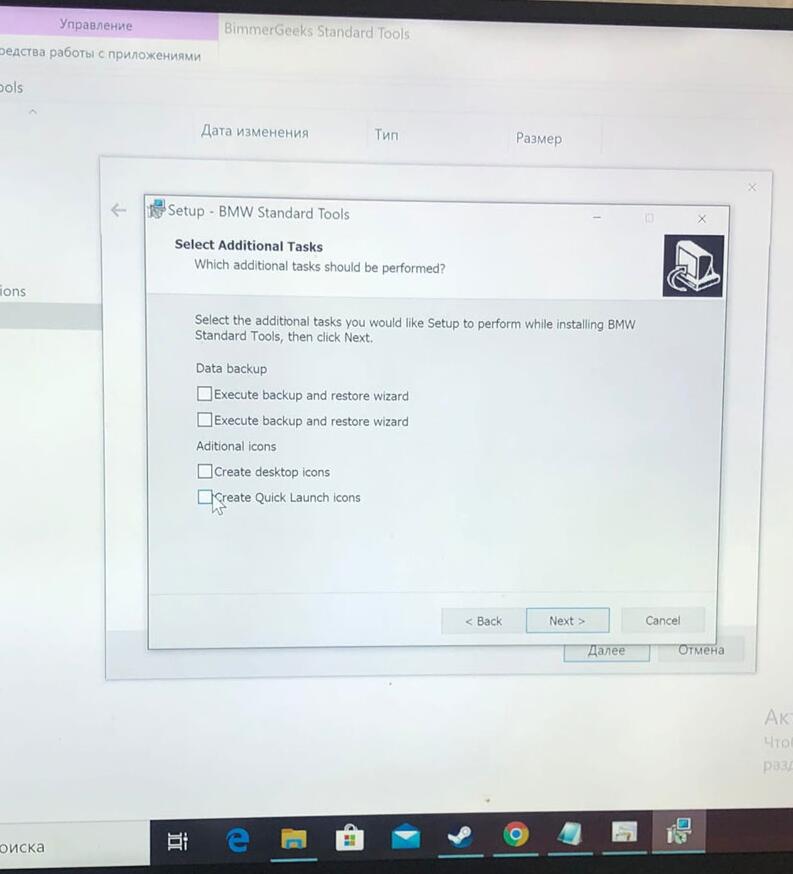
During installation, click next and leave everything by default, except for the window where they offer to create a backup and shortcuts on the desktop, then we uncheck all the boxes.

How-to-install-BMW-Standard-tools-4

At the end of the installation, we are offered to reboot the system, we refuse. Installation completed.

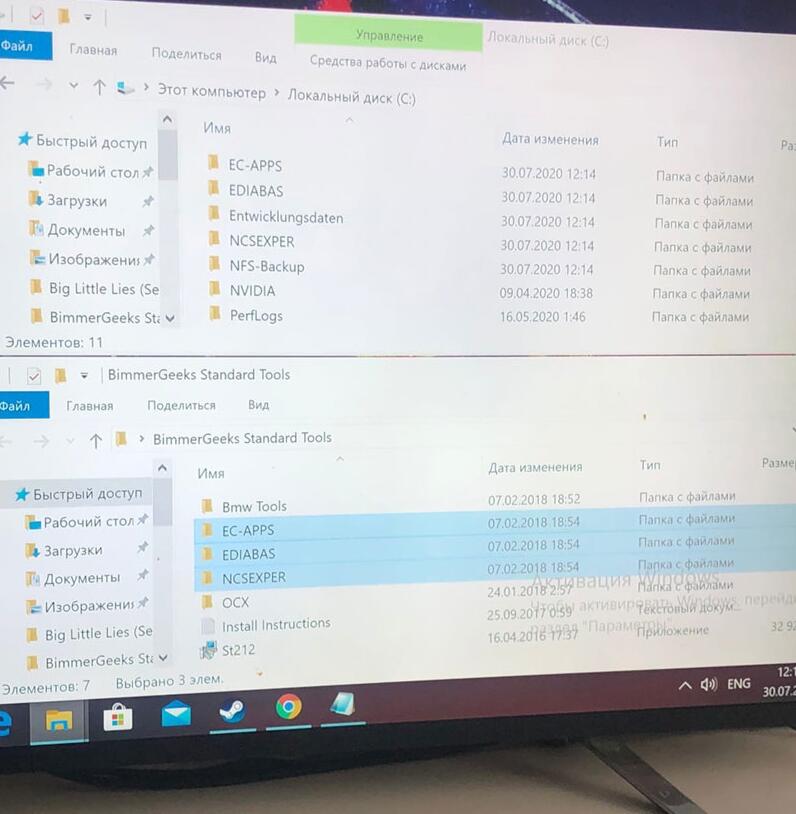
Next, go to drive C: there we find the EC-APPS, EDIABAS & NCSEXPER folders and replace them with the EC-APPS, EDIABAS & NCSEXPER folders from the BimmerGeeks Standard Tools archive.

How-to-install-BMW-Standard-tools-5

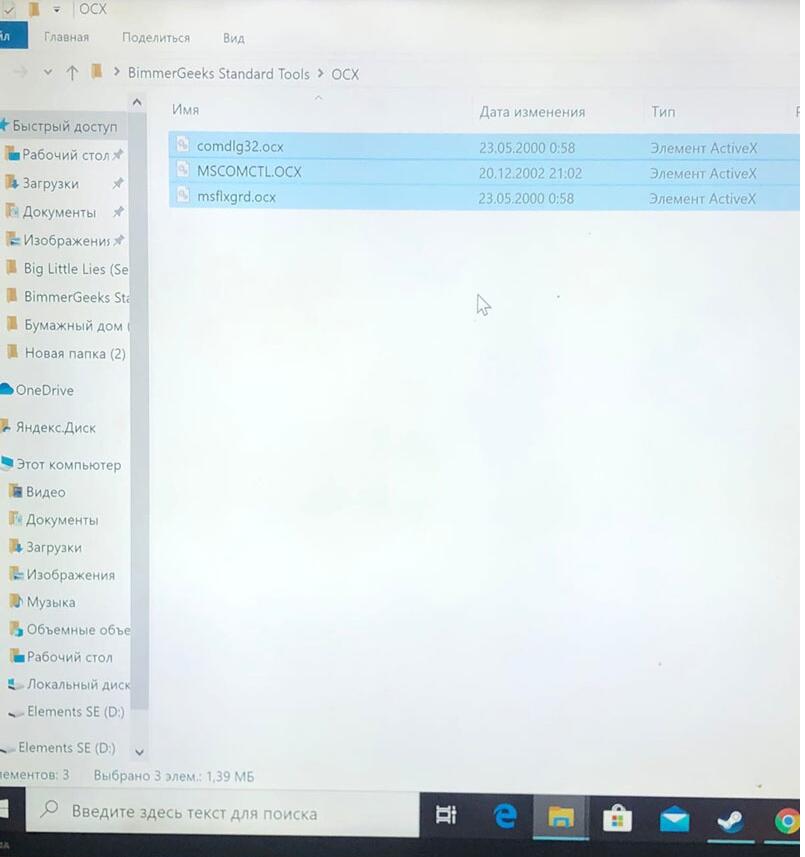
Next, in the BimmerGeeks Standard Tools archive, we find the OCX folder, there we find 3 files and copy them to C:\Windows\Syswow64 with a replacement.

How-to-install-BMW-Standard-tools-6

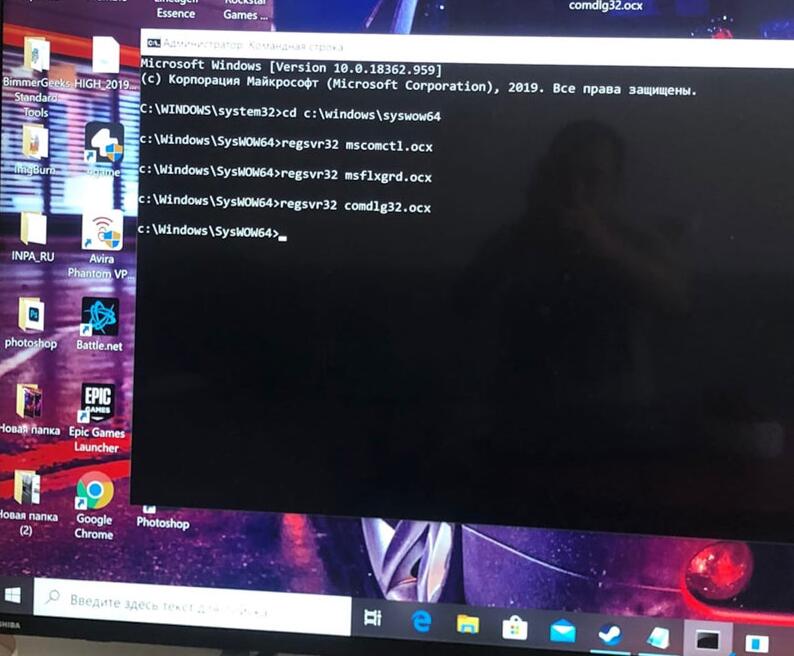
Now we need to open a command. To do this, in the windows search, enter cmd, click on the command prompt shortcut with the right mouse button and run it as an administrator.
At the command line, type cd c:\windows\syswow64
(Press Enter)
regsvr32 mscomctl.ocx
(Press Enter and wait for the message “Registration was successful”)
regsvr32 msflxgrd.ocx
(Press Enter and wait for the message “Registration was successful”)
regsvr32 comdlg32. ocx
(Press Enter and wait for the message “Registration was successful”)
It should look like this:

How-to-install-BMW-Standard-tools-7

Place the BMW icon from the BimmerGeeks Standard Tools folder on your desktop. Labels for all software are inside.

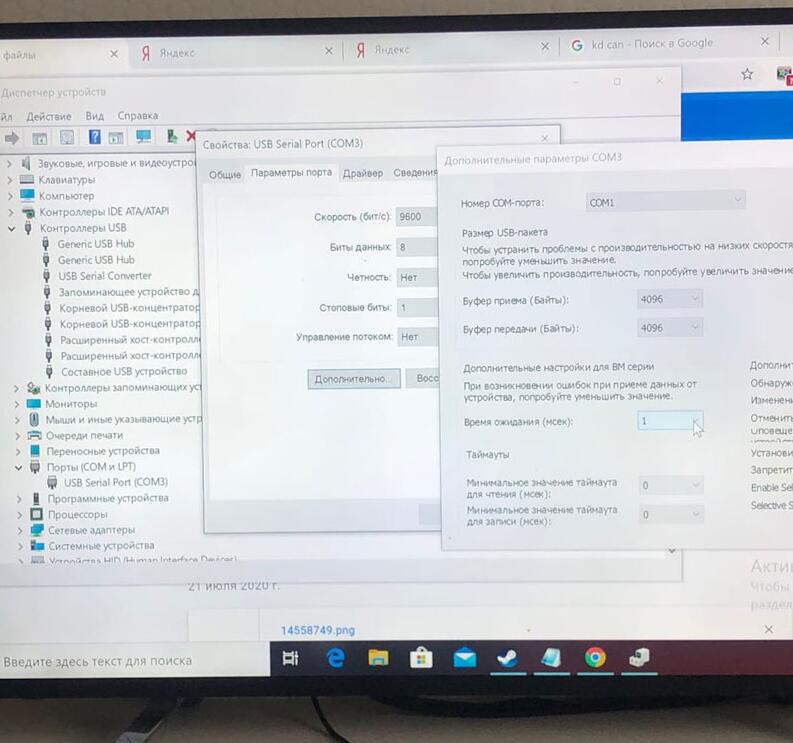
Next, we need to configure our INPA K+DCAN cable, go to the device manager. Open the Ports tab (COM and LTP) Select USB Serial port (COM3) go to properties, advanced parameters and change COM3 to COM1 and response time (ms) to 1. You may need to install the driver, then unzip the archive with the driver to any convenient place, in the port settings, click update driver and specify the path to the folder.

How-to-install-BMW-Standard-tools-8

This method of installing INPA on a Windows 10 laptop seemed to be the most convenient and fast.

If you want to know more about BMW Diagnostic Tool, please click our website: www.obd2tool.com